Forgetting your Gmail password can be frustrating, but don’t worry—Google provides multiple ways to recover your account. In this guide, we’ll walk you through step-by-step methods to regain access to your Gmail account, whether you’ve saved the password before or need to reset it completely.
🔑 Method 1: Recover Password Using Saved Credentials (If Previously Saved)
If you’ve previously saved your Gmail password on your device, follow these steps:
Step 1: Open Gmail on Your PC or Desktop
- Go to Gmail’s official website.
- If you’re already logged in, click on your profile icon (top-right corner).
Step 2: Check Saved Passwords in Browser
- Click on the three-dot menu (⋮) → Settings → Autofill → Passwords.
- Find your Gmail account and click the eye icon to reveal the password.
- You may need to enter your computer login password for security verification.
✅ Pro Tip: Use Google Password Manager (passwords.google.com) to manage saved passwords securely.
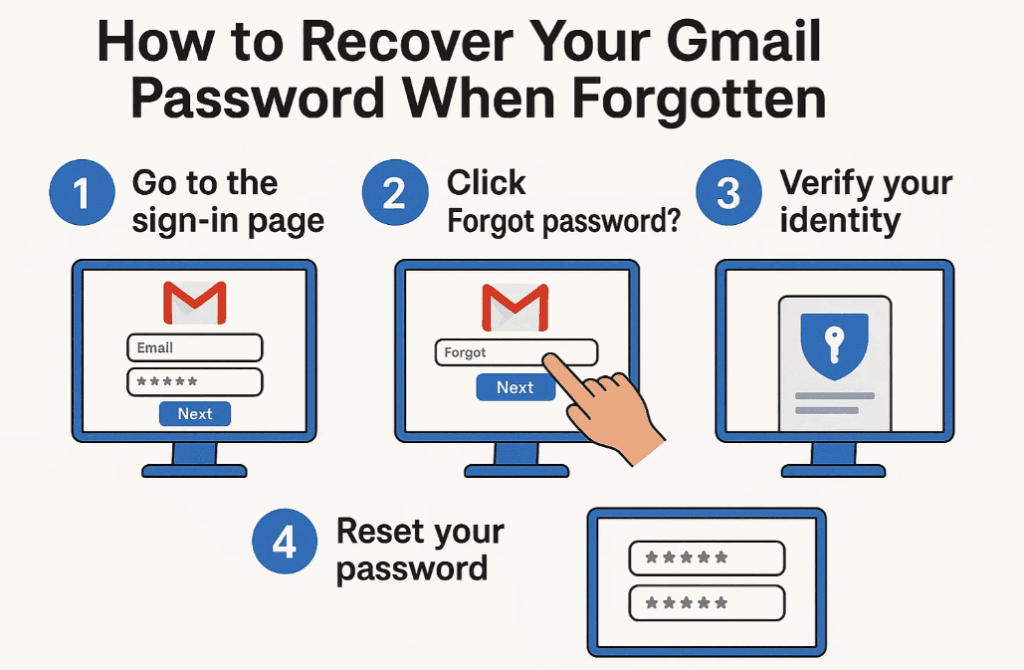
📱 Method 2: Reset Password via Google Account Recovery
If you haven’t saved your password, use Google’s account recovery process:
Step 1: Go to Google Account Recovery
- Visit Google Account Recovery.
- Enter your Gmail address and click Next.
Step 2: Enter the Last Password You Remember
- If you recall any previous password, enter it.
- If not, click “Try another way”.
Step 3: Verify via Phone Number or Recovery Email
- Google will send a verification code to your linked:
- Phone number (via SMS)
- Recovery email
- Enter the OTP received and click Next.
Step 4: Create a New Password
- Enter a strong new password (twice for confirmation).
- Click Change Password to complete the process.
✅ Pro Tip: Always keep your recovery email and phone number updated for easy account recovery.
📲 Method 3: Recover Using a Trusted Device
If you’re logged into Gmail on another device (like a phone or tablet), you can reset the password from there:
Step 1: Open Gmail on Your Mobile Device
- Go to Settings → Google → Manage Google Account.
- Tap Security → Password.
Step 2: Verify Identity
- Enter your device PIN, fingerprint, or face unlock.
- Set a new password and confirm.
✅ Pro Tip: Enable 2-Step Verification (here) for extra security.
❓ Frequently Asked Questions (FAQs)
Q1. What if I don’t have access to my recovery phone or email?
- Google may ask security questions or check recent account activity for verification.
- If no recovery options work, visit Google Account Help.
Q2. Can I recover a deleted Gmail account?
- Yes, but only within 30 days of deletion. Go to Account Recovery and follow prompts.
Q3. How do I prevent losing my Gmail account again?
- Update recovery info regularly.
- Use Google Authenticator for 2FA.
- Save passwords in Google Password Manager.
🔒 Final Thoughts
Losing access to your Gmail account can be stressful, but Google provides multiple recovery options. Follow these steps carefully, and you’ll regain access in no time!
📌 Tags: Gmail Recovery, Forgot Password, Google Account, Tech Tips, Password Reset, Cyber Security
🚀 Hashtags: #GmailHack #AccountRecovery #GoogleHelp #TechSupport #PasswordSecurity
Disclaimer: This guide is for educational purposes. Always ensure you’re recovering your own account ethically. Google’s official support should be contacted for unresolved issues.










🔗 Need more help? Visit Google Account Help Center.
By following these steps, you can easily recover your Gmail password and secure your account for the future. 🚀









What is the problem please open your gmail account google pls 🙏