CorelDRAW and Adobe Photoshop are powerful tools widely used by graphic designers. CorelDRAW excels at vector graphics, while Photoshop is the go-to for raster image editing. Sometimes, designers need to switch between these tools to leverage their unique strengths. This blog post will guide you on how to create and use a VBA macro to seamlessly edit bitmap files from CorelDRAW in Photoshop.
Step-by-Step Guide
Step 1: Preparing CorelDRAW
Before running the macro, ensure that CorelDRAW and Photoshop are installed on your computer and properly configured.
Step 2: Downloading the Macro
- Download the Macro: Download the CorelDRAW to Photoshop “PSDtoCorelDraw.zip” macro from the provided link. Save it to a convenient location on your computer.
Step 3: Loading the Macro in CorelDRAW
- Open CorelDRAW: Open CorelDRAW and go to the Script Panel by navigating to
Tools > Scripts > Script Editor. - Load the Macro: In the Script Editor, load the downloaded macro by selecting
File > Load Scriptand navigating to the location where you saved the macro file. Load it into the Script Editor.
Step 4: Running the Macro
- Select the Bitmap: In CorelDRAW, select the bitmap you want to edit.
- Run the Macro: In the Script Editor, run the
EditInPhotoShopmacro. This will export the selected bitmap to a temporary location and open it in Photoshop for editing.
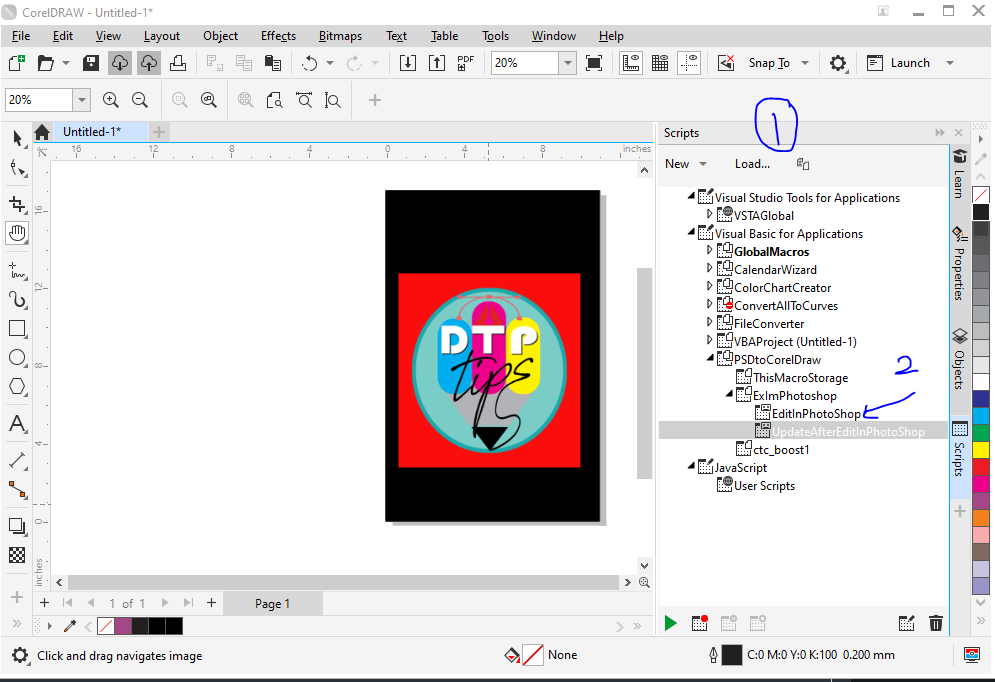
- Edit in Photoshop: Make the necessary edits in Photoshop. Save the changes when you’re done.
- Reimport the Edited Bitmap: Run the
UpdateAfterEditInPhotoShopmacro in CorelDRAW to reimport the edited bitmap into your CorelDRAW document.
However, this macros does what it says but how about many more macros mentioned here that also automate many task and enhance your productivity
- Best Macro for Coreldraw Powerclip Editor – Crop and manage images easily
- QR Code Wizard Macro for CorelDraw
- Edit Bitmap Files from CorelDRAW 2024 to Photoshop Using VBA Macro
- Convert Text and Objects to Curve – CorelDraw Macro
- Guides and Crop Marks Maker – CorelDraw Macro
- Convert Text into Curves – CorelDraw Macro
Step 5: Automating the Macro Loading (Optional)
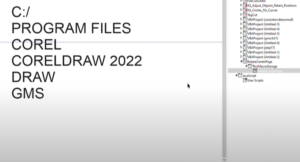
- Locate the CorelDRAW Scripts Directory: Find the directory where CorelDRAW stores its scripts. It should be like “C:\Program Files\Corel\CorelDRAW Graphics Suite\25\Draw\GMS“. This is usually located in the CorelDRAW installation directory or in the user profile scripts directory.
- Copy the Macro: Copy the downloaded macro file into the relevant CorelDRAW version’s scripts directory.
- Restart CorelDRAW: Restart CorelDRAW to ensure it recognizes the new script. The macro should now be available without needing to load it manually each time.
Conclusion
Using VBA macros, you can significantly streamline the workflow between CorelDRAW and Photoshop. This allows you to utilize the strengths of both programs efficiently, improving your overall productivity and the quality of your designs. By following these steps, you can ensure that the macro is always readily available, making your editing process smoother and more efficient.
Tags: CorelDRAW macro, Edit bitmap in Photoshop, CorelDRAW to Photoshop VBA, Workflow automation, Photoshop integration, Graphic design macro, VBA scripting, Bitmap editing, Design tools, CorelDraw Photoshop bridge
Hashtags:
#CorelDRAW #Photoshop #VBAMacro #BitmapEditing #WorkflowAutomation #DesignTools #GraphicDesign #VBA #CorelDRAWMacros #Automation

















Corel Draw 2025 me ye macro run karne par corel turant Crash ho jata hai How to work ?