When your printer suddenly shows “Offline” or your scanner won’t respond, everything from school assignments to client deliverables can grind to a halt. The good news: in most cases you can bring your printer/scanner back online with a handful of methodical checks—no panic, no guesswork.
Below is a step-by-step, human-style guide that starts with quick wins and moves toward deeper fixes. I’ll explain why each step matters, add transition notes so you know what’s coming next, include vendor links, and finish with a practical FAQ. Follow along once, and you’ll know exactly what to do the next time Windows misbehaves.
1) Before You Begin: What “Offline” Really Means
Let’s set expectations. “Offline” in Windows typically means Windows can’t talk to the device using the configured port or protocol. That could be as simple as:
- The printer is asleep or powered off,
- It’s on a different network (2.4 GHz vs 5 GHz SSID, guest network, VPN isolation),
- The Windows spooler jammed,
- The port is wrong (WSD vs TCP/IP), or
- The driver isn’t responding.
So we’ll start with physical/obvious checks (they fix more issues than you’d expect) and climb the ladder toward software and network changes.
Alright, sleeves up—quick wins first, then we’ll go deeper if needed.
2) Quick Checklist (Power, Cables, Wi-Fi, Default Printer)
Before we dive into services and ports, let’s ensure the basics are solid. It’s amazing how often the simple things fix the “big” problems.
- Power cycle properly
Turn the printer off → unplug it for 30–60 seconds → plug in → turn on. This resets the NIC (network card) and clears tiny firmware hiccups. - Check cables
For USB printers, reseat the cable and try another port. For Ethernet, ensure the link lights blink on the router/switch. For Wi-Fi, verify the printer is connected to the same SSID as your PC. - Set as default printer
Windows sometimes switches default devices.- Windows 11: Settings → Bluetooth & devices → Printers & scanners → your printer → Set as default
- Windows 10: Settings → Devices → Printers & scanners → your printer → Manage → Set as default
- Printer display panel
Many printers show their IP address and network status on the screen. Jot down the IP; we’ll use it later to add the printer by TCP/IP if needed.
If you’re still offline after this quick pass, no worries—let’s reset Windows’ print brain.
3) Restart the Print Spooler (and Set It to Automatic)
The Print Spooler service queues jobs to the printer. If it’s stuck, Windows may show “Offline.”
- Press Start, type services, right-click Services, choose Run as administrator.
- Press P to jump down and find Print Spooler.
- Double-click it → Startup type: Automatic → Apply.
- Click Stop, wait 3–5 seconds, then Start.
- Click OK to save.
Nice. If the spooler was the culprit, you might already be back in business. If not, one more housecleaning step helps a lot: clearing stuck jobs.
4) Clear Stuck Print Jobs the Right Way
Sometimes a single corrupted job will keep the queue jammed.
Method A: From the UI
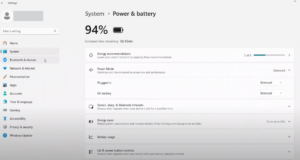



- Open Settings → Printers & scanners → [Your Printer] → Open print queue → cancel all jobs.
Method B: Manual purge (guaranteed clean)
- Open Services again, Stop the Print Spooler.
- Press Win + R, paste:
%systemroot%\System32\spool\PRINTERS - Delete everything inside PRINTERS (not the folder itself).
- Back in Services, Start the Print Spooler.
Now try printing a test page from Printer properties → Print Test Page. If it prints, congrats! If not, let’s continue through Windows’ settings.
5) Fixes via Windows Settings (Printers & Scanners)
Windows 11: Settings → Bluetooth & devices → Printers & scanners → [Your Printer]
Windows 10: Settings → Devices → Printers & scanners → [Your Printer]
Here’s what to check:
- Queue is empty: Cancel lingering jobs.
- Set as default: Turn off “Let Windows manage my default printer” (it can confuse things), then set yours as default.
- Run “Manage” → “Print test page”: Confirms basic communication.
- Remove & re-add: If the connection looks corrupt, remove the device, then Add device again. If Windows adds it as WSD, we’ll switch to TCP/IP in the next section for stability.
If Settings didn’t flip it to Online, the classic Control Panel has a couple of toggles that matter a lot.
6) Classic Control Panel Tweaks (Ports, “Use Printer Offline”, Default)
- Press Start, type control, open Control Panel.
- Set View by → Large icons.
- Click Devices and Printers.
- Right-click your printer → See what’s printing:
- Printer menu → Uncheck “Use Printer Offline” (if checked).
- Right-click printer → Printer properties → Ports:
- If you see WSD selected and you experience random offline states, consider switching to a Standard TCP/IP port pointing to the printer’s static IP (we’ll add this next).
- General → Print Test Page to verify.
If your printer turns Online only sometimes, it’s often a port discovery problem—WSD is convenient but can be flaky on some networks. Let’s add a TCP/IP port explicitly.
7) Add the Printer by IP (TCP/IP) Instead of WSD
This is one of the most reliable fixes for network printers.
Find the printer IP
- On the printer panel, print a Network Configuration page, or
- Check your router’s DHCP clients list, or
- Use any IP scanner on your network.
Add by TCP/IP
- Control Panel → Devices and Printers → Add a printer (or Settings → Add device → The printer that I want isn’t listed).
- Choose Add a printer using a TCP/IP address or hostname.
- Device type: TCP/IP Device.
- Hostname or IP address: enter the printer’s IP (e.g.,
192.168.1.50). - Query the printer: leave checked (or uncheck if the auto-detect fails).
- When prompted for driver, pick the precise model or Have Disk (see vendor links below).
- After creation, open Printer properties → Ports and confirm your new Standard TCP/IP Port is selected.
Pro tip: If the printer still flips to Offline occasionally, edit the port: Configure Port → Uncheck SNMP Status Enabled. Some printers (or firewalls) don’t respond to SNMP consistently, which tricks Windows into thinking the device is offline.
8) Install/Repair the Correct Driver (Vendor Links)
A mismatched or generic driver can cause “Offline,” flaky duplex, or strange paper size errors. The safest path is the official driver for your exact model.
- HP — HP Smart & Drivers: https://support.hp.com/drivers
- Canon — Support & Drivers: https://www.usa.canon.com/support
- Epson — Support: https://epson.com/Support
- Brother — Support: https://support.brother.com/
- Kyocera — Support: https://www.kyoceradocumentsolutions.com/
- Ricoh — Support: https://www.ricoh-usa.com/en/support
Steps
- Download the full feature package or the correct PCL/PS driver (avoid random third-party sites).
- Uninstall the old printer (Settings → Printers & scanners → Remove), and optionally remove older driver packages via Print Server Properties → Drivers (Devices and Printers → any blank area → Print server properties).
- Reboot.
- Add printer again using TCP/IP port and select the newly installed driver.
Why this helps: Vendor drivers include model-specific language/commands the printer expects; generic or wrong drivers can respond unpredictably and appear “Offline.”
9) Scanner-Specific Fixes (WIA, TWAIN, Scanner Apps)
If printing’s fine but scanning is broken or “Offline,” focus on WIA (Windows Image Acquisition) and scanner apps.
- Ensure WIA is running
- Open Services (Admin).
- Locate Windows Image Acquisition (WIA) → Startup type: Automatic → Start/Restart.
- Use Microsoft’s Windows Scan app
- Windows 11/10 Store: Windows Scan (official, lightweight).
- Try scanning there to rule out app-specific issues (e.g., older OEM scan utilities).
- TWAIN vs WIA
- Some vendor tools prefer TWAIN drivers, others use WIA. Install both if offered.
- Always get them from the vendor links above.
- Network scanner discovery
If your device scans over the network, ensure PC and scanner are on the same subnet and that your firewall allows inbound discovery (some scanners use mDNS/Bonjour, SMB, or HTTP). - Scan to folder (SMB) tips
- Create a shared folder (e.g.,
C:\Scans), - Right-click → Properties → Sharing → Advanced Sharing → Share this folder,
- Permissions: allow Change for the user the printer/scanner will authenticate as,
- On the printer’s panel/webpage, configure Scan to SMB with the PC’s IP, share name, username, and password.
- Create a shared folder (e.g.,
10) Network-Level Fixes (DHCP Reservation, SNMP, Firewalls)
If you keep seeing “Offline” after a day or two, it’s often a changing IP address or status polling issue:
- Reserve the IP in your router (DHCP reservation) so the printer’s IP never changes.
- In the TCP/IP port → Configure Port, try disabling SNMP if status detection is flaky.
- Firewalls: allow your printer’s IP and ports (especially if using vendor suites that hook networking).
- ICMP (Ping): some discovery relies on ping; if your security stack blocks ICMP, Windows might time out status checks.
11) Special Notes: USB Printers vs Network/Wi-Fi Printers
- USB Printers
- Try a different USB port (preferably a USB-A port directly on the PC).
- Avoid unpowered hubs.
- Reinstall the driver after switching ports if Windows installs a different instance.
- Wi-Fi Printers
- Keep the printer close to the router during setup; poor signal = random Offline.
- Ensure it’s not on the guest network (which usually isolates devices).
- Some printers behave better on 2.4 GHz (longer range) than 5 GHz.
- Wired Ethernet Printers
- Most stable if you can run a cable.
- Reserve the IP and use TCP/IP port.
- If status flips Offline randomly, disable SNMP status in the port config.
12) Use Built-in Troubleshooters & Optional Updates
- Windows Troubleshooter
- Windows 11: Settings → System → Troubleshoot → Other troubleshooters → Printer.
- Windows 10: Settings → Update & Security → Troubleshoot → Additional troubleshooters → Printer.
Let it detect spooler/queue/port misconfigurations automatically.
- Optional updates
- Settings → Windows Update → Advanced options → Optional updates → look for printer driver updates from your device vendor.
13) Update Printer Firmware (When and Why)
If you’ve tried all of the above and still get intermittent Offline states, check your manufacturer’s site for a firmware update:
- Firmware can fix bugs in Wi-Fi stability, SNMP reporting, and sleep/wake behavior.
- Always follow on-screen instructions; do not power off during firmware updates.
Find firmware under the same vendor links in section 8.
14) Decision Flow: Offline → Online (At-a-Glance Table)
| Symptom | Likely Cause | Quick Fix | If Not Fixed |
|---|---|---|---|
| Printer shows Offline | Sleep/power, default switched | Power cycle; set Default | Spooler restart (Sect. 3), clear queue (Sect. 4) |
| Prints sometimes, not always | WSD discovery flaky | Add TCP/IP port | Disable SNMP status in port config |
| Immediate Offline after job | Stuck/corrupt job | Clear queue properly | Reinstall driver (Sect. 8) |
| Works via USB, not via Wi-Fi | Network isolation/SSID | Same SSID; strong signal | DHCP reservation; add via TCP/IP |
| Scanner won’t detect | WIA/TWAIN issue | Start WIA; use Windows Scan | Install vendor scan drivers |
| Randomly disappears | Changing IP | DHCP reservation | Firmware update; stable port; firewall check |
15) FAQs
Q1: “Use Printer Offline” keeps re-enabling itself. What should I do?
Uncheck it under Devices and Printers → See what’s printing → Printer menu. If it returns, switch to a Standard TCP/IP port, disable SNMP status, and ensure the printer has a reserved IP.
Q2: Should I use WSD or TCP/IP?
TCP/IP is more deterministic and stable—especially on mixed networks or with strict firewalls. WSD is plug-and-play but can be flaky.
Q3: My printer is Online but nothing prints.
Purge the queue (Sect. 4), restart the Print Spooler, and send a Test Page. If still silent, reinstall the correct driver (Sect. 8).
Q4: Scanner says “No scanners were detected.”
Start WIA service, install vendor TWAIN/WIA drivers, and try the Windows Scan app. For network scanners, confirm same subnet and that firewall allows discovery.
Q5: Does disabling SNMP reduce functionality?
You’ll still print fine. Windows just won’t use SNMP to “ask” for status. Many home setups don’t need SNMP at all.
Q6: Can VPNs cause printer Offline?
Yes—some VPNs split or isolate local networks. Disconnect the VPN or enable “Allow LAN access” in your VPN client if available.
Q7: How do I know my printer’s IP?
From the printer panel (Network/Settings → Print Network Config), your router’s client list, or by checking Devices and Printers → Printer properties → Ports.
16) Disclaimer
This guide is for educational purposes. Changing ports, drivers, firewall settings, or firmware should be done carefully. Back up important documents and note your printer’s current configuration before making changes. For office/managed devices, follow your organization’s IT policies.
17) Final Thoughts
So far we’ve done a good job—starting with simple checks, then moving through spooler resets, queue cleanup, Settings and Control Panel tweaks, TCP/IP port setup, driver repairs, scanner (WIA/TWAIN) fixes, and network hardening like DHCP reservations and (when needed) SNMP adjustments. In real life, the combination of TCP/IP port + correct vendor driver + DHCP reservation eliminates most “Offline” headaches for good.
Tags
printer offline windows 11, printer offline windows 10, restart print spooler, clear print queue, add printer by ip, standard tcp ip port, disable snmp status, wia scanner fix, twain driver, dhcp reservation printer, windows printer troubleshooting
Hashtags
#Windows11 #Windows10 #PrinterOffline #Scanner #Troubleshooting #PrintSpooler #TCPIP #Drivers #WIA #TechGuide








