OBS Studio is one of the most powerful and free open-source software tools for live streaming and screen recording. If you’re new to OBS or recently started using it, configuring the right settings is crucial to ensure smooth, high-quality output without lag or buffering issues.
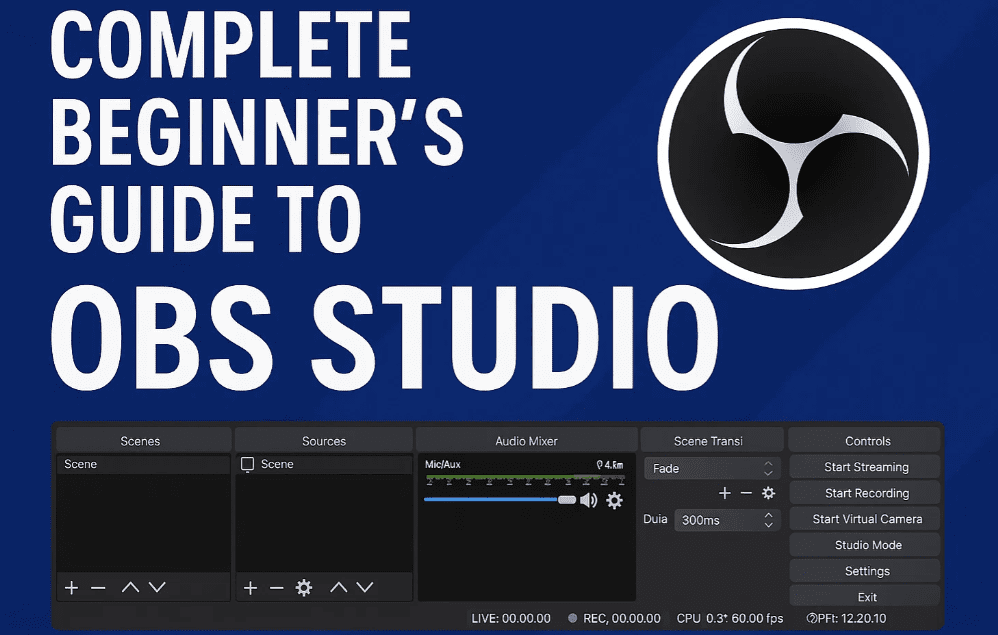
In this article, you’ll learn the best settings for OBS Studio (version 30.3.1.2 or later) to achieve optimal performance in live streaming and recording. Whether you’re using a single screen or a dual-monitor setup, these settings will help you get the most out of OBS Studio.
Step-by-Step OBS Studio Settings for Best Performance
1. General Settings
- Language & Theme: Choose your preferred language and theme from the dropdown menus.
- Open Stats Dialog on Startup: Disable this if you don’t need an additional dock showing CPU usage and FPS.
- Hide OBS Windows from Screen Capture: Enable this option if you’re using a single screen to prevent OBS’s own interface from being recorded.
2. Update Settings
- Update Channel: Keep this set to Stable to avoid bugs and ensure you’re using the most reliable version.
3. Output Settings
Output Mode:
Switch from Simple to Advanced for more control over encoding and bitrate.
Streaming:
- Audio Track: Set to Track 1
- Audio Encoder:
FFmpeg AAC - Video Encoder:
- If you have an NVIDIA GPU, choose
NVIDIA NVENC H.264orNVIDIA NVENC HEVC. - If you don’t have a GPU, select
x264.
- If you have an NVIDIA GPU, choose
- Rescale Output: Disable
- Rate Control:
CBR - Bitrate:
- For high-speed internet:
10000 Kbps - For slower connections: Try
2500 Kbpsor even1500 Kbps
- For high-speed internet:
- Keyframe Interval:
0 - Preset:
P5: Slow (Good Quality) - Tuning:
High Quality - Multipass Mode:
Two Passes (Quarter Resolution) - Profile:
High - Psycho Visual Tuning: Enabled
- GPU:
0 - Max B-frames:
2
Recording:
- Type:
Standard - Recording Path: Set your preferred folder
- Generate File Name Without Space: Enabled
- Recording Format:
MKV - Use Stream Encoder: Enabled
- Audio Encoder:
FFmpeg AAC - Audio Track:
1 - Other options like file splitting or custom mixer can be left as-is.
4. Audio Settings
In the “Audio” Tab:
- Sample Rate:
48kHz - Channel:
Stereo - Global Audio Devices:
- Desktop Audio:
Default - Others: Disabled
- Desktop Audio:
- Meter Settings:
- Decay Rate:
Fast - Peak Meter Type:
Sample Peak
- Decay Rate:
- Advanced Monitoring Device: Choose your output device (e.g., headphones)
5. Video Settings
- Base (Canvas) Resolution: Match your monitor (e.g., 1920×1080 or 4K)
- Output (Scaled) Resolution: Keep the same as base for clarity and avoid rescaling
- Downscale Filter: Leave as default (not needed if resolutions are same)
- Common FPS Values:
60 FPSfor smooth streaming (or30 FPSif needed)
6. Hotkeys
Set custom hotkeys for starting/stopping streams, switching scenes, etc. This step is optional but useful for advanced users.
7. Additional Tips for Smoother Live Streaming
If your stream still lags or buffers:
- Reduce Bitrate under Output Settings:
- Try lowering it to
5000,2500, or even1500 Kbps.
- Try lowering it to
- Make sure your internet upload speed can handle your chosen bitrate.
Final Thoughts
OBS Studio is a versatile tool that, when configured correctly, can deliver smooth and professional-grade streaming and recording. The key is to understand your system’s capabilities and adjust your settings accordingly.
Following the above setup will help you avoid common problems like laggy streams, dropped frames, or OBS showing on screen during capture.
If you’re just getting started, we recommend visiting the official OBS website to stay updated with new features and community guides.
Disclaimer
The settings mentioned above are optimized for general use and mid-to-high-end systems. If your hardware or internet connection is limited, consider lowering resolutions and bitrate accordingly. Performance may vary depending on your specific system configuration.
Tags:
OBS Studio settings, live streaming setup, OBS screen recording, best OBS configuration, streaming tips, OBS tutorial, OBS bitrate guide, streaming without lag, screen capture tips, audio settings OBS, video settings OBS






Hashtags:
#OBSStudio #LiveStreaming #StreamingSetup #OBSTutorial #ScreenRecording #BitrateSettings #AudioVideoOBS #StreamingWithoutLag #TechTips #OBSGuide








