So, you have just purchased a brand-new laptop and are excited to start using it. However, before you can dive in, you need to set it up properly. Don’t worry! In this article, we will walk you through the entire process of setting up a new laptop easily and correctly. Follow each step carefully to ensure your laptop is ready for use.
Step 1: Power On Your Laptop
As soon as you open and power on your new laptop, the system will begin the setup process. You’ll be greeted with the initial setup screen where you will be asked to choose your language, region, and keyboard layout.
- Select your country or region (for example, India).
- Click Yes to confirm.
- Then, select your keyboard layout (such as English (India)) and click Yes again.
- If it asks whether you want to add a second keyboard layout, you can simply click Skip.
Step 2: Connect to the Internet
After setting the keyboard layout, your laptop will prompt you to connect to the internet. You can use Wi-Fi or an Ethernet cable.
- Choose your Wi-Fi network, enter the password, and connect.
- This step is important as it allows your system to check for updates and continue the setup process smoothly.
Step 3: System Updates
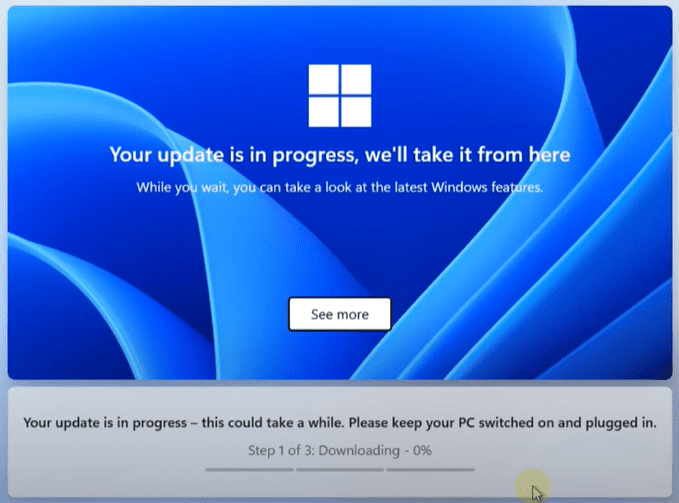
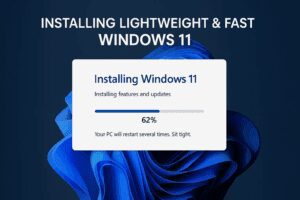
Once connected to the internet, your laptop will check for updates. It’s important to keep your laptop powered on and connected during this process. The system may restart automatically after downloading and installing updates, so be patient.
Step 4: Naming Your Device (Optional)
You might be asked to name your device. You can either provide a name for easier identification or choose Skip for now if you prefer to do it later.
Step 5: Sign In with a Microsoft Account
Windows 11 requires you to sign in with a Microsoft account during setup.
- If you already have a Microsoft account, simply enter your credentials and sign in.
- If you don’t have an account, click Create one and follow the instructions to set up a new account.
Note: Signing in with a Microsoft account is necessary to complete the setup, but you can later remove it from your device if you wish.
Step 6: Create a PIN
After signing in, you will be prompted to create a PIN.
- Click Create PIN and set a four-digit code that you will use to log into your laptop.
- Choose a PIN that you can easily remember. Although you can remove it later, setting a PIN is mandatory during the initial setup.
Step 7: Set Up As a New Device
You will see an option to Set up as a new PC. Click on it to continue.
- Wait a few moments as the system prepares your device.
Step 8: Skip Optional Settings
You might encounter several optional settings like restoring data from another device, syncing your browsing history, and other personalization options.
- For now, you can Skip these steps to speed up the setup.
- Click Not now when prompted for options like accessing your recent browsing data.
Step 9: Finishing Setup
Once these steps are complete, Windows will finalize the setup. After a few moments, you will be taken to the desktop screen, and your new laptop will be ready to use!



Post-Setup Tips for Your New Laptop
Congratulations, your laptop is now fully set up! Here are a few extra tips to make the most out of your new device:
1. Change the Wallpaper
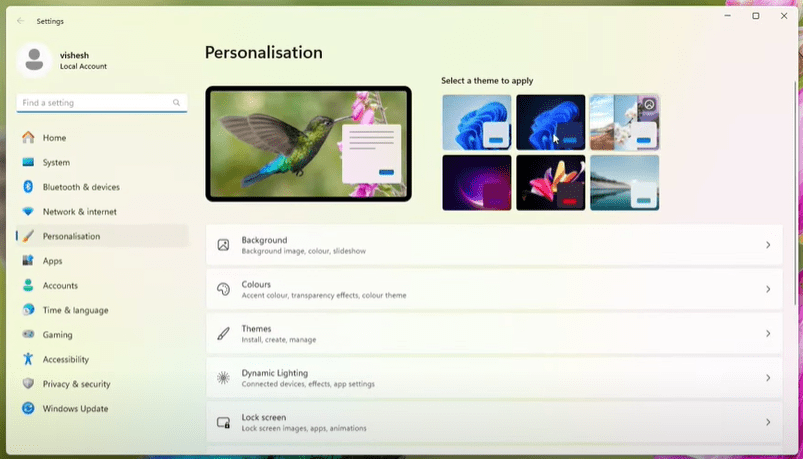
Customize your laptop by changing the wallpaper. Go to:
- Settings > Personalization > Background and select your favorite wallpaper.
- You can also switch between Light Mode and Dark Mode according to your preference.
2. Update Windows
Although your laptop might have installed some updates during setup, it is recommended to manually check for additional updates:
- Go to Settings > Windows Update and click Check for updates.
- Installing updates ensures bug fixes, performance improvements, and access to the latest features.
3. Remove PIN or Microsoft Account (Optional)
If you wish to remove the PIN or disconnect your Microsoft account later:
- Go to Settings > Accounts > Sign-in options to manage your PIN.
- For removing the Microsoft account, go to Settings > Accounts > Your Info.
4. Install Necessary Drivers
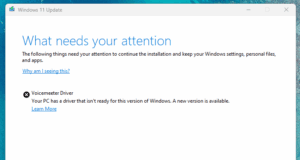
Installing updated drivers is crucial for the smooth functioning of your laptop’s hardware. Most of the drivers will install automatically via Windows Update, but you can also manually install them from your laptop manufacturer’s website.
Conclusion
Setting up a new laptop may seem daunting, but by following the above steps carefully, you can complete the setup in no time. Remember to update your system regularly and personalize your laptop to make it truly yours. If you face any challenges, revisit this article to guide you through the process again.
Enjoy your new device and happy computing!
Tags: new laptop setup, how to set up laptop, laptop first time setup, laptop setup guide, Windows 11 setup, Microsoft account setup, Windows laptop guide, Windows 11 tips, driver installation
Hashtags: #newlaptop #laptopsetup #windows11setup #microsoftaccount #laptops #windowsupdate #technologytips #computing #techguide







