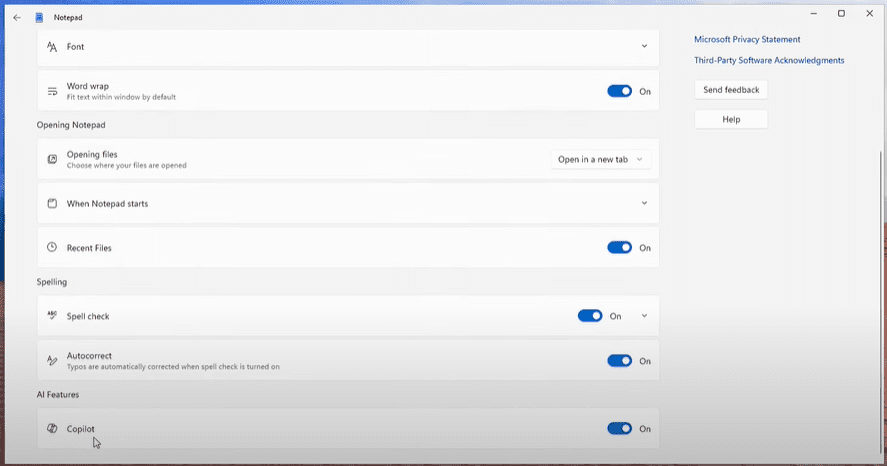
If you’re not a fan of the modern Notepad in Windows 11, especially after the addition of tabs and Microsoft Copilot integration, you’re not alone. Many users prefer the simplicity and minimalism of the classic Notepad. The good news is, you can still revert to the older version of Notepad without the bloat and AI features. This guide will walk you through the process of removing the modern Notepad and replacing it with the classic version in a few simple steps.
Why Switch Back to Classic Notepad?
The new Notepad in Windows 11 (especially version 23H2/24H2) comes packed with features like tabs and Microsoft Copilot integration. While some users may appreciate these additions, others find them unnecessary or even intrusive—especially if you value speed and simplicity.
If you’re looking to get rid of Copilot inside Notepad and revert to the classic version, here’s how you can do it.
Step-by-Step Guide to Restore Classic Notepad
Step 1: Check for Classic Notepad in Optional Features
- Open Settings from the Start Menu.
- Navigate to System > Optional Features.
- Scroll down to check if Notepad (System) is listed. This is the classic version.
- If it’s not there:
- Click on View Features at the top.
- Search for “Notepad”.
- Install it if it’s not already present.
Step 2: Disable Modern Notepad Execution Alias
- In Settings, go to Apps > Advanced App Settings.
- Click on App Execution Aliases.
- Find Notepad.exe and toggle it off.
This disables the execution of the new Notepad with Copilot and tabs.
Step 3: Locate Classic Notepad
- Open File Explorer.
- Navigate to
C:\Windows. - Scroll down and locate the Notepad.exe file — this is the classic version.
- Right-click on it, select Show More Options, and choose Create Shortcut.
- Windows will prompt to place the shortcut on your desktop — click Yes.
Step 4: Place Shortcuts Where You Need Them
- Press
Win + R, type:shell:common start menuThen press Enter. - Drag your newly created Notepad shortcut into the Programs folder.
- You can also:
- Right-click the shortcut and choose Pin to Start.
- Right-click and select Pin to Taskbar.
- This ensures the classic Notepad is accessible from all usual locations.
Step 5: Uninstall the Modern Notepad
- Go to Start Menu > Right-click on the modern Notepad icon.
- Select Uninstall to remove the version with tabs and Copilot.
- This cleans up your system and ensures you only use the classic version.
⚠️ Important Warning Before You Uninstall the New Notepad
Before removing the modern Notepad app in Windows 11, make sure you’ve saved any open or unsaved text.
The new Notepad uses a persistent session feature that keeps unsaved tabs open even after you close the app. However, if you uninstall it, all unsaved data will be permanently lost — there’s no recovery option once the new Notepad is removed.
So, always save your notes or copy your text elsewhere before proceeding with the uninstall or downgrade to the classic version.
Optional: Use Notepad++ as an Alternative
If you’re looking for more power, especially for programming or extensive text editing, consider Notepad++. It’s a free, open-source code editor that offers:
- Syntax highlighting
- Line numbering
- Code folding
- Extensive plugin support
To install:
- Download from the official website.
- Run the installer and follow the prompts.
- Once installed, you’ll find a robust and user-friendly editor suitable for a variety of tasks.
Final Thoughts
Whether you’re nostalgic or just prefer simplicity, switching back to the classic Notepad is a great way to streamline your workflow in Windows 11. Microsoft Copilot may offer productivity boosts, but not everyone finds it useful—especially for quick edits or coding tasks.
Now, your system will use the classic version of Notepad by default, free of AI distractions and unwanted features. And if you’re a power user, Notepad++ offers an excellent alternative.
Tags
windows 11, notepad, uninstall copilot, disable copilot, classic notepad, remove modern notepad, notepad tutorial, notepad++, revert notepad windows 11, disable tabs in notepad, optional features windows, windows notepad classic, uninstall apps windows
Hashtags
#windows11 #notepad #notepadplusplus #disablecopilot #uninstallapps #classicnotepad #windowssettings #productivitytips #techguide









Disclaimer
This article is for educational purposes only. Any modifications you make to your Windows system are done at your own risk. Make sure to back up your system before making any significant changes.








Hey smart-guy: You might want to add a warning that uninstalling the new Notepad will send any data currently open+unsaved in it into the void. No more persistent unsaved text.
Thanks, your feedback added.