If you’ve recently disabled Microsoft OneDrive synchronization and suddenly all your desktop files, folders, and shortcuts seem to have disappeared — don’t panic! Your files are still on your computer; they’re just tucked away in a different location.
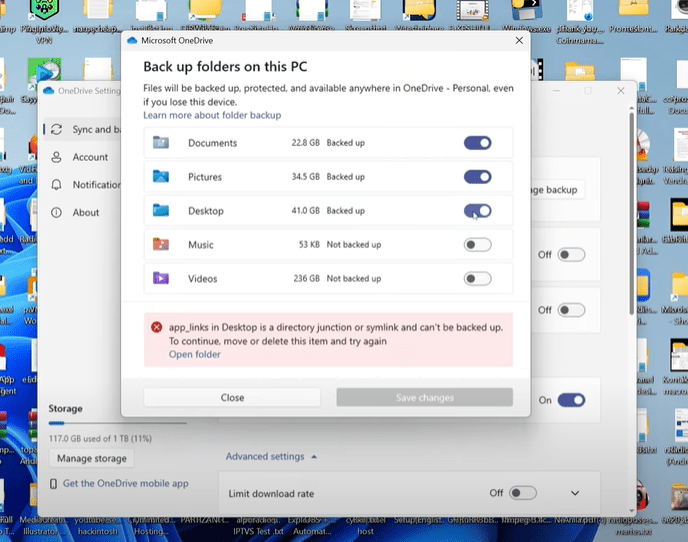
In this guide, we’ll walk you step by step through how to recover your desktop files and take control of your storage setup, whether or not you wish to keep syncing with OneDrive.
Why Does This Happen?
When you enable OneDrive sync, Microsoft backs up important folders like Desktop, Documents, Pictures, and more. All these files are stored both locally in a OneDrive directory and online. If you choose to stop syncing or disable backup, it may seem like your files have vanished — but in reality, they’re just relocated.
Steps to Restore Disappeared Desktop Files
Step 1: Locate the Files in OneDrive Folder
Even if your desktop looks empty, your files are still saved in the OneDrive directory on your computer. Here’s how to access them:
- Open File Explorer.
- Go to C:\Users[Your Username]\OneDrive\Desktop.
- You’ll find all your previously saved desktop files here.
Note: These files are still on your local hard drive, not deleted.
Step 2: Move Files Back to the Real Desktop (Optional)
If you prefer your files to be directly on your desktop rather than within the OneDrive folder:
- Select all files and folders in
OneDrive\Desktop. - Copy or drag them to your actual C:\Users[Your Username]\Desktop folder.
Step 3: Re-enable Sync (Optional)
If you decide you want OneDrive to keep syncing again:
- Click the OneDrive icon in the taskbar.
- Click the gear icon > Settings.
- Under the Sync and backup tab, click Manage backup.
- Enable syncing for Desktop, Documents, or any folder you want.
Step 4: Permanently Unlink OneDrive (If You Want to Disable It)
If you’re sure you no longer want to sync files with OneDrive:
- Right-click the OneDrive icon in the taskbar.
- Go to Settings.
- Under the Account tab, click Unlink this PC.
- Confirm the unlink.
This step ensures your local files remain untouched on your computer. After unlinking, all your files will remain exactly where they are and won’t be uploaded or synced anymore.
Tips to Improve PC Performance
Many users notice that OneDrive syncing can slow down their system, especially when handling large files or projects (e.g., programming apps, editing media). Here’s how you can optimize storage and performance:
- Avoid storing too many files on your desktop. Try to limit to 5GB or less.
- Create a D Drive: Move all large or frequently used files to a separate partition or external drive.
- Use Desktop Shortcuts: Instead of storing files on the desktop, create shortcut links to access folders on the D Drive quickly.
Example: If you’re working on heavy projects, storing them in a dedicated D Drive instead of Desktop will speed up your computer and reduce OneDrive sync issues.









Final Thoughts
OneDrive is a great tool for backing up your data, but it’s not always ideal for every user — especially if you’re low on cloud storage or working on performance-heavy tasks. Now you know how to regain access to your missing desktop files and manage OneDrive in a way that fits your workflow.
If you found this article helpful and have more questions, feel free to drop a comment or visit our website for more tutorials.
Tags: onedrive desktop files missing, restore desktop files, disable onedrive sync, unlink onedrive, windows desktop recovery, windows 11 file backup, slow pc onedrive, move desktop files, stop syncing desktop, file explorer tips
Hashtags: #OneDrive #Windows11 #FileRecovery #DesktopFiles #TechTips #FixMissingFiles #PCPerformance #StopSyncing #WindowsHelp #FileBackup









wat if l am doing all this stuff , going to my users folder and trying to move my files back to my pc desktop but it keeps on saying that an error has occured and that the cloud file provider exited unexpectadly
l have already disabled and unlinked my one drive acc