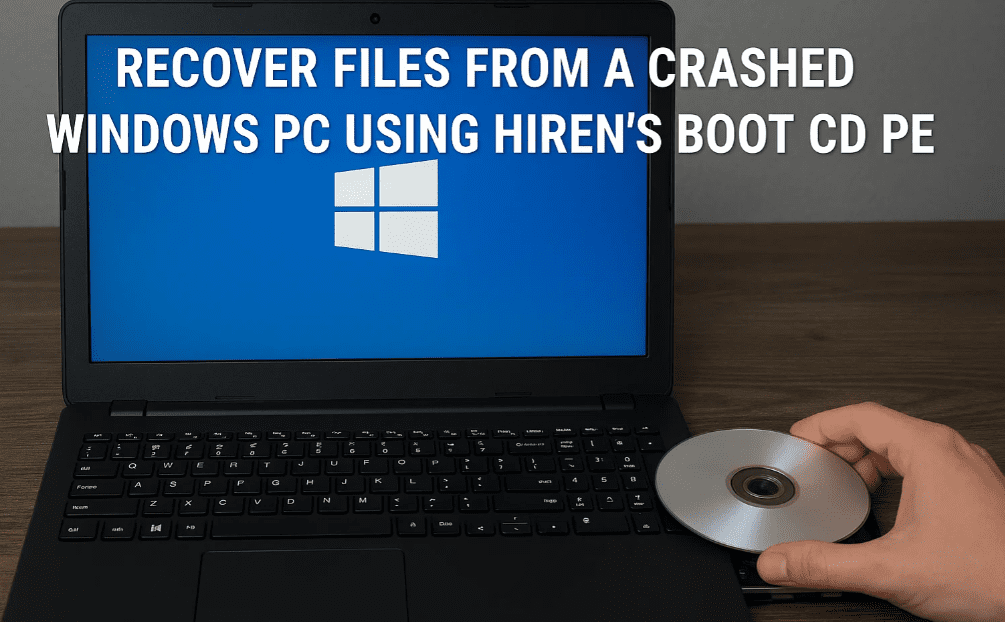
If your Windows PC crashes and won’t boot, losing access to important files, don’t panic! This guide will show you how to recover your data using Hiren’s Boot CD PE—a powerful free tool that boots from a USB drive.
⚠️ Disclaimer:
- This process requires technical knowledge. Proceed with caution.
- Backup recovered files to an external drive to avoid permanent loss.
📌 What You’ll Need
✔ A USB flash drive (8GB+ recommended)
✔ A working PC (to create the bootable USB)
✔ External storage (to save recovered files)
✔ Hiren’s Boot CD PE (Download Here)
✔ Ventoy (Download Here)
🛠️ Step 1: Download Hiren’s Boot CD PE
- Go to Hiren’s Boot CD PE Official Website.
- Click “Download” and choose the latest version (ISO file).
- Wait for the download to complete (~3GB).
💾 Step 2: Create a Bootable USB with Ventoy
Since Hiren’s Boot CD PE requires a bootable USB, we’ll use Ventoy for easy setup.
How to Use Ventoy:
- Download Ventoy (Windows version).
- Extract the ZIP file and run “Ventoy2Disk.exe” (as Administrator).
- Select your USB drive and click “Install” (⚠️ This will erase all data).
- Once done, copy the Hiren’s Boot CD PE ISO into the USB drive.
🔧 Step 3: Boot from USB on the Crashed PC
- Insert the USB into the crashed PC.
- Restart and press F12/F2/DEL (varies by motherboard) to enter Boot Menu.
- Select the USB drive and boot into Hiren’s Boot CD PE.
📂 Step 4: Recover Your Files
Once Hiren’s Boot CD loads:
- Open “This PC” (File Explorer).
- Navigate to the C: drive (where Windows is installed).
- Locate your files in:
- C:\Users[YourUsername]\Desktop
- C:\Users[YourUsername]\Documents
- C:\Users[YourUsername]\Pictures
- Copy the files to an external drive or another USB.
💡 Pro Tips for Data Recovery
✔ Use MiniTool Partition Wizard (included in Hiren’s Boot CD) if partitions are corrupted.
✔ Check “Program Files” and “AppData” for application-specific files.
✔ If files are deleted, use Recuva (included in Hiren’s Boot CD).
🚨 Alternative Methods if Hiren’s Boot CD Doesn’t Work
- Try Linux Live USB (Ubuntu, Fedora) to access files.
- Remove the Hard Drive and connect it to another PC via SATA/USB adapter.
- Use Professional Data Recovery Services if the drive is physically damaged.
🔗 Useful Links
📌 Final Thoughts
With Hiren’s Boot CD PE, you can easily recover files from a crashed PC without reinstalling Windows. Follow the steps carefully, and always backup important data to avoid future issues.
💬 Questions? Ask in the comments below!
📌 Tags:
Windows recovery, Hiren’s Boot CD, data recovery, crashed PC fix, bootable USB, file recovery, Windows repair
📌 Hashtags:
#WindowsRecovery #DataRecovery #HirensBootCD #TechGuide #PCTroubleshooting #FileRecovery #WindowsRepair