What if I told you that Microsoft automatically decides when your PC upgrades to a major version of Windows—unless you explicitly stop it?
Many users assume they have no control when it comes to major Windows updates. But the truth is, with a simple registry tweak, you can lock your system to a specific Windows 10 or 11 version, whether you want to stay on Windows 10 22H2 or a stable Windows 11 version like 23H2 or 24H2.
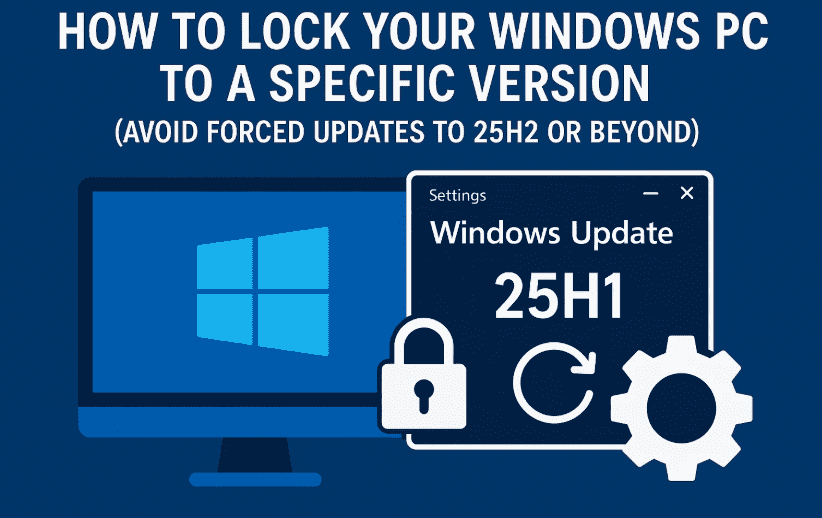
In this detailed guide, I’ll walk you through the exact registry edits required to block major version upgrades via Windows Update—without blocking security or cumulative updates.
✅ Why Would You Want to Stay on a Specific Windows Version?
Before we dive into the steps, let’s quickly understand why someone might want to delay or block a major Windows update:
- 🔧 Stability: New versions often bring bugs, especially during early rollout phases.
- 🎮 Gaming Performance: Some major updates affect frame rates, controller support, or background services.
- 🛡️ Security Updates Only: You still get security updates—just not the full OS version upgrade.
- 🖥️ Older Hardware: You might prefer keeping your older laptop on Windows 10 with free extended security updates (available until October 2025 for 22H2).
In short, you stay in control, instead of letting Microsoft upgrade your PC to the latest version without warning.
🛠️ Let’s Set It Up: Lock Your Windows Version Using Registry
So far, so good? Let’s move to the core of the process—editing the registry.
⚠️ Important: Always back up your registry before making changes. You can do this by opening Registry Editor, clicking
File > Export, and saving a backup.
🪟 Step 1: Open the Registry Editor
- Press
Windows + R, typeregedit, and hit Enter. - If prompted by UAC, click Yes.
📁 Step 2: Navigate to the Correct Registry Path
Go to the following registry key:
HKEY_LOCAL_MACHINE\SOFTWARE\Policies\Microsoft\Windows
If you don’t see a WindowsUpdate key inside the Windows folder, create it:
- Right-click on Windows >
New > Key - Name it:
WindowsUpdate
Now, select this new WindowsUpdate key. This is where we’ll add our 3 custom entries.
🧩 Step 3: Add the Three Required Registry Entries
Let’s add them one by one and explain what each does.


🔹 1. TargetReleaseVersion (DWORD 32-bit)
This tells Windows you want to stay on a specific release version.
- Right-click inside the right pane >
New > DWORD (32-bit) Value - Name it:
TargetReleaseVersion - Double-click it and set the Value data to:
1 - Click OK
✅ This enables the version lock.
🔹 2. ProductVersion (String Value)
This sets which Windows platform you want to stick to—10 or 11.
- Right-click >
New > String Value - Name it:
ProductVersion - Double-click and enter the value:
Windows 10→ if you want to stick with Windows 10Windows 11→ if you’re on Windows 11
Click OK.
🔹 3. TargetReleaseVersionInfo (String Value)
This sets the exact version (like 22H2, 23H2, or 24H2) you want to stay on.
- Right-click >
New > String Value - Name it:
TargetReleaseVersionInfo - Double-click and set the value to your desired version, such as:
22H2→ for Windows 10 extended support23H2or24H2→ for Windows 11 stable versions
Click OK.
📌 Example: If you’re on Windows 11 and want to stay on 24H2, the values should look like:
TargetReleaseVersion= 1 (DWORD)ProductVersion= Windows 11 (String)TargetReleaseVersionInfo= 24H2 (String)
🔐 What You’ve Just Done
With these 3 entries in place, your PC will:
- Stay on the selected Windows version
- Receive security and cumulative updates
- ❌ Avoid automatic upgrades to newer major builds (like 25H2)
This means no more surprise updates that break your apps, games, or drivers!
❓ FAQ: Frequently Asked Questions
Q. Will this block security updates?
No. It only blocks feature upgrades (like from 23H2 to 24H2). Your current version will still receive regular patches and security updates.
Q. Can I still upgrade manually?
Yes. You can always run the installer from ISO or use the Media Creation Tool if you later decide to upgrade.
Q. Does this work on both Windows 10 and 11?
Absolutely. Just ensure:
- Set
ProductVersionto match your OS - Use a valid version string like
22H2,23H2, etc.
Q. What if I want to remove this version lock later?
You can simply go back to the registry path and delete these three entries:
TargetReleaseVersionProductVersionTargetReleaseVersionInfo
After deletion, your PC will return to default Windows Update behavior.
💡 Bonus Tip: How to Check Your Current Windows Version
Press Windows + R, type winver, and press Enter. This will show your current version (e.g., 24H2).
Use that info when entering the correct TargetReleaseVersionInfo value.
🛑 Disclaimer
Editing the Windows Registry is a powerful tool, but it can cause system issues if done incorrectly. Always back up your registry before making changes. This guide is for educational purposes and uses documented Microsoft registry policy keys.
🔖 Tags and Hashtags
Tags: windows update control, block windows 11 update, windows 10 extended support, target release version registry, windows feature upgrade lock, how to stop automatic windows upgrades
Hashtags:
#Windows11 #Windows10 #StopWindowsUpdate #RegistryTweak #WindowsTips #WindowsOptimization #22H2 #23H2 #24H2 #AvoidWindowsUpgrade
Let us know in the comments which version you’re staying on and why! If you’re a gamer, power user, or IT admin, this tweak is a must-have in your Windows toolkit.









Thank you Emily for your help! I have been learning on my own about PCs and Laptops since Windows XP (my favorite so far). It used to be that I can choose updates and play around with my system and I was happy. Now Microsoft forces its updates down our throats of their ads for 365, One drive, the spying windows recall, AI…and I despise it all!
It is MY computer not theirs…sorry….I digressed…
I thank you because now I can take control. Thank you very much!
Thanks