If you often find yourself needing to type in Hindi using a standard QWERTY keyboard, Google Input Tools is one of the most convenient and user-friendly solutions. It supports over 80 languages and makes it easy to type in your native language using English (phonetic) input.
This article walks you through the step-by-step process of installing Google Input Tools and setting it up specifically for Hindi typing on Windows.
🌐 What is Google Input Tools?
Google Input Tools is a lightweight typing utility developed by Google that enables users to input text in multiple languages without needing to learn a native keyboard layout. Instead, you type in English letters, and the tool automatically converts (transliterates) the input into the selected language.
For example, typing “namaste” will appear as “नमस्ते” in Hindi.
🛠 How to Install Google Input Tools for Hindi
Google Input Tools requires two components for full functionality in a particular language: the main program setup and the language-specific installer. Here’s how to install both:
Step 1: Install the Main Setup Program
- Download the Google Input Tools main setup file from a link below.
- Extract the contents of the zip file to get the
GoogleInputTools.exefile. - Double-click on this file to run the installer.
- Follow the on-screen instructions to complete the installation.
Once done, this installs the core components needed for Input Tools to work.
⚠️ Note: Google officially discontinued the Windows version of Input Tools in 2018, so ensure you download the software from a reputable source to avoid security risks.
Step 2: Install the Hindi Language Pack
- Download the Hindi language installer (
GoogleInputHindi.exe) from link giver below.
- Extract the zip file.
- Run the executable file.
- Allow any permission prompts by clicking Run or Yes when prompted.
The Hindi language files will be installed within seconds. This completes the setup for typing in Hindi using Google Input Tools.
🧩 Switching Between Languages
After installation, you’ll notice a language bar icon in your taskbar, usually labeled with “EN” (for English) or “HI” (for Hindi).

- Click on this icon to open the language selection menu.
- Select Hindi (India) from the list.
- Now, start typing Hindi words using English letters. For example, typing “mera naam Rahul hai” will appear as “मेरा नाम राहुल है”.
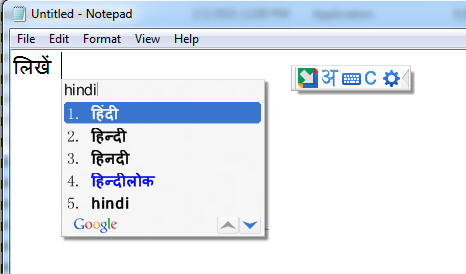
Google Input Tools will also show you real-time suggestions as you type, helping you select the correct spelling or form.
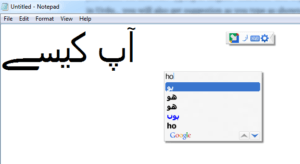
If you’ve installed other languages (like Gujarati, for instance), those will also appear in the same list.






✅ Benefits of Google Input Tools
- No Need to Learn a New Keyboard Layout: Just type in English, and the tool will convert it to Hindi.
- Fast and Intuitive: Suggestions and autocorrect features make typing more efficient.
- Supports Multiple Applications: Works in browsers, Word documents, email clients, and more.
🔒 Disclaimer
Google Input Tools for Windows was officially discontinued by Google in 2018. The download links available today are typically from third-party websites. Please exercise caution when downloading any installer from unofficial sources. Always scan files with antivirus software and ensure the website is trustworthy.
For web-based usage, you can still access the online version of Google Input Tools at:
👉 https://www.google.com/inputtools/try/
🏷️ Tags
Google Input Tools, Hindi Typing, Windows Typing Tools, Phonetic Typing, Hindi Input Method, Devanagari Script, Language Tools, Multilingual Typing, Unicode Typing
📢 Hashtags
#GoogleInputTools #HindiTyping #PhoneticKeyboard #LanguageTools #HindiInput #DevanagariTyping #WindowsTips #MultilingualSupport #UnicodeTyping








both the files are infected. scanned with virus total.
No, they are not infected, and I have used them personally and rechecked them with avast also. They were originaly downloaded from Google before google abondend them.