Do you constantly find your computer’s C drive filling up because you install all your essential software there? You’re not alone. Many users face this issue and keep juggling data and applications between drives. But what if we told you there’s a smarter way? A way to carry and run all your favorite applications directly from a pen drive — without installing them on every computer?
In this article, we’ll walk you through how to install and run software from your USB drive using a free and powerful tool called PortableApps. This method not only saves space on your computer but also allows you to take your apps wherever you go and run them on any Windows PC.
Benefits of Using PortableApps on a USB Drive
Before diving into the steps, let’s understand the key advantages:
- 🧠 No need to reinstall apps on every system
- 💾 Saves disk space on your computer
- 🧳 Carry your apps and data wherever you go
- 🔒 Keeps your files separate and secure
- ⚡ Plug-and-play functionality on any Windows system
Step-by-Step Guide: Installing PortableApps on a Pen Drive
Step 1: Prepare Your USB Drive
Insert an empty or available USB pen drive into your computer. Make sure it has enough free space (at least 2-4 GB for basic use, more for heavy apps).
Step 2: Visit the PortableApps Official Website
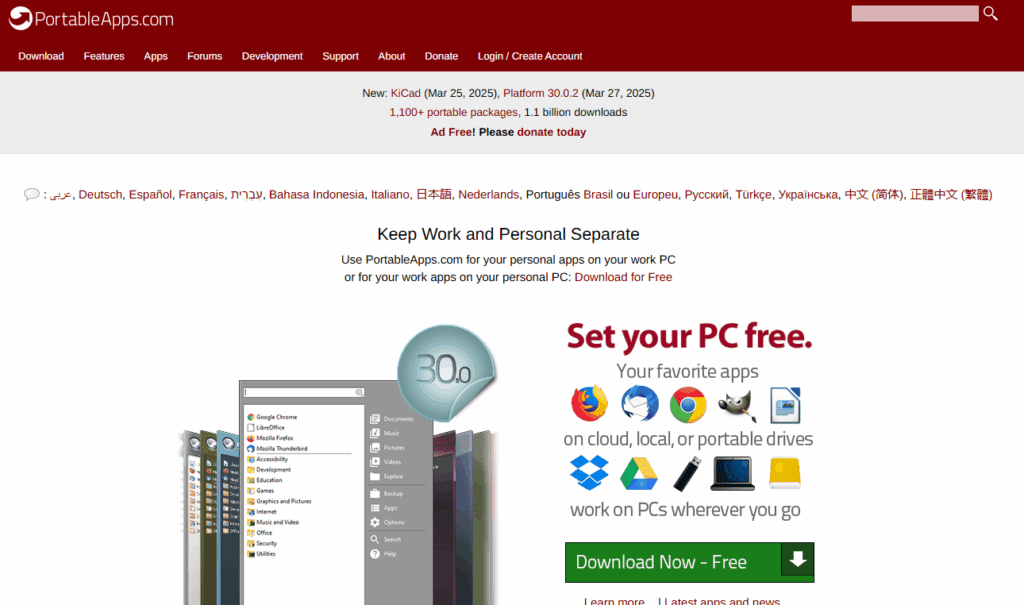
Go to the official PortableApps website. On the homepage, you’ll see the tagline “Set your PC free”, indicating that this tool lets you run apps from external sources.
Step 3: Download the PortableApps Platform
Click the “Download Now” button. It’s completely free. Once downloaded, open the installer.
Step 4: Install PortableApps on the USB Drive
- Double-click the downloaded file.
- Choose your language and click OK.
- Click Next, agree to the terms and conditions.
- Select New Install.
- Choose Portable (this ensures the installation goes to your USB drive).
- Select your USB drive location (for example,
E:\) and click Next, then Install.
The app will now install PortableApps on your pen drive.
Step 5: Launch PortableApps and Explore the Menu
Once installation is complete:
- Tick the box that says “Run PortableApps Platform”.
- Click Finish.
A start menu will appear from the USB drive — not from your Windows system. This is the PortableApps Launcher, and here you can install, update, and run hundreds of apps.
Step 6: Install Your Favorite Portable Applications
You will be prompted to select applications to install. Apps are categorized for easy navigation:
- Accessibility: On-screen keyboard, magnifiers, etc.
- Development: Code editors, compilers.
- Education: Typing tools, study aids.
- Graphics & Pictures: Blender, Krita, Inkscape, JPEGView.
- Internet: Browsers like Firefox.
- Music & Video: VLC media player, Shotcut (video editor).
- Office: LibreOffice, AbiWord.
- Security & Utilities: Antivirus tools, system cleaners.
You can choose from over 1100+ applications! Select the ones you want and proceed with the installation. These apps will be stored in the “PortableApps” folder inside your USB drive.




Step 7: Accessing Apps from the USB Drive
- Open This PC / My Computer.
- Double-click your USB drive.
- You’ll see folders like
Documents,PortableApps, andStart.
Click the Start file — it launches the PortableApps menu. You’ll see all the apps you installed listed there. Click any app to run it — no installation needed on the host computer!
For example, if you installed:
- Blender – appears under Graphics & Pictures
- Firefox – appears under Internet
- VLC – appears under Music & Video
These are fully functional versions of the apps, ready to run directly from your pen drive.
Summary
With PortableApps, you no longer have to install your favorite tools on every machine you work on. Just carry your pen drive, plug it into any Windows PC, and you’re good to go. Whether you’re working on your personal system or using a shared computer, this setup keeps you mobile, flexible, and organized.
Tags and Hashtags
Tags: portableapps, run software from usb, install software on pen drive, save computer storage, usb software installation, portable applications, computer tips, windows tricks, pen drive tools, carry software anywhere
Hashtags: #PortableApps #USBSoftware #TechTips #WindowsTricks #PenDriveApps #DigitalNomad #SoftwareHacks #PCStorage #PortableTools #SaveSpace








