Is your Windows 10 or Windows 11 failing to update, showing errors like 0x80070643, retry-related issues, or other update failures? This guide will help you resolve these problems step by step.
Why Do Windows Update Errors Occur?
Windows Update errors can happen due to:
- Corrupted system files
- Conflicts with pending updates
- Disabled Windows Update services
- Issues with the SoftwareDistribution folder
Below are the best troubleshooting methods to fix these errors.
Method 1: Clear the SoftwareDistribution Folder
This folder stores temporary update files. If corrupted, updates may fail.
Steps:
- Open File Explorer (
Win + E) and go to:
C:\Windows\SoftwareDistribution- Select all files & folders inside (
Ctrl + A) and delete them. - If some files can’t be deleted, skip them.
- Restart your PC and check for updates again.
Method 2: Run System File Checker (SFC) Scan
Corrupted system files can cause update failures.
Steps:
- Open Command Prompt as Admin (Search
cmd> Right-click > Run as administrator). - Type the following command and press Enter:
sfc /scannow - Wait for the scan to complete (may take 10-30 minutes).
- Restart your PC and retry Windows Update.
Method 3: Run Windows Update Troubleshooter
Windows has a built-in tool to fix update issues.
Steps:
- Go to Settings (
Win + I) > Update & Security > Troubleshoot. - Click Additional troubleshooters > Windows Update > Run the troubleshooter.
- Follow the on-screen instructions to apply fixes.
- Restart your PC and check for updates again.
Method 4: Enable Windows Update Services
If Windows Update services are disabled, updates won’t install.
Steps:
- Press
Win + R, typeservices.msc, and press Enter. - Find Windows Update, right-click > Properties.
- Set Startup type to Automatic and click Start (if stopped).
- Click Apply > OK.
- Also, check Background Intelligent Transfer Service (BITS):
- Set Startup type to Automatic and Start the service.
- Restart your PC and retry updates.
Method 5: Perform a System Restore (Last Resort)
If updates still fail, restore Windows to an earlier state.
Steps:
- Open Control Panel > Recovery > Open System Restore.
- Select a restore point (preferably before the update issue started).
- Follow the prompts to complete the restore.
⚠ Note: This will revert system changes made after the restore point.
Final Step: Check for Updates Again
After applying fixes:
- Go to Settings > Update & Security > Windows Update.
- Click Check for updates.
- Install any pending updates.
Conclusion
If you’re still facing Error 0x80070643 or other update issues, try:




- Resetting Windows Update components (
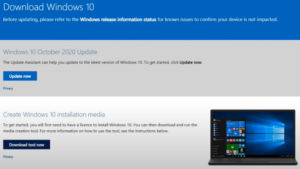
DISMscan). - Manual update via Microsoft Update Catalog.
For more Windows troubleshooting guides, stay tuned!
Tags:
Windows 10, Windows 11, Windows Update Error, Error 0x80070643, Fix Windows Update, SFC Scan, SoftwareDistribution
Hashtags:
#Windows10 #Windows11 #WindowsUpdate #ErrorFix #TechGuide #PCRepair
🔹 Disclaimer: Modifying system files/services may cause issues. Proceed with caution and back up important data.








