Over time, our computers get cluttered with duplicate photos, music files, videos, and documents. These unnecessary duplicates take up valuable space—especially when using limited-capacity SSD or M.2 drives. If you’re running out of storage or just want to keep your digital workspace clean, it’s time to consider using a powerful duplicate file finder.
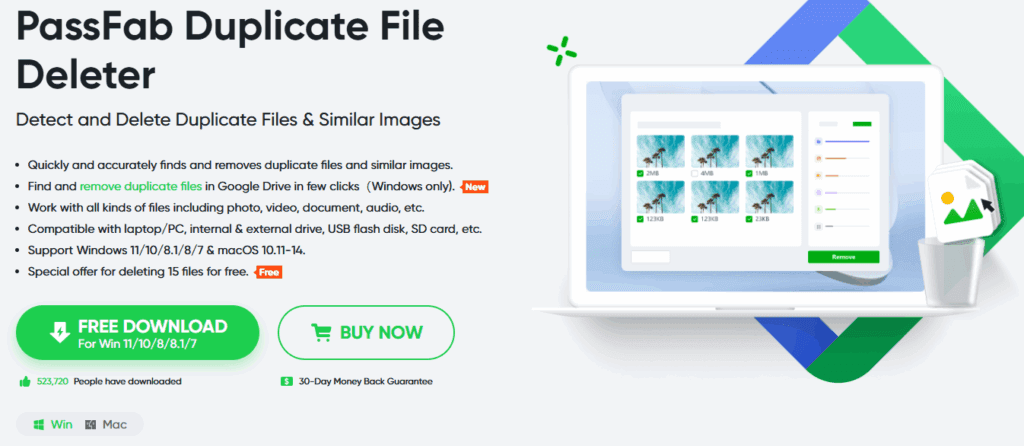
One such tool that delivers excellent results is PassFab Duplicate File Deleter. In this guide, we’ll walk you through how to use this software to locate and safely remove duplicate files, reclaiming gigabytes of storage space in just a few clicks.
🚀 Why Remove Duplicate Files?
Duplicate files can accumulate for many reasons—downloading the same song multiple times, copying folders without checking contents, or importing photos from your phone again and again. Here’s why it’s worth cleaning them up:
- Free up storage space
- Improve system performance
- Make file organization easier
- Avoid confusion from redundant files
🛠 Step-by-Step: Using PassFab Duplicate File Deleter
Here’s how to use PassFab Duplicate File Deleter effectively:
1. Download and Install the Software
- Visit the PassFab website.
- Click “Free Trial” to download the installer.
- Run the installer and follow the prompts to set it up.
- Launch the program after installation.
2. Select the Drive or Folder to Scan
- Click the “+” button on the main interface.
- Choose a specific folder (e.g., “Music” or “Pictures”) or a full drive (e.g., Local Disk D).
- If you’re unsure where duplicates exist, scanning the entire drive is recommended.
3. Customize Scan Filters (Optional)
Before starting the scan, you can fine-tune your search:
- File Types: Choose to scan for documents, images, audio, videos, or all file types.
- File Size Range: Set minimum and maximum file sizes to ignore tiny or massive files.
- Ignore System Files: Recommended if scanning the C drive to avoid deleting critical system data.
- Exclude Specific Paths: You can exclude folders like “Windows” or “Program Files” to prevent accidental deletion of essential files.
4. Start the Scan
- Click “Scan” and let the software analyze your chosen folder or drive.
- The progress bar will show how far along the scan is. It may take a few minutes depending on the size of your selection.
5. Review Detected Duplicates
- After scanning is complete, the software displays a list of all detected duplicate files.
- Files are grouped and previewed so you can compare them easily.
- In the test run, the tool found over 11 GB of duplicate audio files!
6. Use Auto-Select Feature
- To save time, click “Auto-Select.”
- The software will automatically select duplicates to delete while keeping one copy of each file group.
- This ensures nothing important gets lost.
7. Delete the Duplicates
- Click “Delete” to remove the selected files.
- Choose whether to move them to the Recycle Bin or delete permanently.
- Moving to the Recycle Bin is safer in case you want to double-check later.
8. Empty the Recycle Bin
- After verifying the files, you can empty your Recycle Bin to reclaim space permanently.
- In our case, this process freed up 7 GB of disk space instantly!
💰 Pricing and Discount
PassFab Duplicate File Deleter is available under a paid license. Here’s a quick overview:
- 1-Year License: $35.95
- Discount: Get 30% off using a special coupon code at checkout.
This small investment can save you hours of manual searching and deleting, not to mention the valuable disk space recovered.
✅ Final Thoughts
PassFab Duplicate File Deleter is an efficient and user-friendly solution for cleaning up duplicate files on your computer. Whether it’s your music collection, family photos, or work documents, this tool can identify and remove duplicates safely and quickly.
If you’re struggling with low disk space or just want to tidy up your folders, give this software a try. Don’t forget to take advantage of the 30% discount if you decide to purchase it!
Tags:
duplicate file remover, delete duplicate files, computer cleanup, storage management, save disk space, passfab review, duplicate song remover, duplicate photo cleaner, ssd space saver, pc optimization
Hashtags:
#DuplicateFiles #PCMaintenance #FreeUpSpace #PassFab #DeleteDuplicates #StorageCleaner #ComputerTips #TechTools #FileOrganizer #PCOptimization















Finding and deleting duplicates is easy and efficient when using a dedicated tool like the software DuplicateFilesDeleter. It allows you to scan selected folders or entire drives for duplicate files by comparing content, names, or sizes. Once the duplicates are identified, you can choose to delete them permanently or move them to a different location for review. This is especially useful when cleaning up large photo libraries, music collections, or backup folders. DuplicateFilesDeleter helps reclaim valuable disk space and keeps your files neatly organized with minimal effort.