When setting up a new Windows 11 PC, Microsoft often requires users to sign in with a Microsoft account before they can proceed. This has frustrated many users who prefer a local account, including notable voices like Elon Musk, who recently voiced concerns on the X platform after facing the same issue with a new laptop.
In this article, we’ll walk you through an official workaround to bypass the Microsoft account setup and create a local user account instead—no command prompt, no technical hacks needed.
⚠️ The Microsoft Account Dilemma
When setting up Windows 11 for the first time—either after a fresh installation or on a brand-new PC—users are typically prompted to sign in with a Microsoft account. While this helps with syncing settings, accessing the Microsoft Store, and using services like OneDrive or Skype, not everyone wants to link their personal data or AI activity to Microsoft.
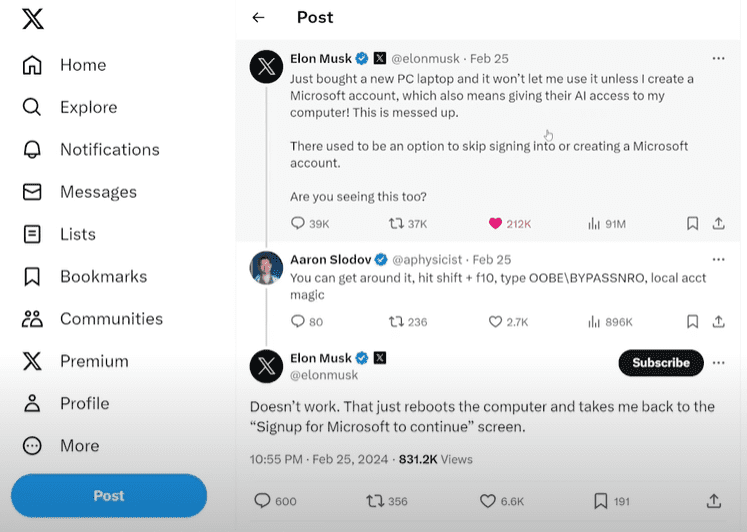
Elon Musk described this issue perfectly in a now-viral post:
“Just bought a new laptop PC and it won’t let me use unless I create a Microsoft account, which also means giving their AI access to my computer. This is messed up.”
So how can you bypass this and create a local account instead?
✅ The Official Workaround to Skip Microsoft Account Setup
This method doesn’t rely on advanced technical commands or third-party tools. It takes advantage of a built-in loophole in Windows 11’s setup process.
Here’s how to do it:
Step 1: Start the Setup Process
- Choose your region (e.g., United Kingdom) and click Yes.
- Select your keyboard layout and continue with the default options until you reach the Sign in with Microsoft screen.
Step 2: Enter a Fake Email Address
At the Microsoft Account sign-in screen:
- Enter an invalid email address, such as
noemail@yahoo.com. - Click Next.
- Enter any random password (e.g.,
test123) and continue.
The system will attempt to authenticate and fail.
Step 3: Trigger the Local Account Option
Once the sign-in fails, Windows will offer you the option to continue with a limited setup or offline account. This is what we want.





- Click on Continue with limited setup.
- Enter your preferred username (e.g., Daniel).
- Set a password or leave it blank if you prefer.
- Click Next.
You’ve now successfully created a local user account on Windows 11!
⚙️ Post-Setup Configuration
Once you reach the desktop:
- Open Settings > Accounts > Your Info.
- You’ll see that you’re signed in as a local account administrator.
- If you change your mind later, you can still switch to a Microsoft account anytime by clicking Sign in with a Microsoft account instead.
💡 When Is This Useful?
This method is particularly handy when:
- You’re setting up a new PC or laptop
- Performing a clean install of Windows 11
- Trying to avoid syncing or sharing personal data during setup
- Preparing a computer for another user who doesn’t have a Microsoft account
Keep in mind: if you want to use the Microsoft Store, OneDrive, Skype, or other Microsoft services, you’ll eventually need to sign in with a Microsoft account.
🚀 Bonus: Want to Speed Up Windows 11?
After setup, if you find that your PC feels sluggish, we recommend checking out our next article on 15 proven tricks to boost Windows 11 performance. From disabling startup apps to optimizing system settings, it covers everything you need to keep your computer running fast and smooth.
Tags: windows 11 setup, bypass microsoft account, windows 11 local account, no microsoft account setup, elon musk windows 11, microsoft account workaround, install windows 11 without account, windows 11 tips, windows 11 guide, clean install windows
Hashtags:
#Windows11 #MicrosoftAccount #LocalAccount #PCSetup #WindowsTips #TechGuide #BypassLogin #Microsoft #ElonMusk #WindowsTricks









This does not work.
Opps soory for you if that did not worked…
try this command start ms-cx:localonly in the command window…
For more steps follow this article
How to Bypass the Microsoft Account Requirement During Windows 11 Setup