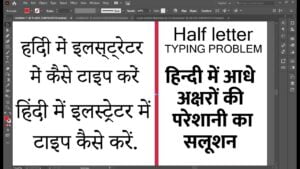
If you’re trying to type in Hindi using Unicode (Devanagari script) in Adobe Illustrator and facing issues with half characters or incorrect alignment, you’re not alone. This is a common problem faced by many designers, especially those working on older versions of Illustrator like CS6.
In this article, we’ll walk you through the step-by-step process of fixing these Hindi Unicode typing issues, whether you’re using Illustrator CC or CS6. We’ll also recommend tools like Google Input Tools to make your workflow smoother.
🧩 The Problem: Half Characters and Misaligned Text in Hindi
When typing in Hindi using Unicode in Illustrator, you may notice that certain characters do not appear correctly. Half characters like “क्”, “न्”, “ष्” may break or appear disjointed, especially in older versions like CS6. This is because Illustrator doesn’t render complex scripts correctly unless proper settings are enabled.
✅ Prerequisite: Install Google Input Tools for Hindi Typing
To type in Hindi efficiently on your system, you need a Unicode-compatible typing tool. The best free option is Google Input Tools, which lets you type in Hindi using a phonetic keyboard layout.
👉 Download Google Input Tools here:
https://www.google.com/inputtools/
How to install and download Google Hindi Input Tools
Once installed, you can switch between English and Hindi by using keyboard shortcuts like Alt + Shift.
💡 Fixing the Issue in Illustrator CC (Creative Cloud)
If you’re using Adobe Illustrator CC, fixing this issue is straightforward. Here's what you need to do:
🔧 Steps:
- Open Adobe Illustrator.
- Create a new document.
- Type some text in Hindi using your installed Unicode typing tool.
- If the text appears disjointed or broken:
- Go to Edit > Preferences > Type.
- Enable the option "Show Indic Options".
- Click OK.
- Now, type your Hindi content again. You’ll notice the half characters and conjuncts (like “त्र”, “ज्ञ”) are rendering correctly and aligned perfectly.
This setting ensures Illustrator uses complex script rendering for Devanagari-based languages like Hindi, Marathi, Sanskrit, etc.
🔧 Fixing the Issue in Illustrator CS6
Adobe Illustrator CS6 does not fully support complex script rendering out of the box. However, there are still ways to work around this limitation for basic use cases like titles or headers.
💡 Workaround Steps:
- Type your desired Hindi text using Google Input Tools.
- If characters break or appear incorrectly:
- Select the incorrect character.
- Go to Type > Glyphs.
- In the Glyphs panel, locate the correct version of the character or half-character (matra).
- Double-click to insert the correct glyph.
- Repeat this process for each affected character.
This method works best when you're editing a small number of characters, like for a heading or short line of text. It’s not ideal for long paragraphs.
🧷 Additional Tips
- Once your design is finalized, convert the text to outlines before sending it to print or exporting.
- Go to Type > Create Outlines.
- This ensures your Hindi text stays intact even if the recipient doesn't have the right fonts installed.
- Always test the print output or PDF export to make sure no characters are broken.
🛑 Disclaimer
The workaround for Adobe Illustrator CS6 may not be suitable for large volumes of text or professional publication standards. For best compatibility with Unicode Hindi typing, it is recommended to use the latest versions of Adobe Illustrator that fully support complex script rendering.






🔚 Conclusion
Typing in Hindi using Unicode in Illustrator can be a hassle if you don’t have the right setup. While Illustrator CC makes it easy with native support for complex scripts, CS6 users can still manage with manual glyph insertion. Make sure to install Google Input Tools and follow the steps above for smooth Devanagari typing.
If you're designing Hindi posters, flyers, or social media creatives, these settings and tools will save you hours of frustration and give you professional results.
🏷️ Tags:
Adobe Illustrator, Hindi Unicode Typing, Illustrator Hindi Fix, Devanagari Script, Google Input Tools, Illustrator CC Hindi Settings, Hindi Typography, Unicode Font, Hindi Design Fix, Illustrator Glyphs Panel
🔖 Hashtags:
#AdobeIllustrator #HindiTyping #Unicode #DevanagariScript #DesignTips #IllustratorCC #IllustratorCS6 #GoogleInputTools #Typography #CreativeDesign