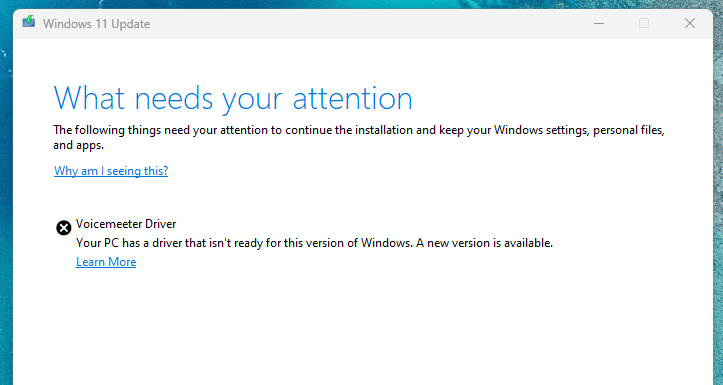
If you’re encountering a frustrating Windows 11 update error related to outdated or incompatible drivers—especially those linked to Voicemeeter—you’re not alone. One of the most common issues occurs when users try to install the 24H2 update and receive an error stating:
“Your PC has a driver that isn’t ready for this version of Windows. A new version is available.”
Even if you’ve uninstalled the problematic software, Windows might still detect leftover driver traces—often buried deep in the system registry—causing the update to fail repeatedly.
This article walks you through the most effective and proven solution to this error.
✅ Step-by-Step Guide to Fix the Driver Update Error
Step 1: Reinstall Voicemeeter Using the Latest Version
The issue typically arises from leftover driver files of Voicemeeter, even after uninstalling it. The best and most reliable fix is to reinstall the latest version of Voicemeeter, which replaces the outdated driver.
- Visit the official VB-Audio website:
👉 https://vb-audio.com/Voicemeeter/ - Download the appropriate version you previously used:
- Voicemeeter Standard
- Voicemeeter Banana
- Voicemeeter Potato (most commonly used by advanced audio users)
- After downloading the installer, right-click the setup file and choose “Run as administrator.”
- Follow the on-screen instructions to complete the installation.
- Once the installation is complete, restart your PC.
Step 2: Retry the Windows 11 24H2 Update
With the driver now updated and properly registered:
- Open Settings > Windows Update
- Click Check for updates
- Proceed with installing the Windows 11 24H2 update
You should now be able to update your system without encountering the previous driver-related error.
🔄 Optional: Uninstall Voicemeeter After the Update
If you don’t plan to use Voicemeeter in the future, you can uninstall it after completing the Windows update:
- Go to Settings > Apps > Installed apps (or Apps & Features)
- Find Voicemeeter and click Uninstall
- Restart your PC to complete the removal
⚠️ Warning: Removing Voicemeeter may eventually cause the same update error to reoccur, especially if residual files are still present in the system. A clean uninstall without registry cleanup might not fully solve it long-term.
ℹ️ Additional Notes
- This method isn’t limited to Voicemeeter. If you encounter similar errors with other third-party drivers, first try uninstalling the software completely.
- If the update still fails, try reinstalling the latest version of the related software to refresh the driver.
✅ Conclusion
Instead of digging through registry entries or system folders to remove every trace of outdated drivers, simply reinstalling Voicemeeter with its latest version offers a hassle-free fix to the Windows 11 24H2 update error.
By following these simple steps, you can get your system updated smoothly—without diving into complex troubleshooting methods.







🔖 Tags:
windows 11 update error, voicemeeter driver fix, vb-audio, windows 11 24H2 update, fix driver update failure, windows update troubleshooting, voicemeeter reinstall guide, driver compatibility windows 11, audio software fix
🔗 Hashtags:
#Windows11 #Voicemeeter #WindowsUpdateError #DriverIssue #AudioDriverFix #VBaudio #VoicemeeterBanana #VoicemeeterPotato #TechFix #SystemUpdate
⚠️ Disclaimer:
This guide is based on personal experience and community-tested methods. Always download software from the official website to avoid security risks. If you are unsure about system changes, consider creating a system restore point or seeking professional help.








