Are you frustrated with the default Windows 11 Start Menu? Do you miss the functionality of older Windows versions or simply want more control over your desktop experience? If so, you’re not alone. With the latest release of Start11 v2 by Stardock, you can deeply customize the look and behavior of the Windows 11 Start Menu and taskbar — going well beyond what Microsoft offers by default.
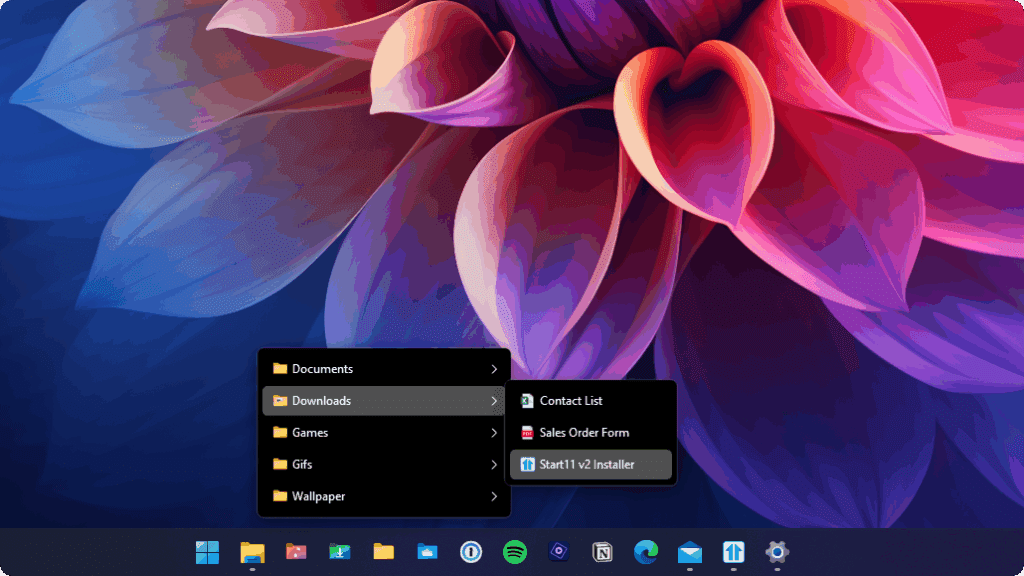
In this article, we’ll walk you through what Start11 v2 can do, how to install it, and the many ways it can help you create a Start Menu and UI that suits your workflow and aesthetic preferences.
🛠 What is Start11 v2?
Start11 v2 is a powerful Windows customization tool developed by Stardock. It allows users to:
- Replace the Windows 11 Start Menu with several alternative designs.
- Customize the Start Menu’s layout, color scheme, and background.
- Change the Start button itself with custom graphics or animated icons.
- Modify the taskbar behavior and appearance.
- Restore or redesign classic Windows UI elements like the Control Panel shortcut, all apps list, and more.
Whether you prefer the classic Windows 7 look, the sleek Windows 10 menu, or something entirely new, Start11 v2 gives you total control.
🚀 How to Install Start11 v2
- Visit the official Start11 website.
- Click on “Try for Free” to download the 30-day trial version.
- After downloading, run the installer, accept the license terms, and follow the installation wizard.
- Upon launch, you’ll be asked to start a trial using an email address. You can use your own or a temporary email provider.
- Activate your trial via the email link sent to your inbox.
- Once activated, you can begin customizing your Start Menu and taskbar.
🎨 Start Menu Styles & Layouts
Start11 v2 offers multiple Start Menu layouts out of the box, including:
✅ Windows 7 Style
Brings back the classic look and feel of Windows 7’s Start Menu — clean, functional, and familiar.
✅ Windows 10 Style
A modern, tile-free take on the Windows 10 Start Menu with improved layout and app access.
✅ Windows 11 Style
If you prefer the current Windows 11 interface, you can retain its style while still unlocking more customization options.
✅ Windows App Style
An enhanced Windows 11-style menu with sections for pinned apps, recent documents, and categorized shortcuts — all customizable.
✅ Windows Pro Style
Combines elements of Windows 11 and legacy Windows layouts. It places system utilities and app shortcuts side by side for better usability.
✅ Windows Launcher Style
A minimalist approach that blends key design cues from mobile launchers with the traditional Start Menu layout.


🎛 Customization Options
Start11 v2 doesn’t stop at layout choices. You can fine-tune nearly every visual and functional aspect:
🎨 Menu Backgrounds
Choose from built-in textures (like carbon fiber, fabric, metal) or upload your own images to use as menu backgrounds. You can even use your favorite movie or game posters — perfect for fans of shows like The Walking Dead or Stargate Universe.
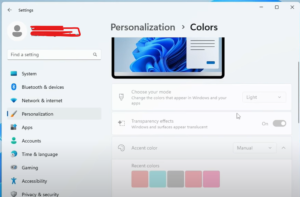
🌈 Color & Transparency
- Adjust the Start Menu’s colors manually or let it auto-adapt to your Windows theme.
- Set transparency levels or enable Mica-style blur effects.
- Turn on custom shadows and highlight effects.
📁 Menu Behavior
- Show shutdown/restart options even when using Remote Desktop.
- Rename pin sections or rearrange items freely.
- Add or remove frequently used folders like Documents, Pictures, etc.
🧷 Custom Start Buttons
One of the most unique features of Start11 is the ability to change the Start button itself:
- Choose from a library of built-in button icons.
- Use animated icons like Angry Birds characters.
- Create your own using Open Shell-compatible formats.
- Adjust size and alignment easily, though some custom images may need resizing (as detailed later).
🧰 Taskbar Enhancements
By enabling Start11’s taskbar enhancements, you unlock further customization:
- Move the taskbar and Start button to the left or center — even with custom icons.
- Control taskbar color, transparency, blur, and size.
- Restore legacy UI elements like the classic Control Panel shortcut or app grouping styles.
Note: Some settings like custom Start buttons require enabling enhanced taskbar mode for proper alignment.
🖼 How to Fix Oversized Custom Start Buttons
If a custom button appears too large or gets cut off:
- Open the image using Windows Photos or another image viewer.
- Click “Resize” and reduce the size (e.g., from 128px to 50px).
- Save the new version with a different filename.
- Reapply it in Start11’s Start Button settings.
With a bit of trial and error, you can get the perfect size and effect.
⚠️ Disclaimer
Important: Start11 is a third-party software tool. While it is developed by a reputable company (Stardock), modifying your system’s interface always carries some risk. Ensure you download from the official website and create system restore points before making significant UI changes.
Also, Start11 is a paid application after the 30-day trial. A license is required for continued use.
🔚 Final Thoughts
If you’re someone who values productivity, visual control, or nostalgia for older Windows layouts, Start11 v2 is easily one of the most powerful customization tools for Windows 11.
You get:
- Complete control over the Start Menu and taskbar.
- The ability to bring back classic layouts or create entirely new ones.
- Support for personal images and animations.
For users who want Windows 11 to look and feel their way, Start11 v2 is an essential tool worth exploring.
🔖 Tags:
Start11 v2, Stardock, Windows 11 customization, Start menu replacement, custom Start button, Windows UI tweaks, taskbar customization, Open Shell, Windows personalization, Windows productivity tools
🔖 Hashtags:
#Windows11 #Start11 #Stardock #CustomStartMenu #WindowsCustomization #TechTools #ProductivityApps #WindowsMods #DesktopTweaks #StartMenuReplacer








