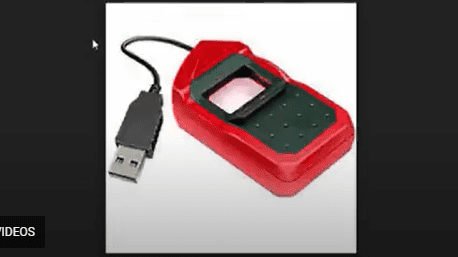
The Sagem Morphosmart 1300 is a widely used biometric device for Aadhaar eKYC, banking, and CSC centers. However, many users face difficulties installing its drivers on Windows PCs. This step-by-step guide will help you install the Sagem Morphosmart 1300 driver correctly.
Why Is Sagem Morphosmart 1300 Driver Installation Tricky?
- Windows does not automatically install the correct driver.
- Users often see a yellow exclamation mark in Device Manager, indicating a missing driver.
- The device may not work even after connecting via USB.
This guide provides a manual installation method to fix these issues.
Step-by-Step Installation Guide
Step 1: Connect the Device
- Plug the Sagem Morphosmart 1300 into a USB port.
- Windows will search for drivers but fail to install them automatically.

Step 2: Open Device Manager
- Press
Win + Xand select Device Manager. - Look for “Sagem Morphosmart 1300” or “MSO1300-e3” with a yellow warning sign.

Step 3: Download Required Drivers
- Download the correct driver for your system:
- Sagem Morphosmart 1300 Driver (32-bit)
- Sagem Morphosmart 1300 Driver (64-bit)
Step 4: Install Support Files (If Needed)
- Run the support file installer first.
- Follow the on-screen instructions.

Step 5: Extract Driver Files
- Extract the downloaded driver using WinRAR or 7-Zip.
- Save the files in a new folder (e.g.,
C:\Morpho_Driver).

Step 6: Manually Update Driver in Device Manager
- Right-click on the Morphosmart 1300 device in Device Manager.
- Select “Update driver” > “Browse my computer for drivers”.

- Navigate to the extracted driver folder (
C:\Morpho_Driver).

- Select the driver and click Next.

Step 7: Confirm Installation
- Windows will install the driver.
- The yellow warning sign will disappear.
- A confirmation message will appear, indicating successful installation.
Troubleshooting Tips
❌ Driver not installing?
- Ensure you downloaded the correct version (32-bit/64-bit).
- Try disconnecting and reconnecting the device.
❌ Still not working?
- Restart your PC after installation.
- Check Windows updates for additional drivers.
Conclusion
By following these steps, you can successfully install the Sagem Morphosmart 1300 driver on Windows. If you still face issues, comment below, and we’ll help you resolve them!
🔹 Like our Facebook page for more tech guides: Desktop Publishing Tips
Tags:
Sagem Morphosmart 1300, Driver Installation, Windows Driver Fix, Biometric Device, eKYC Device
Hashtags:
#SagemMorphosmart #WindowsDriver #TechGuide #BiometricDevice #PCInstallation
Disclaimer:
- Ensure you download drivers from official or trusted sources.
- Incorrect driver installation may cause device malfunction.
Need help? Drop your questions in the comments! 🚀