If you’re trying to open CorelDRAW and it immediately crashes or says “CorelDRAW has stopped working,” you’re not alone. This is a common issue that many designers face, especially after Windows updates, driver issues, or corrupted application settings.
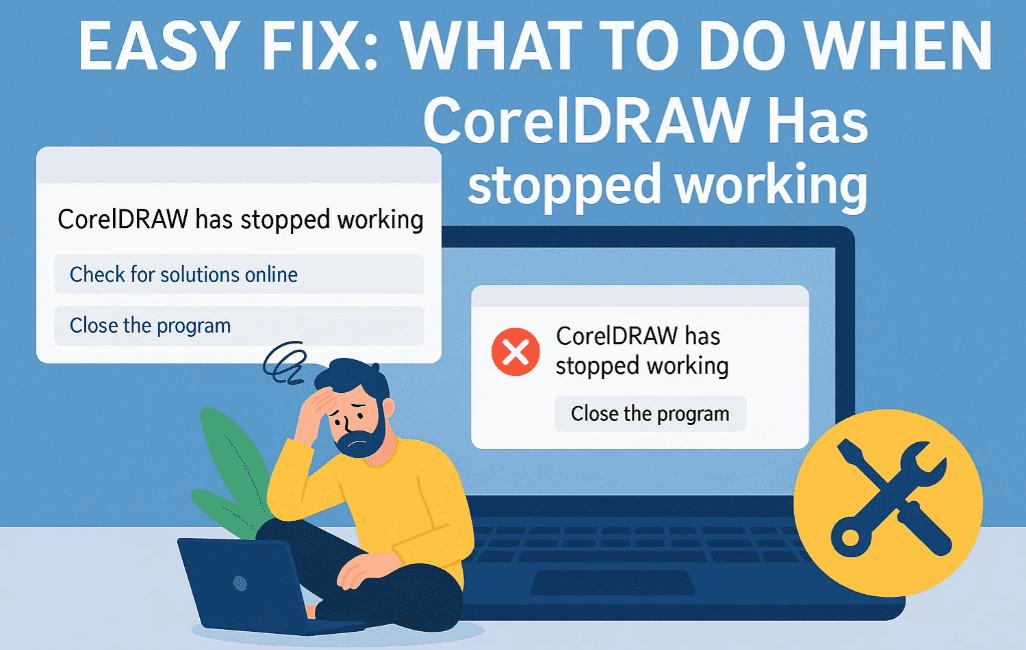
The good news? You don’t have to uninstall and reinstall right away. Here’s a complete step-by-step troubleshooting guide based on real user experience and proven methods.
🧠 Why CorelDRAW May Stop Working
Here are some common reasons for sudden CorelDRAW crashes:
- Corrupted application settings or cache
- Windows or driver incompatibility
- Corrupted fonts or conflicting plugins
- Broken Microsoft Visual C++ Redistributables
- Outdated or incompatible graphics drivers
- Conflicts with antivirus software or firewall settings
✅ Step 1: Reset CorelDRAW’s User Settings
This is the most effective and frequently successful fix.
🔧 How to do it:
- Close CorelDRAW.
- Go to:
C:\Users\<YourUsername>\AppData\Roaming\Corel - Rename the folder named Corel to Corel_old.
- Reopen CorelDRAW.
This resets all preferences to default and clears any corrupt workspace settings.
🧹 Additional General Solutions
If the reset method doesn’t solve your problem, try these other working solutions:
✅ 2. Launch CorelDRAW in Safe Mode (Workspace Reset)
Safe Mode disables all plugins and third-party configurations.
👉 How to do it:
- Hold F8 while double-clicking CorelDRAW to launch it.
- You’ll get a prompt to reset workspace settings—select Yes.
✅ 3. Update or Reinstall Microsoft Visual C++ Redistributables
Corrupted C++ runtime files can stop CorelDRAW from launching.
👉 Fix it:
- Go to Microsoft’s official download page
- Download the latest x64 and x86 versions.
- Install them and restart your PC.
✅ 4. Disable Antivirus and Firewall Temporarily
Some antivirus software mistakenly blocks CorelDRAW’s executable files.
👉 What to do:
- Temporarily disable your antivirus and Windows Firewall.
- Launch CorelDRAW and see if it opens.
- If it does, whitelist CorelDRAW in your antivirus settings.
✅ 5. Check for Windows Updates & GPU Drivers
A broken or outdated driver can crash graphic software like CorelDRAW.
👉 Update GPU:
- For Intel, AMD, or NVIDIA, visit the official site and download the latest drivers.
- Or use Device Manager → Display Adapters → Update Driver.
👉 Update Windows:
- Go to Settings → Windows Update → Check for Updates.
- Install everything, then reboot.
✅ 6. Remove Recently Installed Fonts
Corrupted or incompatible fonts can crash CorelDRAW during startup.







👉 How to check:
- Go to
C:\Windows\Fonts - Sort fonts by install date.
- Temporarily move recently installed fonts to another folder and test again.
✅ 7. Perform a Clean Uninstall and Reinstall
If all else fails, do a complete uninstall, remove leftover files, and then reinstall CorelDRAW.
👉 How to perform a clean uninstall:
- Use Revo Uninstaller or IObit Uninstaller to remove CorelDRAW completely.
- Delete residual folders from:
C:\Program Files\CorelC:\Users\<Username>\AppData\Roaming\Corel
- Restart and reinstall CorelDRAW from Corel’s official website.
✅ 8. Create a New Windows User Profile
Sometimes the user profile itself gets corrupted.
👉 Try this:
- Go to Settings → Accounts → Family & other users → Add someone else to this PC.
- Log in with the new user.
- Launch CorelDRAW.
If it works, the issue lies within your original user profile’s data.
❓ FAQs
Q: Will resetting CorelDRAW settings delete my workspaces and preferences?
A: Yes. If you’ve customized your interface, those changes will be reset. You can backup the Corel folder before deleting it.
Q: CorelDRAW opens and crashes after a few seconds—what to do?
A: Try Safe Mode (F8), update drivers, or check recently installed fonts.
Q: I reinstalled CorelDRAW, but the problem persists. Why?
A: You likely did not remove residual files during uninstall. Try using a third-party uninstaller for a clean uninstall.
🎯 Final Thoughts
When CorelDRAW stops working, it doesn’t always mean the software is broken. In most cases, a simple user setting reset or a conflict with drivers or fonts is to blame.
The fastest fix is renaming the Corel settings folder and starting fresh. But with the list of general solutions above, you have multiple troubleshooting options without wasting time.
📌 Tags:
coreldraw crash fix, coreldraw not opening, fix coreldraw stopped working, windows graphic software issue, how to repair coreldraw, visual c++ fix, font crash coreldraw, antivirus coreldraw conflict
📌 Hashtags:
#CorelDRAW #GraphicDesignFix #CorelCrashing #WindowsGraphicsIssue #FixCorelDraw #DesignSoftware #CorelTips #GraphicDesign
⚠️ Disclaimer:
This article is based on general user experience and technical support recommendations. Always back up your design files and settings before making changes to your system or CorelDRAW installation.