Printers like the HP LaserJet P1005 have stood the test of time. Compact, reliable, and efficient, this model remains a favorite in many homes and offices. But here’s the catch: when moving to newer Windows versions like Windows 11 or Windows 10, users often face the dreaded “driver not found” error. Without the correct driver, the printer simply won’t function.
In this guide, I’ll walk you through every possible method to get your HP LaserJet P1005 working, whether you’re using Windows 11, Windows 10, or even older editions like Windows 8 or Windows 7. We’ll start with the official HP drivers, then move to alternatives like the Universal Print Driver and Windows Update Catalog. By the end, you’ll have multiple solutions to choose from.
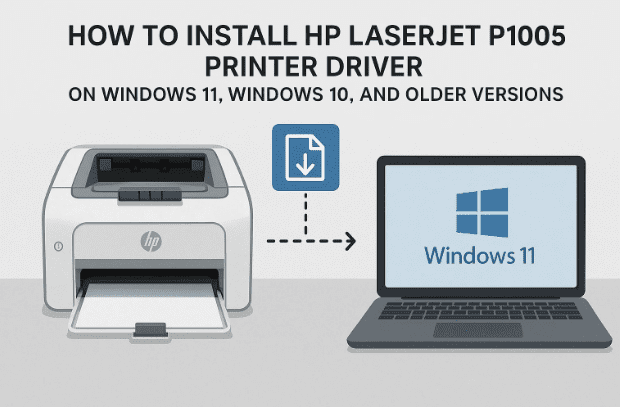
Grab your coffee, sit back, and let’s begin step by step.
🧐 Why You Need the Correct Driver
Every printer requires a driver — software that lets Windows “talk” to the device. Without it, the printer can’t understand what your computer is asking it to print.
The HP LaserJet P1005 was originally released during the Windows XP/Vista era. HP provided drivers up to Windows 10 officially, but Windows 11 often redirects users to Windows 10 drivers because there’s no separate listing. This can cause confusion, but don’t worry: with the right method, the P1005 works fine on Windows 11 too.
So far, so good. Let’s move to the first method — the official HP driver installation.
🔹 Method 1: Download Official HP LaserJet P1005 Driver
This is the recommended approach because it ensures you’re getting the driver directly from HP.
Step 1: Visit the Official HP Support Page
- Open your browser and type:
👉 HP LaserJet P1005 Drivers Page - In the search box, type “HP LaserJet P1005 driver” and hit Enter.
- Click the first link from
support.hp.com.
This is HP’s official site, so you don’t have to worry about malware or fake drivers.
Step 2: Detect Your Operating System
The HP site usually auto-detects your OS.
- If you’re on Windows 11, the site may redirect you to the Windows 10 64-bit driver. That’s fine — it works.
- If your PC is 32-bit Windows, select the 32-bit option manually.
Step 3: Download the Basic Driver
On the support page, you’ll see two options:
- Full product installation software (large package with extra tools).
- Basic driver only (lighter, just the essentials).
👉 Choose the Basic driver — it’s faster, cleaner, and less prone to issues.





Click Download and save the file to your Desktop.
Step 4: Extract Driver Files
- The file usually comes compressed (
.exeor.zip). - Right-click it → Extract All or use WinRAR/7-Zip.
- You’ll now have a folder containing the driver files.
Step 5: Install Driver via Control Panel
Now we’ll link Windows to the driver folder.
- Press Win + S, type Control Panel, and open it.
- Go to Devices and Printers.
- At the top, click Add a Printer.
- When Windows searches but doesn’t find your printer, click “The printer that I want isn’t listed.”
- Select “Add a local printer or network printer with manual settings” → click Next.
- Under port selection, choose USB001 (Virtual Printer Port for USB). If you see DOT4_001 HP Device, that works too.
- Click Next → then choose Have Disk.
- Click Browse and point it to the folder where you extracted the driver.
- Select the driver file (
.inf). - Confirm the model: HP LaserJet P1005 → click Next.
- Proceed with installation until you see “Printer installed successfully.”
Optional: Print a Test Page to confirm.
So far, we’ve done a good job installing through HP’s official method. But what if it doesn’t work? Let’s move to alternative approaches.
🔹 Method 2: Manual “Have Disk” Installation
Sometimes, even with official drivers, Windows refuses to detect the printer automatically. In such cases, you can force-install using the Have Disk option.
This is basically the same process as Step 5 above, but you skip the auto-detection and jump straight into browsing for the .inf file inside the driver folder.
Why use this?
- If Windows incorrectly assigns a “Generic Printer” driver.
- If auto-install fails due to version mismatch.
This method works especially well on Windows 11, which sometimes blocks automatic detection.
🔹 Method 3: Using HP Universal Print Driver (UPD)
If the specific P1005 driver fails, HP offers a Universal Print Driver (UPD). This supports many older printers, including the P1005.
Steps:
- Go to the HP Universal Print Driver page.
- Download the PCL 6 (UPD) version.
- Install it the same way via Control Panel → Add Printer → Have Disk.
- When prompted to pick the printer model, scroll down and select HP LaserJet P1005 (if listed) or a close match.
While the Universal driver may not provide every advanced feature, it ensures basic printing works on Windows 10/11.
🔹 Method 4: Install via Windows Update Catalog
If HP’s site and UPD don’t help, try Microsoft’s Windows Update Catalog.
Steps:
- Visit Microsoft Update Catalog.
- Search for “HP LaserJet P1005”.
- Download the matching driver package for your OS (check 32-bit vs 64-bit).
- Extract the
.cabfile you get. - Use the Have Disk method to manually point Windows to the
.inffile inside the extracted folder.
This method is less common, but it’s a lifesaver when official links break.
⚠️ Troubleshooting Common Issues
Even after following these steps, you might face hiccups. Let’s go through the most frequent ones.
1. Printer Not Detected via USB
- Try a different USB port (preferably USB 2.0).
- Replace the cable — old USB cables often fail silently.
- Check Device Manager → under Universal Serial Bus controllers, see if there’s an error symbol.
2. Windows 11 Doesn’t Show Driver
- Use the Windows 10 64-bit driver — it works on Windows 11.
- Or fallback to the Universal Print Driver.
3. Test Page Doesn’t Print
- Double-check the correct port is selected (USB001 or DOT4).
- Restart the Print Spooler service (
services.msc).
4. Print Quality Issues
- Update firmware if available.
- Clean the cartridge or replace it.
- Adjust print settings under Printer Preferences.
❓ Frequently Asked Questions (FAQ)
Q1. Does HP LaserJet P1005 work on Windows 11?
Yes. HP doesn’t list Windows 11 separately, but the Windows 10 64-bit driver works perfectly.
Q2. Can I use this printer without installing a driver?
No. Windows might assign a “Generic Printer” driver, but it won’t work properly. Installing the correct driver is mandatory.
Q3. What if my PC is 32-bit?
Download the 32-bit driver from HP’s site. If unavailable, try the Windows Update Catalog.
Q4. Is the Universal Print Driver safe?
Yes, it’s provided directly by HP. It’s designed for compatibility across many models.
Q5. Can I use this on Linux or macOS?
On Linux, yes (via CUPS drivers). On macOS, support is limited. This guide focuses on Windows.
✅ Final Thoughts
Installing the HP LaserJet P1005 on Windows 11 or 10 may look tricky at first, but as we’ve seen, there are multiple reliable paths:
- Start with the official HP driver.
- If that fails, use Have Disk.
- Still stuck? Try the HP Universal Print Driver.
- As a last resort, download from the Windows Update Catalog.
So far we’ve covered every angle — from official methods to advanced workarounds. With patience and the right approach, your LaserJet P1005 will continue serving you for years to come.
⚠️ Disclaimer
This guide is for educational purposes. Always download drivers from official sources (HP or Microsoft). Avoid third-party driver websites, as they may include malware. Installing drivers involves system-level changes, so proceed carefully and back up important data before modifying system settings.
📌 Tags & Hashtags
Tags: hp laserjet p1005 driver windows 11, install hp printer windows 10, hp p1005 manual driver setup, universal print driver hp, hp printer not detected usb, windows update printer drivers
Hashtags: #HPLaserJetP1005 #Windows11 #PrinterDriver #HPDrivers #Windows10 #TechGuide #Troubleshooting








