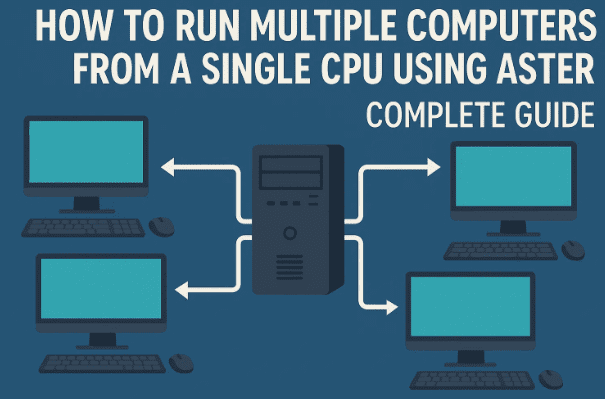
Most people think of a computer as a combination of CPU + monitor or a laptop. But what if I told you that one CPU can actually run two or more computers at the same time? Yes, it’s possible to create separate user workspaces, each with its own monitor, keyboard, mouse, and audio — essentially giving you multiple PCs powered by a single machine.
In this guide, we’ll explore how you can turn one CPU into two (or even up to twelve) computers, the hardware and software options available, how Aster software makes it seamless, and what to expect in real-world usage.
📌 Why Use One CPU for Multiple Computers?
Before diving into the technical steps, it’s important to understand why this setup matters.
- Cost Savings: Instead of buying five separate PCs for a classroom or office, you can buy one powerful CPU and turn it into multiple workstations.
- Space Savings: One CPU takes far less space than multiple towers.
- Power Efficiency: Running a single system consumes much less electricity compared to many CPUs.
- Maintenance: Easier to manage and maintain one system instead of several.
This concept is especially useful for schools, computer labs, training centers, and small businesses where budget and space are major concerns.
⚙️ Two Main Approaches: Hardware vs Software
Now let’s look at the methods available to achieve this multi-computer setup.
1. Hardware Option: Thin Clients
Thin clients are small external devices (often costing around ₹3000 each) that connect to a CPU and provide separate workstations. However, they have many limitations:
- Suitable only for lightweight tasks like Word, Excel, or browsing.
- Cannot handle heavy tasks such as gaming, Photoshop, or video editing.
- Require additional hardware purchases, which limits scalability.
Thin clients are a workable solution for basic offices or classrooms but not ideal for professional or creative workloads.
2. Software Option: Virtual Machines
The second option is using virtualization software. Here’s how it works:
- You divide your system resources (CPU, RAM, GPU).
- For example, if you have 8 GB RAM, you allocate 4 GB to one virtual PC and 4 GB to another.
- Each virtual machine behaves like a separate computer, with its own operating system and apps.
However, this method has drawbacks:
- Resource sharing limits performance.
- Setting up multiple virtual machines can be complex.
- Heavy gaming or editing still becomes challenging.
3. Cloud Option: Online Virtual Machines
Another alternative is using cloud-based virtual desktops. In this method:
- You connect to remote servers via the internet.
- Work is done on a cloud machine (like a supercomputer) while your device acts as a display.
- Data can be downloaded or exported after tasks are complete.
This approach has clear disadvantages:
- Requires very fast and stable internet.
- High monthly costs.
- Heavily limited in regions with poor connectivity.
4. Best Option: Aster Software
Finally, we arrive at the most practical and popular solution: Aster Multiseat Software.
Aster allows you to run up to 12 independent workspaces from a single CPU. Each workspace can have:
- Its own monitor.
- Its own keyboard and mouse.
- Its own audio output (headset or speakers).
- Its own desktop environment and apps.
Unlike virtual machines, Aster doesn’t require you to split RAM or CPU manually. It works directly on Windows and creates multiple user environments simultaneously.
👉 Official site: Aster Multiseat
🛠️ How Aster Software Works
Once installed, Aster detects your connected devices (monitors, mice, keyboards, audio) and allows you to assign them to separate users. For example:
- Workspace 1: Your profile with Photoshop and editing tools.
- Workspace 2: Your friend’s or sibling’s profile with games or browsing.
Each workspace functions independently. If one person is editing in Premiere Pro, another can browse the web or play a game simultaneously without interference.
🔍 Step-by-Step Setup of Aster
Now let’s get into the practical steps to set up Aster on your system.
Step 1: Install Aster Software
- Download Aster from the official site.
- Install normally but do not launch immediately after installation.
- First, configure device assignments before enabling.
Step 2: Configure Display Settings
- Open Windows display settings.
- Ensure all monitors are detected.
- Use the “Extend Display” option (not duplicate).
- Each monitor should act as a separate screen.
Step 3: Assign Monitors to Workspaces
- In Aster’s interface, drag and drop each detected monitor into different workspaces.
- Monitors will be labeled (HDMI, DP, or brand names).
- This step ensures each workspace gets its own display.
Step 4: Assign Keyboard and Mouse
- Ask the second user (e.g., your friend) to press a key or move the mouse.
- Aster will detect the device and allow you to assign it to their workspace.
- Repeat for all users.
Step 5: Configure Audio Devices
- Plug in separate headsets or speakers.
- Assign each audio device to a different workspace.
- Shared devices (like webcams) can be marked as Shared in Aster so multiple users can access them when needed.
Step 6: Apply and Enable Aster
- Once all devices are assigned, click Apply.
- Enable Aster and reboot the system when prompted.
- After reboot, each workspace will boot separately, with unique profiles, wallpapers, and apps.
🖼️ Real-World Example
In one setup:
- CPU: Intel i5 12th Gen with integrated graphics.
- GPU: 12 GB dedicated graphics card (2 DP + 2 HDMI).
- Motherboard: Supports multiple GPU outputs.
This setup can comfortably run up to 8 workspaces. For light tasks, it could extend to 12 workspaces by adding licenses.
🎮 Gaming & Heavy Workloads
A common question is: Can you game on two workspaces at once?
- For offline games with separate setups, yes, it works fine.
- For online multiplayer games, you cannot use the same account on both workspaces at once. Each user needs their own game license and login.
- Performance depends on your CPU/GPU power. If you’re editing in AutoCAD or Premiere, limit workspaces to 2–3 for stable performance.
💡 Troubleshooting & Common Issues
Even though Aster is reliable, some users face issues:
- Internet Problems
- If both workspaces share the same connection, create separate static IP addresses.
- Configure in Aster settings to avoid disconnection.
- Cracked Versions
- Avoid cracked software. It often causes crashes and improper functionality.
- Use the official 14-day free trial before purchasing.
- Device Conflicts
- If a device (e.g., webcam or speaker) is used by both, set it as a Shared Device in Aster.
- Hardware Limits
- Your motherboard must support multiple GPUs if you want more than 4 monitors.
- RAM and CPU must be strong enough to handle multiple active sessions.
💵 Pricing & Licensing
Aster offers different license options:
- 2 Workspaces
- 6 Workspaces
- 12 Workspaces (by combining licenses)
The software is licensed annually (about ₹900 per workspace in India). While it is a recurring cost, it is far cheaper than buying multiple PCs.
❓ Frequently Asked Questions (FAQ)
Q1. Can I run two computers from a laptop using Aster?
Yes, if the laptop supports multiple external display outputs and has enough power. However, laptops usually have limited ports and weaker cooling, so desktops are better.
Q2. Is gaming possible on both workspaces?
Yes, but only with separate accounts/licenses. Online games generally don’t allow two simultaneous logins from the same ID.
Q3. How many monitors can I connect?
It depends on your GPU and motherboard. Some motherboards have 4 display outputs, and adding another GPU increases this.
Q4. What if my system hangs when running multiple users?
Check if your CPU and RAM are sufficient. For smooth performance, modern CPUs (12th or 13th Gen Intel, or AMD Ryzen 5/7 and above) with at least 16–32 GB RAM are recommended.
Q5. Is Aster safe to use?
Yes, Aster is widely used in schools and offices internationally. Always download from the official site.
⚖️ Disclaimer
This guide is for educational purposes. Always ensure you comply with local licensing, especially when using Aster in schools, offices, or commercial setups. Do not use cracked or pirated software, as it can compromise system stability and security.
✅ Final Thoughts
Using Aster Multiseat Software is one of the smartest ways to maximize a single CPU’s potential. From classrooms to small businesses, it can drastically cut costs while delivering independent workstations to multiple users.
Instead of investing in five or ten computers, one powerful CPU can handle them all. For gamers, designers, or families sharing a PC, Aster provides flexibility that was once thought impossible.
As technology evolves, such solutions will only grow more relevant, especially in regions where affordability is a key concern.
Tags
multi seat computer, aster multiseat, run two computers from one cpu, share pc with multiple users, thin client vs aster, multi user workstation, computer lab setup, cpu with multiple monitors
Hashtags
#Aster #Multiseat #TechGuide #PCSetup #ComputerLabs #WindowsTips








