Keeping track of your device’s available storage is essential for maintaining performance and ensuring you don’t run into space issues when installing applications, downloading files, or updating macOS. If you’re wondering how to find how much storage is left on your Mac, this quick and simple guide will walk you through the steps.
🛠️ Steps to Check Available Storage on macOS
Follow these steps to see how much free space is available on your Mac:
1. Click the Apple Menu
- Navigate to the top-left corner of your screen.
- Click on the Apple icon () in the menu bar.
2. Select “About This Mac”
- In the dropdown menu, click on “About This Mac.”
3. Click on “More Info”
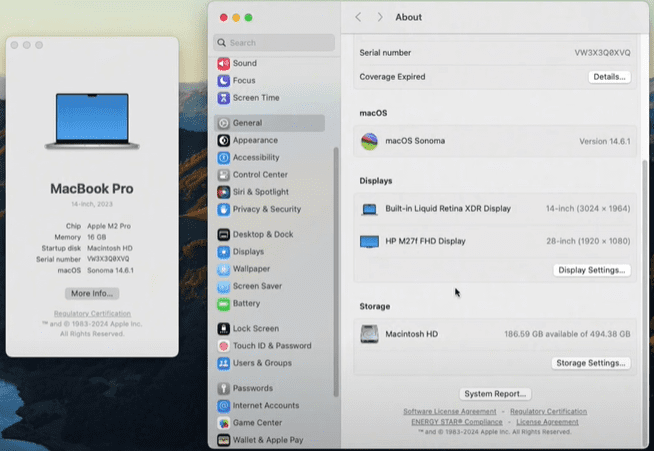
- A window will appear showing an overview of your Mac, including the model, processor, and memory.
- Click on the “More Info” button to proceed.
4. Scroll Down to Storage Section
- Scroll down the newly opened System Information or Settings panel.
- You will see a section that displays your storage details.
- It will show the total capacity of your disk and how much space is currently available.
📌 Example:
You might see something like “180 GB available,” which indicates that you still have 180 gigabytes of free storage left on your Mac.
💡 Why This Is Important
Monitoring your available storage helps you:
- Avoid unexpected “Disk Full” errors.
- Optimize system performance.
- Know when it’s time to delete unused files or transfer data to external storage or cloud solutions.
🧼 Tips to Free Up Space If Needed
If you find your Mac is running low on storage, consider the following:
- Delete unused applications.
- Clear cache and temporary files.
- Use built-in macOS tools like Optimize Storage.
- Move large files to iCloud or an external drive.
For more information, you can explore the official Apple support page: https://support.apple.com/en-us/HT201656
🏷️ Tags
macOS, storage, Mac storage, free space, Mac tips, disk space, how to check Mac storage, Mac maintenance, Apple tips, Mac performance
🔖 Hashtags
#macOS #MacTips #StorageCheck #Apple #MacStorage #TechTips
📌 Disclaimer
This article is for informational purposes only. Steps may vary slightly depending on your macOS version. Always ensure your data is backed up before making any system changes.