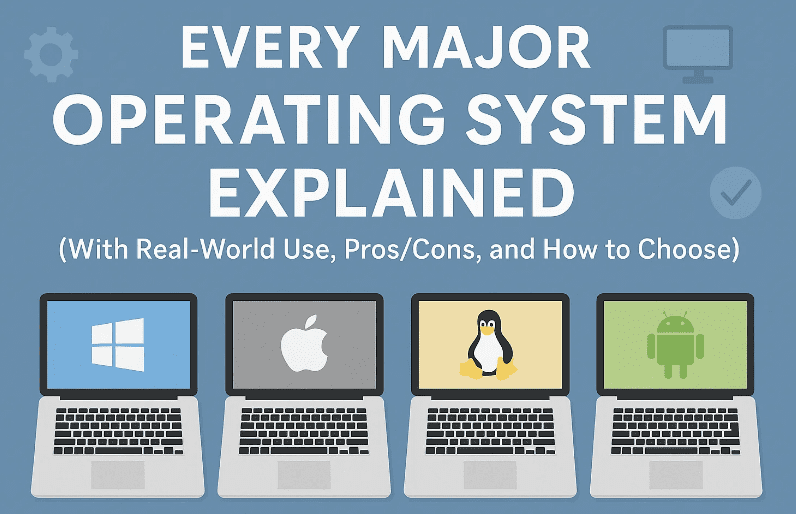
Most of us boot into one operating system every day and rarely think about what’s happening behind the scenes. Yet operating systems (OSes) are everywhere—powering your laptop, phone, smart TV, car dashboard, bank servers, and even satellites. In this deep-dive guide, we’ll unpack the major operating systems—Windows, macOS, Linux, ChromeOS, Android, iOS, and Unix/BSD—and translate their strengths, trade-offs, and best-fit scenarios into plain English.
Along the way we’ll include:
- a friendly overview (what it is, who it’s for)
- real pros/cons that matter in daily life
- practical tips (maintenance, security, app support)
- how to choose the right OS for your needs (step-by-step)
- an FAQ to clear up common confusion
- and a quick comparison table so you can scan differences at a glance
No fluff, no hype—just clear explanations and guidance you can act on today.
1) 🪟 Windows: Ubiquitous, Flexible, and Sometimes Fussy
If you’ve used a computer in the last three decades, there’s a good chance it ran Windows. Created by Microsoft and first released in 1985 as a graphical shell for MS-DOS, Windows became the go-to general-purpose OS for home and business.
Before we jump into details, a quick note: Windows is a chameleon. It runs on budget laptops, creator workstations, and enterprise servers. That breadth is its superpower—and the source of many headaches.
What Windows does well (and why people choose it):
- General-purpose: From web browsing to 4K video editing, CAD, programming, and PC gaming, Windows covers it.
- Software library: Massive app and driver ecosystem; niche tools and legacy software often exist only for Windows.
- Hardware choice: Works across thousands of device configurations, from €300 laptops to high-end rigs.
- Enterprise support: Active Directory, group policies, and pro-grade management make it a corporate staple.
Where Windows can frustrate you:
- Updates can interrupt: Feature updates and reboots are notorious if left on defaults.
- Obscure errors: Cryptic error codes can mean time spent troubleshooting.
- Security target: Popularity makes it a prime target for malware—protection and hygiene are essential.
- Performance drift: Over time, junk files, startup apps, and drivers can slow things down if you don’t maintain it.
Helpful maintenance actions (do these once, thank yourself later):
Let’s get you into a better place with a few routine habits. We’ll keep it simple.
- Monthly: Clear temporary files (Storage Sense), review startup apps (Task Manager → Startup), run Windows Update.
- Quarterly: Update GPU/chipset drivers from your manufacturer; uninstall apps you don’t use.
- Annually: Consider a clean reinstall if the system feels unstable after major upgrades—back up first.
Official website: microsoft.com/windows
2) 🍎 macOS: Polished, Stable, and Hardware-Tuned
Apple’s macOS (born as Mac OS X in 2001) is renowned for its smooth UI, cohesive experience, and creative-friendly tooling. It’s built to run only on Apple hardware, and that tight integration is a big reason for its stability.
So far, we’ve talked about systems that try to be everything for everyone. macOS takes a different path: “less choice, more coherence.”
Why macOS is loved:
- Hardware+software synergy: Drivers “just work,” battery life is excellent on Apple Silicon, and performance is consistent.
- Creative workflows: Video editing, music production, photography, and design apps feel polished and well-optimized.
- Security baseline: App notarization, Gatekeeper, and rapid OS updates keep typical risks low.
- Long support window: Years of OS updates on the same device.
Trade-offs to expect:
- Limited customization: macOS favors consistency over deep system tweaks.
- Fewer games: Gaming library is improving but still trails Windows.
- App installs: Apps outside the App Store may require extra permission steps.
- Hardware cost: Buy-in is higher; upgrades are limited post-purchase.
Who should pick macOS?
- Creators, developers targeting Apple platforms, users who want fewer “why is this broken?” moments, and anyone who values clean UX over tinkering.
Official website: apple.com/macos
3) 🐧 Linux: Open-Source Powerhouse (Servers to Supercomputers… and Your PC)
Linux began in 1991 as Linus Torvalds’ hobby project. Today it’s the invisible backbone of modern computing—running on servers, Android phones, cloud infrastructure, supercomputers, routers, and more. On desktops, it’s a passionate and capable niche.
Before diving into distributions, let’s set expectations. Linux gives you control, efficiency, and transparency—in exchange for a little learning curve.
Why Linux is special:
- Open-source: Inspect, modify, and share code. Huge community and rapid iteration.
- Rock-solid stability: Powers mission-critical systems at Meta, NASA, Google, and beyond.
- Runs anywhere: Old hardware? Embedded devices? Cloud instances? Linux fits.
- Security model: Strong permissions and repositories reduce typical malware threats.
Where Linux challenges newcomers:
- Software availability: Some commercial desktop apps don’t exist (or arrive later). Alternatives are improving, but check your must-have tools.
- Learning curve: You don’t need to love terminals, but being terminal-curious helps.
- Hardware extras: New or niche devices sometimes need manual drivers or patience.
Choosing a Linux distro (start here):
Let’s move gently—no command-line marathons on day one.
- Ubuntu (beginner-friendly): ubuntu.com
- Fedora Workstation (cutting-edge, polished GNOME): fedoraproject.org
- Linux Mint (Windows-like comfort): linuxmint.com
- Debian (stable classic): debian.org
- Arch Linux (build-your-own, rolling release): archlinux.org
Safest way to try Linux (no risk to your files):
- Create a Live USB using tools like Rufus/Balena Etcher → Boot into “Try without installing.”
- Test Wi-Fi, touchpad, audio, external monitors, your daily apps (web, docs, media).
- If it feels right, install alongside Windows (dual boot) or on a spare drive.
Official kernel site: kernel.org
4) 💠 ChromeOS: Fast, Secure, and Web-First
Google’s ChromeOS started as “a browser as an OS.” It has grown up dramatically: it now runs web apps, Android apps, and even Linux apps—while staying light and secure.
If your work is mostly in the browser, you might be surprised by how effortless ChromeOS feels day-to-day.
What makes ChromeOS compelling:
- Instant-on speed: Fast boot and snappy performance on modest hardware.
- Security by design: Sandboxed apps, verified boot, and auto-updates.
- Simplicity: Less maintenance, fewer “driver” dramas.
- Android + Linux app support: Expands possibilities beyond the web.
What to consider carefully:
- Offline limitations: Offline mode exists, but most workflows shine online.
- Desktop apps: Some traditional apps (e.g., full Adobe suite, certain DAWs) aren’t native—check web/Android/Linux alternatives.
- Storage: Many Chromebooks come with smaller storage; use cloud intentionally.
Best for:
Students, educators, casual users, and professionals who live in the cloud (Docs, Sheets, Figma, Notion, web dashboards).
Official website: google.com/chromebook/chrome-os
5) 🤖 Android: The World’s Most-Used Mobile OS
Launched in 2008 and maintained by Google, Android powers the majority of smartphones worldwide—and much more (tablets, watches, TVs, car dashboards).
Before we talk strengths and quirks, remember: Android is open and flexible. That allows incredible variety… and uneven experiences.
Why Android dominates:
- Open & adaptable: Manufacturers can customize; developers can tune deeply.
- Device choice: Budget to ultra-premium; small to foldable; rugged to featherweight.
- Customization: Launchers, widgets, automation—make it yours.
- App ecosystem: Google Play Store is huge; sideloading possible (with caution).
What Android users wrestle with:
- Fragmentation: Different vendors, skins, and update policies.
- Bloatware: Pre-installed apps that you can’t always remove.
- Security hygiene: Sideloading and third-party stores increase risk—stick to trusted sources.
Who should pick Android?
Users who want device variety and customization, tinkerers, and those tightly integrated with Google services.
Official website: android.com
6) 📱 iOS: Secure, Cohesive, and Consistent
Apple’s iOS (debuted in 2007 as “iPhone OS”) doesn’t try to be all things to all devices—it aims to be the best possible experience on iPhone. The strength here is curation and consistency.
Let’s set expectations. iOS embraces a walled-garden philosophy in exchange for uniform performance and tight security.
Why people prefer iOS:
- Timely updates: Years of OS support across many iPhone models.
- Security posture: App Store review, permissions, and strong sandboxing.
- Ecosystem magic: AirDrop, iMessage, Continuity, Handoff, and smooth Apple Watch integration.
- Performance: Top-tier silicon and power efficiency.
What to weigh:
- Sideloading limits: Apps outside the App Store generally need workarounds not intended for average users.
- Customization: Better than before (widgets, lock screens) but still limited vs Android.
- Cross-platform: Plays best with other Apple devices; Windows integration is improving but not the core goal.
Best for:
Anyone who wants dependable performance, long support, and minimal tinkering—especially if you already own a Mac, iPad, or Apple Watch.
Official website: apple.com/ios
7) 🧠 Unix & BSD: The Roots of Modern OS Design
Unix, born in 1969 at Bell Labs (AT&T), shaped the architecture of modern operating systems. It’s designed for multi-user, multitasking reliability and portability. While you won’t install classic Unix on your home PC for fun, its design principles live on in macOS (Unix-certified), iOS, Android (via Linux), and many servers.
BSD (Berkeley Software Distribution) is a Unix derivative known for stability, performance, and permissive licensing. It powers serious infrastructure:
- FreeBSD underpins Netflix’s content delivery systems and appears in console OS components.
- OpenBSD is famed for security and clean code.
- IBM AIX is a commercial Unix used in large enterprises (e.g., banking).
Why this matters to you:
Even if you never touch Unix directly, the ideas behind it—process isolation, file permissions, shell scripting, composable tools—shape the reliability you expect from modern platforms.
Official resources:
- The Open Group (UNIX® certification): opengroup.org
- FreeBSD: freebsd.org
- IBM AIX: ibm.com/power/operating-systems/aix
8) 🧭 How to Choose the Right OS (Step-by-Step)
We’ve met the key players. Now, let’s make a confident choice. So far we’ve done the groundwork—next, we’ll map your needs to the right platform in a few practical steps.
Step 1: List your non-negotiable apps/workflows
- Do you need Adobe Premiere Pro or DaVinci Resolve? (Windows/macOS; Resolve also supports Linux)
- Are you running industry-specific Windows-only software? (Windows)
- Mostly web apps and Google Workspace? (ChromeOS is ideal; Windows/macOS also fine)
- Mobile-first? (Android/iOS; consider how your phone syncs with your PC)
Step 2: Decide your hardware path
- Want the widest hardware choice and easiest repairs/upgrades? (Windows/Linux)
- Prefer tight hardware-software tuning and battery efficiency? (macOS)
- Need affordable, low-maintenance laptops for school/work? (ChromeOS)
Step 3: Consider your tinkering tolerance
- Zero tinkering: iOS, macOS, ChromeOS
- Some tinkering: Windows (with occasional maintenance)
- Happy to learn: Linux (rewarding once you cross the basics)
Step 4: Map your security comfort
- All modern OSes can be safe when used wisely, but defaults differ.
- Least friction security: iOS, macOS, ChromeOS
- More knobs (and responsibility): Windows, Linux, Android (especially with sideloading)
Step 5: Try before you commit
- Linux: Boot a Live USB.
- ChromeOS feel: Try ChromeOS Flex on spare hardware (if supported).
- Ecosystem check: Borrow a friend’s Mac or iPad/iPhone for a weekend to test continuity features.
Step 6: Plan migration
- Browser-based workflows migrate easily (bookmarks/passwords via sync).
- Email/contacts/calendars: Use standards (IMAP/CardDAV/CalDAV) or export/import tools.
- Files: Consolidate into a cloud drive for painless device switching.
9) 🔁 Side-by-Side Comparison Table
A quick scan often clarifies choices. Here’s the big picture:
| OS | Best For | App Availability | Customization | Security (Default Posture) | Hardware Choice | Gaming |
|---|---|---|---|---|---|---|
| Windows | General use, creators, gamers, enterprise | Vast (legacy & niche tools) | High (but can get messy) | Good with effort (updates/AV) | Huge range | Excellent |
| macOS | Creators, stable workflows | Strong pro apps; fewer games | Moderate, polished | Strong defaults, rapid updates | Apple only | Improving, still limited |
| Linux (desktop) | Power users, devs, privacy | Many FOSS apps; some gaps | Very high | Strong model; user-managed | Very wide | Good via Proton; varies |
| ChromeOS | Web-first users, schools | Web + Android + some Linux | Low–Moderate | Very strong by design | Chromebooks | Limited (cloud/Android titles) |
| Android | Mobile variety & customization | Massive Play Store | Very high | Good; varies by vendor | Enormous variety | Mobile gaming leader |
| iOS | Secure, consistent mobile | Large, curated App Store | Moderate | Very strong defaults | iPhone only | Strong (mobile titles) |
| Unix/BSD | Servers, infra, appliances | Niche/server tools | Moderate–High | Very strong | Specialized | Not a focus |
10) 🛡️ Maintenance & Security Tips You Should Actually Do
We’ve covered a lot; let’s tie it together with habit-building tips. Little routines go a long way toward speed and safety.
All OSes
- Use a password manager; enable multi-factor authentication on key accounts.
- Keep OS and apps updated; apply security patches promptly.
- Back up regularly (3-2-1 rule: 3 copies, 2 media, 1 off-site/cloud).
Windows
- Turn on Memory Integrity (Core Isolation) if compatible.
- Review Startup apps monthly (Task Manager).
- Use Windows Security or a reputable AV; beware of “free tune-up” tools.
macOS
- Keep Gatekeeper on; only allow apps from trusted developers.
- Use Time Machine for automatic versioned backups.
Linux
- Stick to your distro’s repositories; update via package manager.
- Snapshot (Btrfs/ZFS) before large upgrades if available.
ChromeOS
- Rely on built-in updates; avoid risky extensions.
- Use Guest Mode for public/shared machines.
Android
- Prefer Play Store; disable “install unknown apps” unless necessary.
- Check vendor’s update policy before buying.
iOS
- Keep iOS up to date; review app permissions occasionally.
- Use Screen Time to spot apps with excessive access.
11) ❓ FAQs
Q1: Which OS is most secure?
All modern OSes can be secure if used properly. By default, iOS, macOS, and ChromeOS ship with stricter sandboxes and controlled distribution. Windows, Android, and Linux offer more flexibility, which can be equally safe with smart practices.
Q2: I’m a gamer—what should I choose?
Windows remains the most compatible for PC gaming (drivers, anti-cheat, storefronts). Linux + Proton has become excellent for many titles. macOS has improved but still trails for AAA libraries.
Q3: Can I switch from Windows to Linux easily?
Yes—test a Live USB first. If your apps are web-based or have Linux equivalents (LibreOffice, GIMP, Kdenlive, VS Code), migration is smooth. For Windows-only apps, try Wine/Proton or keep a dual-boot.
Q4: Is ChromeOS useless offline?
Not useless, but limited. You can enable offline Docs/Drive, use Android apps that support offline mode, and listen to downloaded media. For heavy offline creative work, Windows/macOS/Linux offer more.
Q5: I edit video/photos—macOS or Windows?
Both are great. macOS offers superb integration and performance on Apple Silicon with Final Cut Pro, Logic Pro, and Adobe apps. Windows offers broader hardware choice and Nvidia/AMD GPU acceleration with Adobe, Resolve, etc.
Q6: What’s the difference between Unix and Linux?
Unix is the historical, standards-driven family (with certified systems like AIX). Linux is a Unix-like kernel re-implementation under open-source licensing. They share philosophies but are not the same codebase.
12) 📌 Official Resources (for further reading)
- Windows: microsoft.com/windows
- macOS: apple.com/macos
- Linux Kernel: kernel.org
- Ubuntu: ubuntu.com
- Fedora: fedoraproject.org
- Linux Mint: linuxmint.com
- Debian: debian.org
- Arch Linux: archlinux.org
- ChromeOS: google.com/chromebook/chrome-os
- Android: android.com
- iOS: apple.com/ios
- FreeBSD: freebsd.org
- The Open Group (UNIX®): opengroup.org
- IBM AIX: ibm.com/power/operating-systems/aix
13) 🧾 Disclaimer
- Features and support policies evolve. Always verify current details on official websites before making purchase or migration decisions.
- Product names, logos, and brands are property of their respective owners.
- This article is for educational purposes and does not endorse specific vendors beyond linking to official resources.
Tags: operating systems, Windows, macOS, Linux, ChromeOS, Android, iOS, Unix, BSD, OS comparison, security tips, how to choose an OS, beginner guide, server vs desktop, open source
Hashtags: #OperatingSystems #Windows #macOS #Linux #ChromeOS #Android #iOS #Unix #BSD #TechGuide #Security #Productivity #OpenSource








