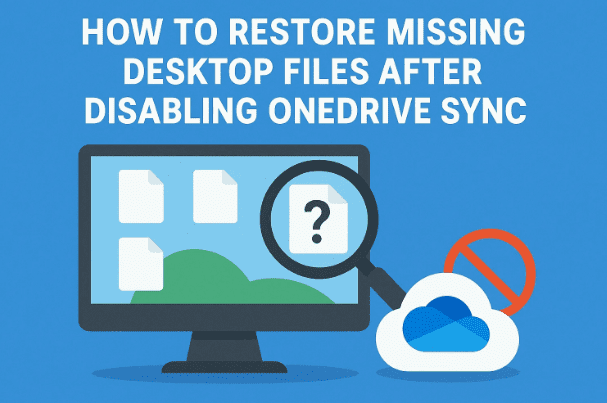
Have you ever turned off OneDrive synchronization on your Windows PC only to see your desktop suddenly go blank? All your icons, folders, and files vanish, and for a moment it feels like everything is gone. Don’t panic—your files are not deleted. They are still on your computer, but OneDrive’s sync settings are hiding them from you.
In this article, we’ll carefully walk through why this happens, how to bring your files back, and how to prevent it from happening again. Along the way, I’ll share some extra tips for organizing your desktop, keeping your system fast, and managing backups more wisely.
Let’s dive in and start step by step.
1. Why Do Desktop Files Disappear When OneDrive Sync Is Disabled?
Before fixing the issue, let’s understand what’s really happening.
By default, Microsoft OneDrive automatically backs up your Desktop, Documents, and Pictures folders. This means that when sync is active, all the files you save on your desktop are not only stored locally but also uploaded to OneDrive’s cloud storage.
The problem occurs when you turn off folder backup or unlink OneDrive incorrectly:
- Your files are moved into the OneDrive/Desktop folder instead of the default User/Desktop folder.
- Since Windows only displays files from the current Desktop directory, your actual desktop looks empty.
- The files are still on your PC (in OneDrive’s folder) and also backed up online.
So, the good news is—you haven’t lost anything. You just need to move the files back or adjust OneDrive settings.
2. Where Do the Files Go? Locating Them in OneDrive Folder
Now let’s confirm that your files are safe.
- Open File Explorer.
- Go to C:\Users[YourUsername]\OneDrive\Desktop.
- You should see all the missing files and folders here.
💡 Tip: If you had large amounts of data (like 40–100 GB), they might take time to sync or appear online. But even if your OneDrive storage is full, the files remain locally in this folder until you clear them.
At this stage, you have two main choices: bring them back manually, or adjust OneDrive so they remain visible on the desktop without sync. Let’s go through both.
3. Method 1: Manually Copy Files Back to Desktop
The simplest method is just to move your files.





- Open OneDrive → Desktop.
- Select all files (Ctrl + A).
- Copy them (Ctrl + C).
- Paste them into your actual desktop folder: C:\Users[YourUsername]\Desktop.
This restores your desktop to its normal state, but keep in mind:
- Files won’t sync to OneDrive anymore.
- If you still want cloud backup, this method may not be ideal.
4. Method 2: Unlink OneDrive Without Losing Files
A cleaner solution is to unlink OneDrive from your PC. This ensures your files stay on the desktop without disappearing.
Here’s how:
- Right-click the OneDrive cloud icon in the system tray.
- Select Settings.
- Go to the Account tab.
- Click Unlink this PC.
What happens now?
- OneDrive stops syncing, but all files remain intact on your desktop.
- You can use your PC normally without worrying about internet bandwidth or storage limits.
This is especially useful if you don’t want constant background uploads slowing down your computer.
5. Method 3: Turn Sync Back On and Then Adjust Settings
If you still want some level of OneDrive backup but not for everything, you can customize it.
- Right-click OneDrive → Settings.
- Under Sync and Backup, choose Manage Backup.
- Uncheck Desktop but leave Documents or Pictures if you want those synced.
- Save changes.
Your desktop files will then stay local, while important folders continue syncing.
6. Why Storing Gigabytes on Desktop Slows Your PC
Here’s an important side note. Even if you fix the OneDrive issue, you should avoid dumping massive amounts of files on your desktop.
Why?
- The desktop is a live workspace—Windows constantly redraws every icon when refreshing.
- Keeping 50+ GB of files directly on the desktop increases boot time and slows responsiveness.
- OneDrive syncing makes it worse by trying to upload every small change.
I’ve personally seen users with 200 GB on their desktop wonder why their PC crawls. The solution is simple: keep only shortcuts and small files here.
7. Best Practice: Move Large Files to D Drive and Use Shortcuts
If you want both speed and organization, follow this method:
- Create a separate D:\Data drive or folder.
- Move large files and project folders into D:\Data.
- On your desktop, create shortcuts to those folders (Right-click → Create Shortcut).
This way, your desktop stays lightweight and fast, while you can still access files quickly. And OneDrive won’t constantly try to sync massive data, saving both time and bandwidth.
8. Frequently Asked Questions (FAQs)
Q1: Are my files deleted when I disable OneDrive?
No, they are moved into the OneDrive folder on your computer. You can access them locally or online.
Q2: What if my OneDrive storage is full?
Your files will still remain on your PC, but sync may stop. Moving them out of the OneDrive folder is the best fix.
Q3: Can I keep OneDrive but only for certain folders?
Yes. Use Manage Backup in OneDrive settings to choose which folders are included.
Q4: Why does my PC slow down when OneDrive is syncing?
Because every file change triggers an upload process, consuming both CPU and internet bandwidth.
Q5: Is it safe to unlink OneDrive?
Yes. Your files will remain on your desktop. You can always reconnect later if you want to back them up again.
9. Conclusion
So, if you’ve ever panicked after disabling OneDrive and seeing your desktop files vanish, now you know the truth: your files are safe, just relocated.
We covered three effective ways to fix the issue—moving files manually, unlinking OneDrive for a clean break, or fine-tuning sync settings for balance. On top of that, we explored why desktops shouldn’t hold massive data and how creating a D drive for storage is a smarter move.
In short:
- Your files aren’t gone.
- OneDrive just changes their location.
- With a little adjustment, you can bring them back and keep your PC running faster.
By understanding how OneDrive handles desktop backup, you take control of your files instead of letting sync settings surprise you.
Disclaimer
This guide is for educational purposes. Always double-check file locations before unlinking or disabling OneDrive to avoid accidental data loss. For official documentation, visit Microsoft OneDrive Support.
Tags
onedrive missing desktop files, restore desktop files windows 10, files disappeared after disabling onedrive, windows 11 desktop icons gone, one drive unlink pc, move files from onedrive to desktop, windows performance tips
Hashtags
#Windows #OneDrive #FileRecovery #DesktopFiles #TechTips #Windows11 #PCFix







