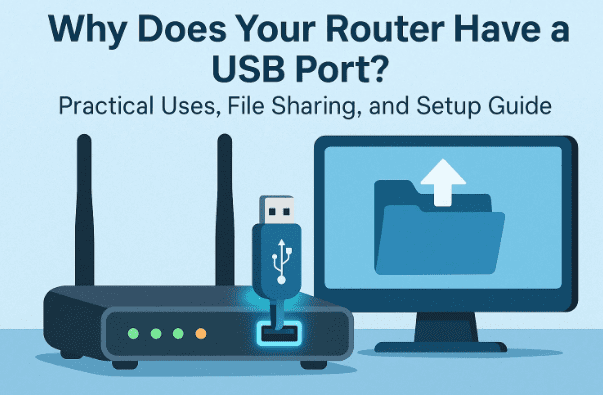
Most people look at the back of their Wi-Fi router and notice something interesting: a USB port. And yet, very few people ever use it. In fact, many don’t even know why it’s there.
So why do some routers have a USB port? What can you actually use it for today? And is it still relevant in the era of wireless printers, cloud storage, and automatic firmware updates?
This article will answer those questions in detail. We’ll walk through the original purposes of router USB ports, why some uses have faded, and how you can still put them to work today—especially for file sharing on your home network. By the end, you’ll know exactly how to configure USB file sharing on your router, plus the pros and cons compared to alternatives.
📖 Table of Contents
- Do Routers Still Have USB Ports?
- Common Uses of Router USB Ports
- Printing on a shared network
- Updating router firmware
- File sharing and media storage
- Step-by-Step: How to Use a Router USB Port for File Sharing
- Configuring Access Controls and Sharing Options
- Testing File Sharing on Your Network
- Security Considerations
- Alternatives to Router USB Ports
1. Do Routers Still Have USB Ports?
Let’s start with a reality check.
- Many newer routers no longer include USB ports. Manufacturers often leave them out because cloud storage, wireless printers, and automatic updates have reduced the need.
- Older or mid-range routers (typically 3–6 years old) often do include one or two USB ports on the back panel.
If you’re unsure whether your router has one, take a quick look:
- The port usually resembles the standard rectangular USB Type-A port you’ve seen on flash drives.
- It’s normally located on the back of the router, near the Ethernet ports and power connector.
Once you’ve checked and confirmed your router has a USB port, the next step is understanding why it’s there.
2. Common Uses of Router USB Ports
Router USB ports were originally introduced to add functionality to home networks without needing separate devices. Let’s explore the most common historical and current uses.
🖨️ 2.1 Printing on a Shared Network
Before Wi-Fi printers became standard, one of the main reasons routers had USB ports was for network printing.
- You would connect a printer directly to the router via USB.
- Any computer or device on the home network could then send print jobs through the router.
This was extremely useful when printers didn’t have built-in wireless connectivity.
👉 Today: Most modern printers already support Wi-Fi printing or AirPrint/Google Cloud Print. But if you have an older USB-only printer, this feature can still save the day.
⚙️ 2.2 Updating Router Firmware
Another original purpose was to update router firmware.


- You’d download the firmware update file from the manufacturer’s website.
- Copy it to a USB stick.
- Insert the stick into the router’s USB port.
- Run the update process.
This was helpful in the early 2000s when routers lacked reliable online update systems.
👉 Today: Firmware updates are much simpler. You can:
- Update directly from your laptop by logging into the router’s settings.
- Use the manufacturer’s mobile app.
- Or let the router handle automatic updates in the background.
Because of this, using a USB port for firmware updates is mostly obsolete.
📂 2.3 File Sharing and Media Storage
Here’s where things get interesting. Even today, one of the best uses for router USB ports is file sharing across your local network.
- Plug in a USB flash drive or external hard drive with files.
- Configure file sharing in your router settings.
- Access those files from any device connected to your Wi-Fi.
This essentially turns your router into a mini network-attached storage (NAS) device.
Practical uses include:
- Sharing family photos across devices.
- Storing documents like bills, tax forms, or receipts in one place.
- Hosting legally downloaded movies, music, or media files for in-home streaming.
- Sharing account information (like a family Netflix login) without sending it around insecurely.
Let’s walk through exactly how to set this up.
3. Step-by-Step: How to Use a Router USB Port for File Sharing
So far, we’ve covered theory. Now it’s time to get practical. If your router has a USB port, here’s how to configure it for local file sharing.
Step 1: Prepare Your USB Drive
- Copy the files or media you want to share onto the USB drive.
- Safely eject it from your computer.
Step 2: Connect the USB Drive to the Router
- Insert the USB stick or hard drive into the router’s USB port.
- Wait a few seconds for the router to recognize it.
Step 3: Access Your Router Settings
- Open a browser on your computer.
- Enter the router’s IP address (commonly
192.168.0.1or192.168.1.1). - Log in with your router’s admin username and password.
💡 Tip: This information is usually printed on a label on the router itself.
4. Configuring Access Controls and Sharing Options
Inside your router’s settings, you’ll find a section for USB or file sharing. The exact menu names vary by manufacturer (e.g., “USB Settings,” “Advanced,” or “Storage”).
Here’s what to configure:
- Authentication
- Require a username and password for access.
- Example: Username
admin, Password of your choice.
- Sharing Scope
- Limit access to your home network only.
- Avoid enabling “Internet sharing” unless absolutely necessary.
- Folder Sharing
- Decide whether to share the entire USB drive or only specific folders.
- For sensitive data, share only a limited folder (e.g., “Family Photos”).
- Media & Write Access
- You can allow users to only view files or also edit and upload new ones.
- Enable media sharing if you plan to stream photos, videos, or music.
5. Testing File Sharing on Your Network
Once configured, it’s time to test.
Step 1: Locate the Shared Path
Routers often display a network path like \\TP-SHARE or \\ROUTER\USB for accessing files.
Step 2: Connect from Your Computer
- On Windows: Open File Explorer → enter the network path in the address bar.
- On macOS: Use Finder → “Go” menu → “Connect to Server.”
Step 3: Enter Credentials
- Input the username and password you set earlier.
Step 4: Browse Files
- You should now see the shared folders.
- If you limited access to one folder (e.g., “Family Accounts”), only that will appear.
This confirms that your router USB file sharing is working correctly.
6. Security Considerations
Before you start loading sensitive documents onto your USB, it’s important to understand the risks.
- Physical access risk: Anyone can unplug the USB and view its contents on another computer. Router authentication only protects access through the network.
- Weak router passwords: If your router admin panel uses a default password, attackers could enable USB sharing remotely.
- Guest networks: Don’t allow file access from untrusted guest networks.
👉 Best Practices:
- Share non-sensitive files (photos, media, shared accounts) rather than financial or legal documents.
- Use a strong admin password for your router.
- Turn off USB sharing when not needed.
7. Alternatives to Router USB Ports
While router USB file sharing can be convenient, you may prefer other options:
- Cloud Storage: Google Drive, OneDrive, Dropbox—access anywhere, not just at home.
- NAS (Network-Attached Storage): Dedicated devices like Synology or QNAP with stronger security and features.
- Direct Sharing Apps: Tools like Resilio Sync or Syncthing for peer-to-peer file sync.
These alternatives explain why many new routers no longer include USB ports. Still, if yours has one, it’s a great way to extend its usefulness.
8. Frequently Asked Questions (FAQ)
Q1. Can I plug an external hard drive into my router?
Yes, most routers support both flash drives and external hard drives. Check your router manual for file system compatibility (FAT32, NTFS, etc.).
Q2. Can I access my router USB files remotely when outside my home?
Some routers allow FTP or remote sharing, but this is generally discouraged due to security risks. A VPN is a safer option.
Q3. Why can’t I see my USB drive in the router settings?
Make sure the drive is formatted correctly and supported by your router. Older routers may only support smaller drives.
Q4. Is router USB sharing as safe as cloud storage?
No. It’s convenient but lacks encryption, remote backups, and redundancy. Use it for casual sharing, not critical data.
Q5. My router doesn’t have a USB port. Can I still share files?
Yes—use alternatives like cloud storage, NAS, or software-based file sharing.
9. Final Thoughts
Router USB ports are a relic of an earlier era, but they can still be surprisingly useful today. While printing and firmware updates have moved on, local file sharing remains a practical feature for households that want quick, private access to shared documents or media.
The key is to balance convenience with security. Don’t rely on it for highly sensitive data, but do take advantage of it for family photos, media collections, and everyday files.
As technology shifts, we may see fewer routers offering USB ports—but if yours has one, now you know exactly how to make the most of it.
Tags
router usb port, router file sharing, network storage usb, usb on wifi router, share files with router, router usb settings, router firmware update usb, home network tips
Hashtags
#RouterTips #WiFiSetup #HomeNetworking #USBPort #FileSharing #NetworkingBasics








