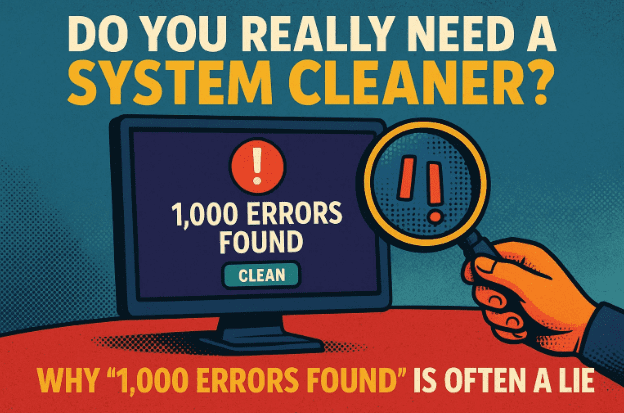
We’ve all been there — you run your favorite cleanup tool, it tells you your system is healthy, and everything seems fine. But then you try a “free trial” of another cleaning utility, and suddenly it screams:
“Critical! 1,243 errors found!”
How could that be? You just cleaned your system five minutes ago. Is your computer really in that bad shape — or is something else going on here?
Let’s dive deep into the truth behind system cleanup utilities, registry cleaners, and why so many of them show exaggerated or even fake error reports. By the end of this article, you’ll know exactly what’s real, what’s marketing fluff, and how to keep your PC genuinely healthy.
🧠 Step 1: Understanding What “System Cleaners” Actually Do
Before we start judging these utilities, we first need to understand what they claim to do.
System cleaners — whether they’re called “PC optimizers,” “registry boosters,” or “tune-up tools” — promise to speed up your computer by deleting unnecessary files, fixing registry entries, and optimizing performance.
Their typical targets include:
- Temporary files
- Cache data
- Browser cookies
- Windows registry entries
- Log files
- Unused shortcuts
These are indeed real elements inside your system, but here’s the catch — most of them are harmless.
Deleting some junk files might free a few megabytes, but it rarely boosts performance significantly. And modifying the registry (the database that stores Windows settings) can even hurt your system if done incorrectly.
Let’s move to the next section and see why these tools often exaggerate problems.
⚠️ Step 2: The Real Reason Why Cleanup Tools Show Hundreds of “Errors”
Here’s the uncomfortable truth — most so-called “free trial” system cleaners are designed to scare you.







They use alarming messages, red warning icons, and large error counts to convince you that your PC is in serious trouble. But in reality, their goal is simple:
They want you to pay for the full version.
This trick is called scareware marketing — software that scares users into buying something they don’t actually need.
Example
You might see something like:
“Critical Registry Damage Detected — Fix Now!”
When you click “Fix,” the tool asks you to upgrade or pay before cleaning. Once you do, suddenly your “1,243 errors” vanish — not because the tool performed a miracle, but because those errors were never real in the first place.
Why This Works
It preys on users’ anxiety. Computers are complex, and when people see the word error, they assume something is wrong. This emotional response is what many shady developers exploit.
Even among legitimate tools, there’s still a gray area. Some don’t lie outright but inflate minor issues to appear more useful. They may treat every browser cookie or unused registry key as an “error,” even though it poses no harm at all.
🧩 Step 3: The Myth of the “Dirty System”
So, what does it even mean when a program claims your system is “dirty”?
The truth is — there’s no universal definition of what a “clean” or “dirty” PC really is. Every software company has its own criteria.
- One tool may consider 500 cookies an issue.
- Another may count every missing file association as a registry error.
- A third may flag temporary cache files as “security risks.”
None of these are necessarily dangerous or even slow down your system.
Even two well-known, legitimate cleanup utilities can show wildly different results — simply because they don’t agree on what’s worth cleaning.
Let’s move to the next step and explore how these “errors” are usually categorized.
🧾 Step 4: Common Types of Errors Reported (and What They Actually Mean)
Most cleanup utilities divide their scan results into several categories. Let’s break them down one by one — and understand whether they matter.
1. Temporary Files and Caches
These are leftover files created by apps or Windows itself. While they do consume disk space, Windows manages most of them automatically.
🟢 Safe to clean, but low impact.
2. Registry Errors
These refer to invalid entries or missing paths in the Windows Registry. Modern Windows versions handle such entries gracefully — they don’t cause crashes or slowdowns.
🟠 Mostly harmless. Cleaning them is often unnecessary.
3. Startup Items
Some programs launch automatically when you boot up. Too many can slow startup time, but you can easily manage them using Task Manager → Startup tab.
🟢 Manage manually; no third-party tool needed.
4. Cookies and Browsing Data
Cookies are tiny text files used by websites to remember preferences. They are not “viruses.” Deleting them repeatedly doesn’t make your system faster.
🔵 Harmless; clear them occasionally via your browser if needed.
5. Duplicate or Unused Files
These are often safe to remove, but it’s better to review them manually. Some “duplicate finders” can delete needed files accidentally.
🟡 Use caution; don’t automate deletions.
As you can see, none of these categories truly represent “errors” in the traditional sense. They’re simply housekeeping data that Windows already handles well.
🔍 Step 5: Why the Registry Doesn’t Need Regular Cleaning
Registry cleaners are the most controversial of all utilities. Many users believe cleaning the registry makes Windows faster.
But in reality, the registry is a highly optimized database.
Even if you delete a few old keys, the performance gain is virtually zero. Worse — a single wrong deletion can cause programs or even Windows itself to stop working.
Microsoft themselves have never recommended using registry cleaners. In fact, their own support documentation clearly states that modifying the registry is risky and should only be done manually by experts.
If you want to see for yourself, here’s Microsoft’s official note on registry edits:
👉 Windows Registry – Microsoft Support
So, instead of chasing “registry health,” focus on keeping your system updated, managing startup apps, and ensuring you have good security software installed.
🧰 Step 6: When (and How) to Use a Cleanup Tool Safely
Let’s move to the practical side. Not all cleanup tools are bad — some are genuinely helpful when used responsibly.
Here’s a safe and realistic approach to PC maintenance:
Step 1. Use Windows’ Built-in Tools First
Windows already includes tools like:
- Disk Cleanup (cleanmgr)
- Storage Sense (Windows 10/11)
- Defragment and Optimize Drives
These are free, safe, and officially supported by Microsoft. They can remove temp files, system logs, and old update backups.
Step 2. Use Trusted Utilities Only
If you still want a third-party cleaner, pick one from a reputable source. A few well-known examples include:
- CCleaner (free & paid)
- BleachBit (open-source)
- Glary Utilities
Even then, avoid running every “deep clean” option. Stick to temporary file cleanup and cache clearing — leave the registry alone.
Step 3. Always Back Up Before Cleaning
Before any major cleanup, make a full system backup or restore point.
If something breaks, you can easily roll back.
You can create one manually:
Control Panel → System → System Protection → Create Restore Point
Step 4. Don’t Chase Perfection
No system will ever be 100% “clean.”
Minor leftover files don’t affect speed or stability. The obsession with “zero errors” is more psychological than practical.
🧯 Step 7: Avoiding Free Trials and Fake Scanners
Most fake cleanup tools follow a predictable pattern:
- Offer a free scan.
- Show exaggerated errors.
- Ask for payment to “fix” them.
- Then claim everything is clean once you pay.
The best defense is skepticism.
If a website suddenly pops up with:
“Your PC is infected with 500 issues! Scan now!”
— close the tab immediately.
Legitimate programs don’t use scare tactics or countdown timers.
If you need to check your system’s health, use tools from trusted companies like:
- Microsoft Safety Scanner (official link)
- Windows Security / Defender
- Malwarebytes Free (malwarebytes.com)
These focus on actual security threats, not fabricated registry errors.
🧩 Step 8: The Psychology Behind “Error Count Anxiety”
There’s a psychological factor at play here that many people overlook.
Cleanup utilities often show huge numbers — 500, 800, 1200 “issues.” Why? Because numbers create impact. A program showing “3 errors” looks less useful than one claiming “1378 issues fixed.”
This taps into what marketers call problem amplification. The larger the problem seems, the more valuable the solution feels.
But remember — numbers alone mean nothing. A single serious virus is worse than 500 harmless cookies. Always judge by the type of issue, not the quantity.
💬 Step 9: The Golden Rule — Don’t Fix Problems You Don’t Have
So far, we’ve done a good job dissecting the issue, and here’s the ultimate takeaway:
Don’t try to fix something that isn’t broken.
Running cleaners out of curiosity often does more harm than good.
Unless you’re facing a real problem — like your system slowing down, apps crashing, or storage running low — you don’t need to run deep cleaning tools.
Modern Windows versions already manage temporary files, registry entries, and updates automatically. In most cases, the best optimization is simply:
- Keep Windows updated.
- Use antivirus protection.
- Uninstall unnecessary apps.
- Reboot occasionally.
That’s it.
❓ Frequently Asked Questions (FAQ)
Q1. Are all system cleaners bad?
No, some are safe and helpful — especially for clearing temp files. But avoid tools that promise miracles or require payment after showing exaggerated error counts.
Q2. Should I use registry cleaners?
Generally, no. Registry cleaning rarely improves performance and carries risks. Microsoft does not endorse such utilities.
Q3. What’s the safest way to clean my PC?
Use Windows’ built-in Storage Sense or Disk Cleanup tools. For more control, try BleachBit or CCleaner, but avoid deep registry scans.
Q4. Why does one cleaner say “no errors” and another say “hundreds”?
Because each tool defines “errors” differently. There’s no universal standard for what’s considered dirty or clean.
Q5. How often should I clean my system?
Once every few months is enough. Over-cleaning can delete useful cache data or registry entries.
🧩 Final Thoughts: Trust, Simplicity, and Caution
System cleanup tools sound attractive — fast fixes, glowing buttons, “one-click optimization.” But the truth is, Windows doesn’t need constant cleaning, and “error reports” are often exaggerated to sell software.
Instead of chasing perfection, focus on trustworthy maintenance habits:
- Keep backups.
- Use built-in Windows tools.
- Avoid programs that promise unrealistic speed boosts.
- Learn what’s normal for your PC.
When it comes to system health, knowledge beats automation every time.
⚠️ Disclaimer
This article is for educational purposes only. The author does not endorse or affiliate with any third-party software mentioned. Always back up your data before using cleanup or registry utilities. Misuse of such tools can lead to data loss or system instability.
#WindowsTips #PCMaintenance #RegistryCleaner #Scareware #TechGuide #SystemCleanup #CyberSafety #DTPTips








