If you’re trying to jump into a Battlefield session and get blocked by the message “This software cannot be used at the same time as the game. Please make sure it’s not running, or restart your PC.”, you’re not alone. This is a security check from EA’s anti-cheat that’s spotting background apps, overlays, or drivers it considers incompatible. The good news: you don’t have to uninstall your life. With a few clean steps, you can launch the game reliably without nuking your whole setup.
I’ve written this as a thorough, human-style walkthrough—so we’ll start simple, explain the “why,” then move to deeper fixes only if you still need them. We’ll also cover edge cases, common conflicting apps (with links), and a big FAQ at the end.
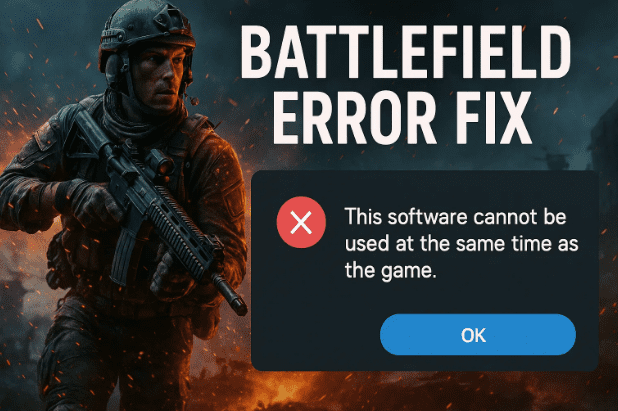
Note on naming: the error and fixes here apply to Battlefield 2042 and any current Battlefield beta/live that uses EA Javelin AntiCheat (EA’s kernel-level anti-cheat). EA’s support docs label these as “incompatible software/driver” issues.
Table of Contents
- 1. What the Error Really Means
- 2. Quick Win (60 seconds): Close the Usual Culprits
- 3. Step-by-Step Fix: The Clean Launch Sequence
- 4. Disable Overlays Safely (Discord, NVIDIA, etc.)
- 5. “Incompatible Driver” Variants (RGB, Fan, Macro Drivers)
- 6. Reinstall/Repair EA Javelin AntiCheat & Game Files
- 7. Clean Boot Test (Proven Conflict Detector)
- 8. Extra Tips (Controllers, VPNs, Recorders, Admin Rights)
- 9. Troubleshooting Scenarios (By Symptom)
- 10. FAQs
- 11. Safe Checklist You Can Save
- 12. Disclaimer
However, Below are the steps which resolves out the error “This software cannot be used at the same time as the game” but still there are many erros you should have kept handy lets have a look on these too!
- How to Fix the DirectX Function Error in Battlefield 6 — Step-by-Step Guide
- “Please Update Your Nvidia GeForce Driver” Error in Battlefield 6 – Step-by-Step Guide
- How to Fix Battlefield 6 Secure Boot Error on PC – Complete Step-by-Step Guide
- or you can check the complete Battlefield Game related articles here!
1. What the Error Really Means 🎯
EA’s anti-cheat protects multiplayer integrity. When it detects software or a driver that can hook into the game, inject overlays, automate inputs, or monitor memory, it blocks launching and shows an error like:
- This software cannot be used at the same time as the game… (often paired with the offending app/driver name), or
- EA Javelin AntiCheat has detected incompatible software/driver.
Sometimes you’ll even see the exact driver path in the message. Community examples include things like legacy hardware monitor drivers (e.g., WinRing0x64.sys from some cooling suites) or virtual input layers.
Bottom line: close the conflicting app/overlay/driver → relaunch → if still blocked, update or temporarily uninstall the culprit. EA’s official guidance is to update or disable the flagged software/driver and restart.
2. Quick Win (60 seconds): Close the Usual Culprits ⚡
Before we dive into deeper steps, let’s try the fastest fix that works for most players.
- Open Task Manager (Ctrl+Shift+Esc) → Processes tab.
- End task on these common hook/overlay tools if running:
- Discord (Overlay can hook games)
- NVIDIA in-game overlay / GeForce Experience
- Steam Overlay (rarely an issue, but safe to test)
- Wallpaper Engine (animated desktop hooks): wallpaperengine.io
- AutoHotkey (macros/scripts): autohotkey.com
- MSI Afterburner / RivaTuner Statistics Server (RTSS) (OSD hooks): MSI Afterburner, RTSS @ Guru3D
- RGB & device suites (iCUE, Armoury Crate, Mystic Light, etc.)
- Virtual controllers / key mappers (reWASD, older HID tools)
- Launch Battlefield again.
Why this helps: these tools overlay or inject code into 3D apps—the same primitives cheats use—so kernel anti-cheat blocks them. EA documents this class of “incompatible software/driver” explicitly.
If it launches now 🎉, you can later re-enable one by one to see which was the trigger.
3. Step-by-Step Fix: The Clean Launch Sequence 🧼
Let’s make this painless. We’ll go from simplest to stronger measures.


Before steps begin, quick breath: you won’t lose saves and you can keep your favorite tools—you just need to tame them for launch.
3.1 Close background apps (properly)
- Use Task Manager to end overlays/recorders/macros injectors (list above).
- If your error named a specific app/driver, prioritize disabling that one (update it later). EA’s guidance is to update or disable the named software/driver and restart.
3.2 Disable overlays (for the test)
- Discord Overlay: User Settings → Game Overlay → toggle off. Official overlay guide here.
- NVIDIA Overlay: In the NVIDIA/GeForce app, Settings → In-game overlay → Off. (Microsoft’s support engineers also recommend toggling it off in GeForce Experience.)
We’ll restore overlays later if you want them; right now we want a clean A/B test.
3.3 Reboot (don’t skip)
A reboot clears services/drivers that linger after an app exits. Many community reports confirm a reboot after closing the culprit is the key that makes EAAC stop complaining.
3.4 Launch via your primary launcher
- EA app: click game tile → Play
- Steam: Library → Play
If the game launches normally, great—skip ahead to Section 8 for how to live happily with your tools. If not, continue.
4. Disable Overlays Safely (Discord, NVIDIA, etc.) 🧩
A quick moment to set expectations before steps: overlays are great for chat, stats, and hotkeys—but they hook into the render path. Anti-cheat scans for that behavior and, depending on version/signature, may flag it.
Turn off only what you need, and only for Battlefield:
- Discord Overlay (official guide): User Settings → Game Overlay → toggle off.
- NVIDIA Overlay: NVIDIA/GeForce app → Settings → In-game overlay → Off. (You can keep drivers; just toggle the overlay.)
If you’re curious whether overlays are truly the blocker, try launching once with all overlays off. If launch succeeds, enable them one by one later.
5. “Incompatible Driver” Variants (RGB, Fan, Macro Drivers) 🧩➡️🧩
Sometimes the anti-cheat callout names a driver rather than an app (e.g., …\WinRing0x64.sys). These often come from cooling/RGB suites, fan controllers, or older hardware monitors and can be on anti-cheat deny lists. EA explicitly says: update or disable the named driver and then restart.
Real-world examples reported by players include legacy drivers bundled in cooling software; uninstalling or updating those suites resolved launch.
What to do:
- Write down the exact driver/file from the error (if shown).
- Check the vendor’s latest version (update first).
- If no update exists, uninstall the suite temporarily and reboot.
- Launch Battlefield → if fixed, consider a lighter alternative (many motherboards expose fan/RGB control in UEFI or a newer vendor app).
6. Reinstall/Repair EA Javelin AntiCheat & Verify Game Files 🔄
If you’ve removed obvious conflicts and still hit the wall, refresh the game’s foundations.
6.1 Repair or reinstall EA Javelin AntiCheat (official)
EA provides an installer to uninstall/reinstall Javelin AntiCheat per game or for all games. Use it to repair corruption or bad updates. Steps and details here: EA Help: Install & troubleshoot EA anticheat.
6.2 Repair the game (EA app) or verify files (Steam)
Corrupted files or mismatched launchers can cause false positives or boot loops.
- EA app (Repair): Library → game tile → ⋯ → Repair. Official steps: EA app troubleshoot loading article.
- Steam (Verify): Library → right-click game → Properties → Installed Files → Verify integrity of game files… (Steam support doc).
Try launching again after repair/verify completes.
7. Clean Boot Test (Proven Conflict Detector) 🧪
If something elusive keeps re-injecting itself, a Windows Clean Boot isolates third-party services at startup. It’s not permanent; think of it like “safe mode for background stuff.”
High-level idea:
- Run msconfig → Services tab → check Hide all Microsoft services → Disable all → Startup tab → open Task Manager → disable non-essential startup apps → Restart.
Now launch Battlefield. If it works in a clean boot, you’ve confirmed a background service was the cause; re-enable groups until the culprit reveals itself. (Re-enable everything after testing.)
8. Extra Tips (Controllers, VPNs, Recorders, Admin Rights) 🧠
Before we roll into scenario troubleshooting, here are small but mighty tips that solve many stubborn cases:
- Controller & virtual input layers: If you use virtual controllers, key remappers (e.g., reWASD), or older HID macro tools, exit them fully before launch. Some players report “virtual controller” being named in the error.
- Screen recorders: Close third-party recorders/streamers that hook the game (OBS’s Game Capture is typically fine, but test).
- Security suites: A highly aggressive antivirus/firewall can interfere. Don’t disable forever—just test with it off, then add exceptions for EA app/Steam/Battlefield.
- Windows updates & drivers: Keep GPU drivers current; outdated drivers trigger weird behavior.
- Run as Administrator: Launch EA app/Steam as admin once to test permissions issues.
- Last resort (targeted): Uninstall the named conflicting suite/driver, reboot, and reinstall the latest version after you’ve confirmed game stability.
9. Troubleshooting Scenarios (By Symptom) 🧭
Sometimes pinpointing your exact path saves time. Find your situation below and follow the tailored fix.
A) The error literally says “This software cannot be used at the same time…”
- Close overlays and hook apps (Discord, NVIDIA overlay, Wallpaper Engine, MSI Afterburner/RTSS, AutoHotkey).
- Reboot and try again.
- If the popup names a specific app, update or disable it as EA advises.
B) The error calls out “incompatible driver”
- Note the driver filename.
- Update its parent software, or uninstall that suite temporarily. Players have reported success removing legacy monitor/cooling drivers like WinRing0x64.sys.
- Reboot, launch game.
- If fixed, look for a newer, signed version or a lighter tool that doesn’t use low-level hooks.
C) Works once after repair, then breaks again
- Seen in community posts when multiple overlays restart after repair. Do a test launch with all overlays off, then add back one at a time.
- If you use both EA app and Steam, repair/verify in the platform you launch from. (EA app’s “Repair” is here.)
D) Nothing helped so far
- Reinstall/repair EA Javelin AntiCheat via EA’s official installer.
- Clean Boot (Section 7).
- Verify/Repair the game in your launcher.
- If the error persists, capture the exact name the anti-cheat flags and search EA Help/Forums—these often point to a specific device suite to update/remove.
10. FAQs ❓
Q1) Is this an EA AntiCheat thing?
Yes. Battlefield uses EA Javelin AntiCheat. When it detects “deny-listed” software or drivers, it shows an incompatible software/driver message and blocks launch until you update/disable the culprit.
Q2) Why would Discord or an overlay be a problem?
Because overlays hook into the game to render on top—exactly what cheats do. Most overlays are safe, but anti-cheat has to be conservative. Disable them for the test; re-enable later if permitted. (Official Discord overlay control is here.)
Q3) The message names a driver like …\WinRing0x64.sys. What’s that?
That’s a low-level kernel driver used by some legacy monitoring/cooling tools. Players report Battlefield launching after uninstalling or updating suites that install these.
Q4) Where do I repair/reinstall EA AntiCheat?
EA provides an installer that lets you uninstall/reinstall for a specific game or for all games. It’s in their Install & Troubleshoot EA anticheat help page.
Q5) Should I verify game files too?
Yes—corrupted files can create odd behaviors. Use EA app → Repair or Steam → Verify integrity.
Q6) Will I get banned for having old drivers installed?
EA’s forum guidance indicates removing or renaming flagged files resolves the error; the block is preventative, not a ban. Still, don’t use cheat-adjacent tools and stick to official updates.
Q7) Can I keep Wallpaper Engine/Afterburner/Discord?
Usually yes—close them for launch, confirm the game works, then add them back one by one. If one keeps triggering the block, look for an update or a launch profile that disables hooks only while Battlefield runs.
Q8) I get the error on multiple EA games (BF1, BFV, BF2042).
That points to a system-level conflict (overlay/driver/anti-cheat install). Repair EA AntiCheat, disable overlays globally, and test. (There are reports of this error spanning titles.)
11. Safe Checklist You Can Save ✅
Let’s move to a neat checklist you can follow (and reuse) without re-reading the whole article.
- Close overlays & hook apps: Discord, NVIDIA overlay, Wallpaper Engine, MSI Afterburner/RTSS, AutoHotkey, RGB/fan suites.
- Reboot (really—this clears lingering drivers).
- Launch Battlefield. If it works, add tools back one at a time to find the trigger.
- If blocked again and a driver is named: update or uninstall the suite that installed it (then reboot).
- Repair EA AntiCheat (uninstall/reinstall via EA’s installer).
- Repair/Verify the game in your launcher (EA app/Steam).
- Clean Boot to isolate stubborn conflicts; re-enable services in batches after testing.
- Keep Windows & GPU drivers up to date.
- Add AV/Firewall exceptions for EA app/Steam/Battlefield if security software is over-filtering.
12. Disclaimer ⚖️
This guide explains general steps for PC players on Windows 10/11. Do not use cheat-adjacent tools. If you’re on a work-managed machine, ask your IT admin before altering drivers or security settings. EA’s official stance is to update or disable software/driver named in the anti-cheat error and restart. Always prefer official updates from device/app vendors and the EA Javelin AntiCheat support path for anything unclear.
Helpful Official Links & Mentions (for convenience)
- EA Javelin AntiCheat — Install & Troubleshoot (official): (EA Help)
- EA app — Repair your game files (official): (EA Help)
- Steam — Verify integrity of game files (official): (Steam Support)
- Discord Overlay — enable/disable (official): (Discord Support)
- Wallpaper Engine: wallpaperengine.io
- AutoHotkey: autohotkey.com
- MSI Afterburner / RTSS: MSI Afterburner, RTSS @ Guru3D
Final Thoughts
So far, we’ve done a solid job—starting with quick closures and reboots, layering in overlay controls, checking driver callouts, and finally repairing anti-cheat and game files. In most cases, that’s enough to clear the “cannot be used at the same time as the game” roadblock and get you back to the battlefield with minimal compromises.
If you want to keep your favorite utilities, consider creating a “Battlefield” profile where overlays and macro layers are disabled only while the game is running. That way, you enjoy them everywhere else without tripping anti-cheat where it matters most.
Good luck, have fun, and see you on the objective.
Tags: Battlefield, EA Javelin AntiCheat, incompatible software, incompatible driver, Discord overlay, NVIDIA overlay, Wallpaper Engine, MSI Afterburner, RivaTuner, AutoHotkey, Windows gaming, game won’t launch, EA app repair, Steam verify, clean boot, RGB drivers
Hashtags: #Battlefield #EAAC #PCGaming #GameFix #Windows11 #Anticheat #Troubleshooting #GamingSetup







