Adobe InDesign is a powerful layout and publishing tool used by designers around the world. But did you know that with just a few lines of scripting, you can automate common tasks and save tons of time?
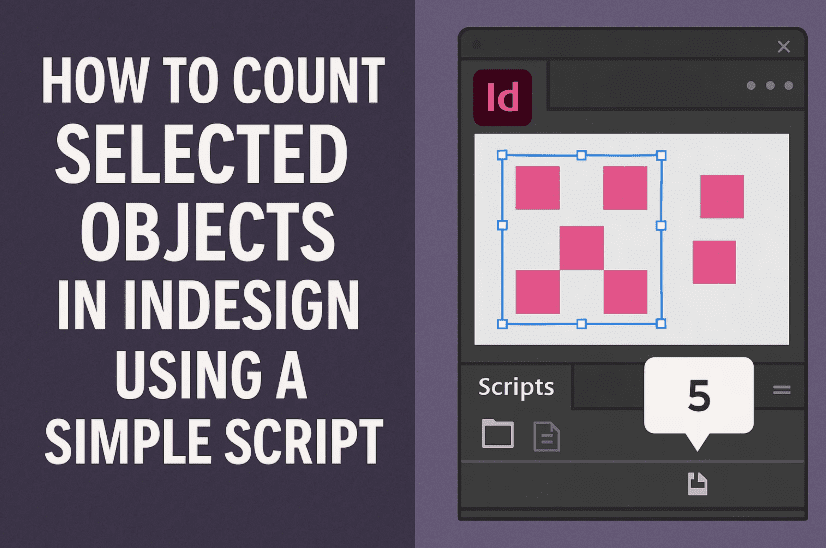
In this beginner-friendly tutorial, we’ll learn how to write a simple InDesign script that counts the number of selected objects on your document. This is particularly useful when you’re aligning multiple frames, images, or text blocks and need a quick check.
Let’s get started step by step—even if you’ve never created a script before.
🧠 What This Script Does
We’ll be using a one-line JavaScript snippet that displays the number of selected objects using an alert popup:
alert(app.activeDocument.selection.length);
When you run this script inside InDesign, it will pop up a message like “3” if you’ve selected three objects. Neat, right?
🧰 Step 1: Find the Scripts Panel in InDesign
InDesign has a built-in Scripts panel that allows you to run your custom automation scripts. Here’s how to access it:
- Open Adobe InDesign.
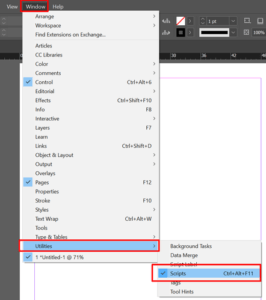
- Go to the top menu and click on:
Window > Utilities > Scripts - A Scripts panel will appear—usually docked on the right side.
- Expand Application > Samples > JavaScript (you might see a few default sample scripts already there).
But we want to create our own script.
📂 Step 2: Locate the Scripts Panel Folder
To create and store your own scripts, you’ll need to access the correct folder on your system.
Here’s how:
- In the Scripts panel, right-click on the User folder.
- Choose “Reveal in Finder” (macOS) or “Reveal in Explorer” (Windows).
- This will open the actual folder where your custom scripts should be saved.
Remember this folder location—we’re going to paste our new script here.
📝 Step 3: Create Your Custom Script File
Now that the folder is open, let’s create the actual script file.








A. Open Notepad (or any text editor)
- Press
Win + R, typenotepad, and hit Enter. - Paste the following line of code:
alert(app.activeDocument.selection.length);
This single line will pop up the number of selected objects in your current document.
B. Save the File with .jsx Extension
- Click
File > Save As… - In the File name, type:
countSelection.jsx - In Save as type, choose:
All Files (*.*) - Click Save.
⚠️ Important: Make sure the file extension is .jsx (not .txt). If you’re not seeing the extensions, we’ll cover that below.
🛠️ Step 4: Enable File Extensions (If Not Visible)
By default, Windows hides file extensions, which may cause confusion if you accidentally save the file as countSelection.jsx.txt.
To show file extensions:
- Open any folder (like your Documents or Downloads).
- In the top bar, click on View.
- Check the box for:
File name extensions - Now you can confirm that your script is truly saved as
.jsx.
If it says .jsx.txt, right-click > Rename, and remove the .txt part.
If there is still a problem creating a jsx file you can download it from here as a zip file, Extract it paste it in the user folder, Your script is ready to use.
🗃️ Step 5: Copy the Script into the InDesign Script Folder
Now go back to the folder we revealed earlier (via “Reveal in Explorer”).
- Copy your
countSelection.jsxfile. - Paste it into that open User script folder in InDesign.
🏃 Step 6: Run Your Script in InDesign
We’re all set! Time to test your script.
- Go back to InDesign and ensure the Scripts panel is still open.
- Right-click on the User folder and click Refresh (if your script doesn’t show up yet).
- You’ll now see
countSelection.jsxin the list. - Select a few objects in your InDesign document (e.g., text boxes or images).
- Double-click on the script to run it.
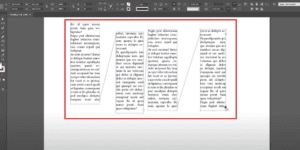
👉 A small alert box will pop up showing the number of items you selected. That’s it!
🧩 Bonus: What Can You Do With This?
This simple example opens the door to hundreds of automation possibilities. Once you understand how to access the scripting environment in InDesign, you can write scripts to:
- Align and distribute objects
- Rename layers
- Export selected items
- Resize elements in bulk
- Generate reports from layouts
The scripting language is JavaScript, so if you already know a bit of coding, you’re halfway there!
❓FAQ – Frequently Asked Questions
Q: Can I use other editors like VS Code to write my script?
Yes! Any plain text editor will work. Just make sure to save it with a .jsx extension.
Q: Will this script work in older versions of InDesign?
Absolutely. This script uses basic JavaScript and should work with most versions of InDesign that support scripting.
Q: Can I undo changes made by scripts?
If a script makes visual changes, you can usually use Ctrl + Z (Undo), but not all changes are reversible. Always test scripts on a copy of your document first.
⚠️ Disclaimer
This tutorial is designed for educational purposes. Always backup your work before running or installing any script, especially if it performs changes across multiple elements in your InDesign document.
🔖 Tags and Hashtags
Tags: InDesign script, jsx script InDesign, Adobe InDesign automation, count selection, how to write InDesign script, beginner InDesign scripting, Windows file extensions, show script folder InDesign
Hashtags:
#InDesignScript #AdobeInDesign #JSX #InDesignAutomation #CountObjects #DesignTips #CreativeCloud #InDesignForBeginners
And there you go! You’ve just built your first InDesign script. 🎉
If this helped you, don’t stop here. Try customizing the script—maybe add logic to check if no items are selected or report the type of selected objects. The world of InDesign scripting is powerful once you get comfortable with it.