Modern hardware and operating systems have shifted from the old Legacy BIOS system to the newer and more efficient UEFI (Unified Extensible Firmware Interface). If you’re running Windows 10 on an older setup and wish to switch to UEFI mode without reinstalling Windows or losing your data — you’re in the right place.
This article will walk you through the entire process of converting Legacy BIOS to UEFI BIOS safely and effectively using two methods:
- Microsoft’s built-in MBR2GPT tool, and
- Paragon Partition Manager Community Edition.
By the end, your system will boot using the modern UEFI interface — giving you better boot speeds, enhanced security (Secure Boot & TPM support), and compatibility for future OS upgrades like Windows 11.
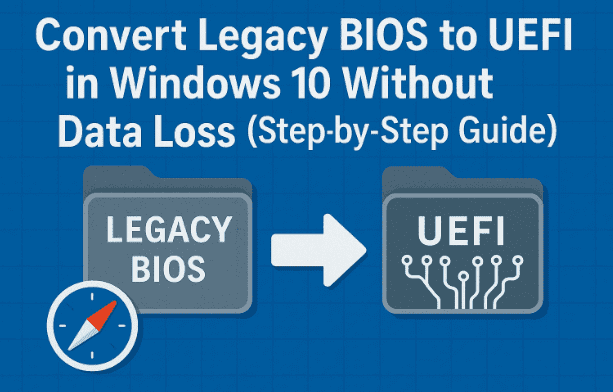
1. 🔍 Understanding Legacy vs UEFI BIOS
Before we jump into conversion, let’s first understand the difference between the two systems.
- Legacy BIOS is the traditional firmware interface used since the 1980s. It works with MBR (Master Boot Record) partitions and supports older hardware. However, it’s limited to 2TB drives and can only handle up to four primary partitions.
- UEFI BIOS, on the other hand, is the modern replacement. It uses GPT (GUID Partition Table), supports larger disks, Secure Boot, and faster initialization. UEFI also provides a graphical interface and better system recovery options.
So if you plan to upgrade to Windows 11, or want improved boot performance, converting to UEFI is almost mandatory.
2. ⚙️ Why Convert from Legacy to UEFI
You might be wondering — is it really necessary to convert?
Here’s why most users choose to do it:
- ✅ Windows 11 Compatibility: Windows 11 requires Secure Boot and TPM 2.0, both tied to UEFI.
- 🚀 Faster Boot Times: UEFI initializes hardware and OS faster than Legacy BIOS.
- 🔐 Enhanced Security: Secure Boot protects against boot-level malware.
- 💾 Larger Disk Support: UEFI supports drives above 2TB.
- 🧩 Modern Hardware Compatibility: Newer motherboards ship with UEFI as default.
3. ⚠️ Important Precautions Before You Begin
This is one of the most critical parts of the process. Skipping these steps could make your system unbootable.
Before you start the conversion, make sure you do the following:
- 🔸 Take a complete system backup. Use tools like Macrium Reflect or Windows Backup.
- 🔸 Ensure your hardware supports UEFI. Check your motherboard manufacturer’s website for details.
- 🔸 Confirm your OS is 64-bit. UEFI is supported only on 64-bit Windows installations.
- 🔸 Disconnect unnecessary external drives. Keep only the Windows drive connected during conversion.
- 🔸 Have a recovery drive ready. In case anything goes wrong, you can repair the bootloader.
If your PC is very old (pre-2012), it may not support UEFI at all — so verify before proceeding.
4. 🧠 Check If Your System Supports UEFI Mode
Let’s start by confirming that your system supports UEFI. You can do this right within Windows.




Steps:
- Press Windows + R to open the Run dialog.
- Type
msinfo32and hit Enter. - Look for the field “BIOS Mode” in the System Summary.
If it says Legacy, your system is currently using the older mode.
If it says UEFI, your system already runs on the modern standard.
But the key question is whether UEFI is supported. To check:
- Reboot your system and enter BIOS/Setup (usually by pressing F2, DEL, or ESC during boot).
- Look for options like “Boot Mode”, “UEFI/Legacy Boot”, or “CSM Support”.
- If you can toggle between UEFI and Legacy, then your system supports it.
5. 🧾 Verify Your Current BIOS Mode and Data Status
Before conversion, it’s smart to confirm both your BIOS mode and data integrity.
- Press Windows + S → type “System Information”.
- Open the app and find “BIOS Mode”.
- Note it down — it should show Legacy.
- Also open File Explorer and browse through your personal folders or D: drive to confirm your files are intact.
This baseline helps you verify that no data gets lost after conversion.
6. 💽 Backup Your Important Data
Even though both conversion methods are safe and non-destructive, things can go wrong due to power failure, incompatible hardware, or disk errors.
So, it’s strongly recommended to take a backup.
You can use:
- Windows Backup and Restore (Control Panel > Backup and Restore).
- Macrium Reflect Free (link above).
- Or manually copy essential folders to an external USB or cloud drive.
7. 🧰 Method 1: Convert Using Paragon Partition Manager (Graphical Method)
If you prefer a visual, click-based method, this is the easiest and beginner-friendly option.
Step 1: Download the Software
- Open your web browser and go to the official Paragon website:
👉 https://www.paragon-software.com/free/pm-express/ - Download the Community Edition (it’s free for personal use).
⚠️ Always download from the official Paragon website. Avoid third-party sites that may bundle malware.
Step 2: Install the Partition Manager
- Locate the downloaded
.exefile. - Double-click it to launch the setup.
- Accept the license agreement and click Next.
- Choose Install and wait for completion.
- Once installed, click Finish to launch the program.
Step 3: Check Partition Scheme (MBR vs GPT)
When the program opens, it will show your disk layout visually.
Find your system disk — it’s usually labeled Disk 0 and contains the C: partition.
At the bottom, you’ll see “Partition Scheme: MBR”.
This confirms your system currently uses MBR, which is compatible only with Legacy BIOS.
Step 4: Start Conversion
- Select the system disk (Disk 0).
- Click on the Operations tab.
- Choose Convert MBR to GPT.
- You’ll get a warning message reminding you to back up your data — confirm that you’ve already done so.
- Click Convert Now.
The process begins and may take 15–45 minutes, depending on disk size.
⚠️ Do not turn off your computer or press any key during this step.
Once the conversion completes, the software will prompt you to restart.
Step 5: Restart and Wait
After restart, the post-conversion operations will continue automatically.
This may take some time — so be patient.
Your PC will restart again once completed.
When it boots up, log in normally and proceed to check your BIOS mode (explained below).
8. 🧮 Method 2: Convert Using Microsoft MBR2GPT (Official Command-Line Tool)
If you prefer not to use third-party software, Microsoft provides an official way to convert disks — the MBR2GPT tool. It’s built directly into Windows 10 (version 1703 and later).
Let’s walk through it carefully.
Step 1: Open Command Prompt as Administrator
- Press Start, type cmd.
- Right-click Command Prompt → Run as administrator.
Step 2: Validate the Disk
Type the following command:
mbr2gpt /validate /allowFullOS
This checks if your disk meets all conversion requirements (enough space, correct partitions, etc.).
If you see the message “Validation completed successfully”, proceed to the next step.
Step 3: Convert the Disk
Now enter this command:
mbr2gpt /convert /allowFullOS
This starts converting your MBR partition to GPT.
The process usually completes in a few seconds to a few minutes.
Once done, you’ll see:
✅ “Conversion completed successfully”
Step 4: Restart and Switch BIOS Mode
After the command completes, restart your computer and immediately enter BIOS Setup.
- Reboot and press F2, DEL, or ESC (depending on your manufacturer).
- Go to Boot Configuration.
- Change Boot Mode from Legacy or CSM to UEFI.
- Save and exit.
Your PC should now boot normally using UEFI mode.
9. 🧭 After Conversion: Switching BIOS Settings
If your PC doesn’t start automatically, don’t panic.
Go back into BIOS and double-check the following:
- Boot mode = UEFI (not Legacy/CSM)
- Secure Boot = Enabled (optional)
- Boot Priority = Windows Boot Manager
Save changes and restart again.
Once Windows loads successfully, you’ve done it — your system now runs in UEFI mode!
10. ✅ Verifying Successful Conversion
To confirm everything worked perfectly:
- Press Windows + R, type
msinfo32, and hit Enter. - Look at BIOS Mode — it should now say UEFI.
- Also, verify that all your personal files and applications are intact.
Congratulations — you’ve successfully converted your BIOS mode without losing any data!
11. 🧯 Common Problems and Fixes
Here are some common issues users face and how to fix them:
| Problem | Cause | Solution |
|---|---|---|
| System doesn’t boot after conversion | Boot mode not switched to UEFI | Enter BIOS and manually set Boot Mode to UEFI |
| Boot Manager missing error | Old boot records | Run bootrec /fixboot in recovery mode |
| Conversion failed in Paragon | System files locked | Close all apps and retry after restart |
| MBR2GPT validation failed | Too many partitions | Merge or delete unnecessary partitions |
| Secure Boot warning | Older hardware | Keep Secure Boot disabled if unsupported |
12. 💡 Frequently Asked Questions (FAQ)
Q1: Will converting from Legacy to UEFI delete my data?
No, both methods preserve your data. However, always take a backup to be safe.
Q2: Can I revert back to Legacy BIOS later?
Technically yes, but it requires reconverting GPT to MBR and reinstalling Windows, so it’s not recommended.
Q3: Does this work on Windows 11?
Yes, both methods work for Windows 10 and 11 — but Windows 11 already requires UEFI, so you’ll typically convert only before upgrading.
Q4: What if my PC doesn’t support UEFI?
Do not attempt the conversion. Your system won’t boot afterward. Check motherboard specifications first.
Q5: What’s the benefit of using MBR2GPT instead of Paragon?
MBR2GPT is faster, safer, and official. Paragon is ideal if you prefer a graphical interface.
13. 🏁 Final Thoughts
Converting your system from Legacy BIOS to UEFI is one of the best upgrades you can do without replacing hardware. It future-proofs your PC for modern OS versions, boosts startup performance, and enhances security.
Just remember:
- Always verify UEFI support before conversion.
- Backup your data no matter what method you use.
- Follow each step carefully and avoid interruptions.
Once done, you’ll enjoy smoother boots, better OS stability, and full compatibility for upcoming features like Windows 11 and Secure Boot.
Disclaimer:
Changing your system’s boot configuration carries some risk if not done correctly. Follow this guide at your own discretion. The author and publisher are not responsible for data loss or hardware malfunction caused by improper execution. Always create a full system backup before making BIOS-level changes.
#Windows10 #UEFI #LegacyBIOS #TechGuide #MBR2GPT #WindowsTips #SystemUpgrade #ParagonPartitionManager #SecureBoot #DataSafety







