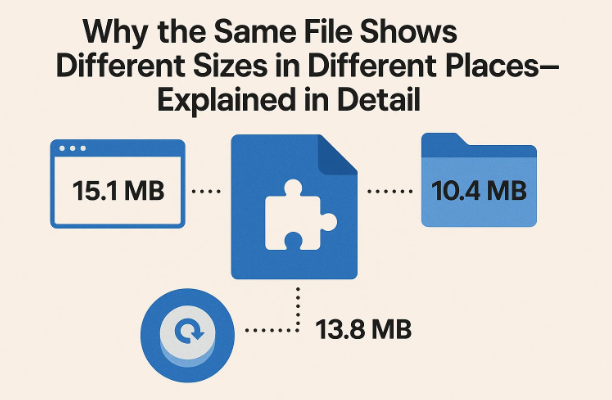
Have you ever noticed that a file on your computer takes up one amount of space locally, but when uploaded to the cloud or viewed on another drive, it shows a completely different size? For example, a photo folder might report 65 GB in your cloud backup but 88 GB on your PC.
If you’ve experienced this, you’re not alone. This discrepancy confuses millions of users every year — and surprisingly, it’s not a bug or a storage glitch. It’s simply how computers handle data allocation, file systems, and storage reporting.
In this article, we’ll break down exactly why this happens, how disk space is allocated, what cluster sizes mean, and why your “file size” can differ across devices and storage platforms.
⚖️ 1. Understanding File Size vs Space on Disk
Let’s start with the most common confusion: the difference between “file size” and “space on disk.”
When you right-click a file in Windows and check Properties, you often see two numbers:
- Size: This is the actual amount of data in the file.
- Size on Disk: This is the amount of storage space the file occupies on your drive.
It’s perfectly normal for these two numbers to be different.
The key reason? Files are stored in fixed-size blocks called clusters, and a file always consumes at least one entire cluster — even if it’s smaller.
So, a text file that’s just 1 byte in size might still occupy 4 KB (kilobytes) on your drive.
Let’s see how that works in practice.
💾 2. How Hard Drives Store Data: Sectors and Clusters
Before we move forward, let’s understand how your hard drive physically organizes data.
Data is written on disk in tiny sections called sectors. A traditional hard drive sector usually holds 512 bytes, while modern drives often use 4,096-byte (4 KB) sectors.
However, file systems (like NTFS, FAT32, or exFAT) don’t manage individual sectors directly. Instead, they group them into clusters — also known as allocation units.



What Are Clusters?
A cluster is a group of one or more consecutive sectors. Depending on your drive format, one cluster might be:
- 1 × 512 bytes,
- 8 × 512 bytes (which equals 4 KB), or
- Even larger (like 16 KB or 32 KB on some large drives).
When you save a file, the file system assigns at least one entire cluster to it.
That’s why even the smallest file will occupy more space on disk than its actual data size.
📂 3. A Simple Example: The 1-Byte File Mystery
Let’s imagine a file named onebytefile.txt. As the name suggests, it’s just 1 byte long — perhaps it contains only one letter.
When you view it in Windows Command Prompt, you’ll see it’s exactly 1 byte.
But when you open File Explorer, it might show as 1 KB or even 4 KB in size.
How can a 1-byte file take up 4,000+ bytes of space?
The answer lies in how storage is allocated.
Each file, no matter how small, is given at least one full cluster. So, if your system’s cluster size is 4 KB, your 1-byte file still occupies an entire 4 KB cluster.
It’s like renting a full garage just to store one small box — the space is reserved for you, even if most of it is empty.
⚙️ 4. The Role of the File System (NTFS and Others)
Different operating systems use different file systems — the rules that determine how data is organized on the drive.
For example:
- Windows uses NTFS or exFAT.
- macOS uses APFS.
- Linux uses ext4, Btrfs, or XFS.
Each of these systems handles storage slightly differently, but all of them rely on the same basic principle:
Files are stored in clusters, and each cluster can hold data for only one file.
In NTFS (the default file system for modern Windows PCs), you can check your cluster size by running this command in an Administrator Command Prompt:
chkdsk C:
At the end of the scan, you’ll see something like:
4096 bytes in each allocation unit.
This means each file occupies space in chunks of 4,096 bytes.
🪟 5. Why File Explorer Shows a Larger Size
When you open File Explorer and see that your tiny file takes up more space than expected, don’t panic — it’s just how Windows reports storage allocation.
Windows sometimes shows rounded-up values, like “1 KB” for anything smaller than a kilobyte, to keep things visually simple.
But more interestingly, very small files may not occupy clusters at all. In NTFS, if the file’s data is small enough, it may be stored directly inside the file’s metadata — inside the Master File Table (MFT).
In that case, the file doesn’t take up an actual cluster, but Windows still lists it as “1 KB” since that’s the allocation chunk in its internal structure.
📄 6. How Metadata Affects File Size
Every file doesn’t just store data — it also stores metadata, or “data about data.”
Metadata includes:
- File name
- Creation and modification timestamps
- Attributes (like hidden, read-only, system)
- Permissions
- File path and indexing info
In NTFS, all this metadata is stored in a special structure called the directory listing.
Windows allocates space for metadata in chunks — usually 1,024 bytes (1 KB) at a time.
If your file is extremely small, its data might fit entirely within that metadata block, eliminating the need for extra disk clusters.
So even though the file is only one byte, Windows reports it as 1 KB, because that’s the smallest metadata unit being used.
📉 7. Why Cluster Size Creates “Wasted” Space
Cluster-based storage means that every file’s data must fit into an integer number of clusters.
If a file’s size doesn’t perfectly fill its allocated clusters, the unused space in the last cluster is called slack space or internal fragmentation.
Here’s a quick example:
| File Size | Cluster Size | Disk Space Used | Wasted Space |
|---|---|---|---|
| 1 byte | 4 KB | 4 KB | 4095 bytes |
| 4097 bytes | 4 KB | 8 KB | 3999 bytes |
| 1.2 MB | 4 KB | 1.2 MB + a few KB | Minimal |
As you can see, small files waste more space proportionally than large files.
However, for most users, this wasted space is negligible — except when you have thousands of tiny files.
☁️ 8. What Happens When You Upload Files to the Cloud
So far, everything we discussed applies to local storage — your hard drive or SSD.
But when you upload files to cloud services like OneDrive, Google Drive, or Dropbox, things change.
Cloud providers also use physical hard drives behind the scenes, but they handle data differently:
- Your files are stored on large, shared storage servers.
- They use their own file systems or databases optimized for distributed access.
- You don’t see the “cluster” structure at all — you only see actual file sizes.
That’s why your photo folder might take up 65 GB online, while showing 88 GB on your PC.
The extra 23 GB on your PC is file system overhead — the space lost to clusters, metadata, and allocation inefficiencies that don’t exist in the cloud’s abstraction layer.
🧮 9. Understanding File System Overhead
“Overhead” is simply the space your computer uses to keep track of files, directories, and their relationships. It includes:
- Directory structures
- Metadata entries
- Journal logs (in NTFS)
- Backup MFT copies
- Cluster slack space
This overhead can add up, especially on drives filled with small files like documents, thumbnails, or cache data.
The cloud, however, only cares about the actual bytes of your data — not how your local drive allocates them. That’s why storage space differences between local and online backups are completely normal.
🧠 10. The Bottom Line: Two Sizes, One File
So when you see a file reported as one size in Windows and another in the cloud, remember:
- Your file’s real data remains unchanged.
- The reported size changes due to how storage is managed.
- File systems always allocate data in clusters, even for tiny files.
To summarize:
File Size = Actual Data
Size on Disk = File Data + Metadata + Cluster Allocation
You can think of it like ordering one slice of cake at a restaurant but paying for the whole plate because that’s the smallest portion they serve.
It might feel wasteful, but that’s how storage systems balance performance and simplicity.
💬 11. Frequently Asked Questions (FAQs)
Q1. Is this difference something I should worry about?
Not at all. The difference between file size and size on disk is completely normal. Your data isn’t missing or damaged.
Q2. Can I reduce wasted space?
Yes. When formatting a drive, choose a smaller allocation unit (cluster size). However, smaller clusters slightly reduce performance, so don’t over-optimize.
Q3. Why is cloud storage showing smaller file sizes?
Cloud providers store only your file’s data — not local metadata or unused cluster space — so they report the true data size.
Q4. Does file compression help?
Yes, compressed files (like ZIP or NTFS compression) minimize both the data size and disk usage, effectively reducing wasted cluster space.
Q5. Can I see my drive’s cluster size?
Yes. Run chkdsk in Command Prompt. Look for a line like:4096 bytes in each allocation unit.
Q6. Do SSDs work the same way?
Yes. SSDs still use clusters and sectors, though internally they handle them differently for performance and wear-leveling.
⚠️ 12. Disclaimer
This article explains storage allocation using Windows NTFS as the primary example. Different file systems (such as APFS, ext4, or ReFS) may behave differently. Always back up your data before reformatting or changing allocation sizes.
Tags
file size difference, size on disk, NTFS cluster, disk allocation, cloud storage, metadata, Windows Explorer, file system overhead, computer basics, data storage explanation
Hashtags
#FileSize #DiskSpace #NTFS #WindowsTips #CloudStorage #DataManagement #ComputerBasics #TechExplained #dtptips
✅ Final Thoughts:
Next time you see your files taking up more space on your PC than in the cloud, don’t stress — it’s just your file system doing its job. Understanding how clusters and allocation work helps you read your storage statistics with confidence and avoid unnecessary worry.








