When Microsoft releases a Patch Tuesday update, it’s supposed to make your system safer and more reliable. But in rare cases, these updates can do the opposite — breaking critical features developers rely on daily.
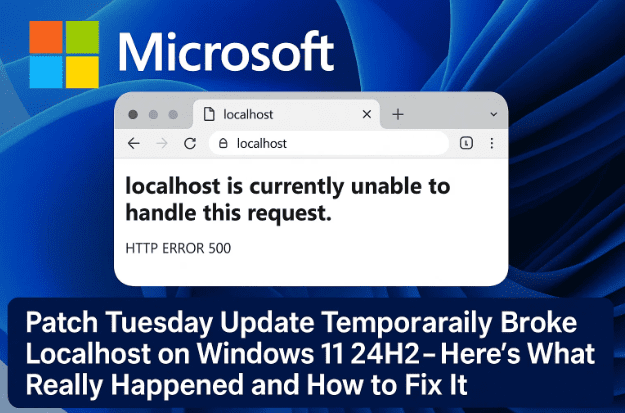
That’s exactly what happened with the October 2025 Patch Tuesday update (KB5066835) for Windows 11 24H2 (build 26100.6899). The update briefly broke “localhost” HTTP/2 connections, causing confusion among developers, testers, and anyone running local apps or servers.
In this article, we’ll break down what exactly went wrong, who it affected, how Microsoft fixed it through a clever rollback mechanism, and what you can do if your system is still acting up.
1. Understanding the Problem
Let’s start with what actually happened.
After installing the KB5066835 cumulative update — part of October 2025’s Patch Tuesday rollout — several developers noticed that apps relying on localhost connections suddenly stopped working.
The issue wasn’t universal. Many users didn’t notice any problems because it affected only a specific network protocol — HTTP/2.
Developers using tools like Visual Studio, Docker Desktop, or local web frameworks (like Node.js, Flask, or ASP.NET) were greeted with errors such as:
- “Error: Connection Reset”
- “Error: HTTP/2 Protocol Error”
For those unfamiliar, this kind of failure effectively breaks local testing environments — meaning developers couldn’t preview or debug web apps on their own machines.
So let’s step back and understand what “localhost” actually is and why it’s such a big deal.
2. What Is “Localhost” and Why It Matters
Before diving into the bug, it’s helpful to remember what localhost actually does.
“Localhost” (also known as 127.0.0.1 or ::1) is your computer’s loopback address — a virtual network path that points right back to your own machine. When you open http://localhost in your browser, your PC behaves like a mini web server, processing requests internally instead of sending them to the internet.
Developers use localhost to:






- Test websites or APIs safely before deploying them online.
- Run frameworks such as ASP.NET, Flask, Django, or Node.js locally.
- Host local dashboards for tools like SQL servers, Elasticsearch, or even Minecraft servers.
Because of how central localhost is to development, breaking it (even partially) can halt productivity across countless workflows.
3. What Went Wrong in KB5066835
The culprit was a subtle change inside the KB5066835 update, targeting build 26100.6899 of Windows 11 24H2.
Microsoft confirmed that this patch interfered with HTTP/2 loopback connections, a newer protocol version used by many modern applications for faster and more efficient data transfer.
The change didn’t break all localhost traffic — only those using HTTP/2, not HTTP/1.1. That’s why many casual users or older software were completely unaffected.
In simple terms, imagine Windows accidentally changed how it “listens” to certain types of web requests internally. The result: those apps using the newer protocol couldn’t talk to themselves anymore.
4. Who Was Affected
You likely ran into this problem if you were:
- A developer using Visual Studio to run or debug local web projects.
- Using Docker, XAMPP, or local APIs that depend on HTTP/2.
- Running desktop apps with an embedded local server (e.g., productivity apps or dashboards).
For everyday users, this issue was rare — unless a program they used relied on localhost for its interface.
Let’s move on to the technical root of this — HTTP/2 — and why it made things tricky.
5. Why HTTP/2 Is Important (and How It Caused the Issue)
HTTP/2 is a modern upgrade to the standard HTTP protocol that powers the web. It’s faster, supports multiplexing (multiple requests in one connection), and is used by almost every major website today.
However, not all local applications adopted it yet — many still use HTTP/1.1. That’s why only a subset of apps were affected by this bug.
In this case, Microsoft’s networking stack update unintentionally interfered with HTTP/2 loopback handling, resulting in “connection reset” errors for apps that expected seamless internal communication.
The good news? Microsoft responded quickly.
6. Microsoft’s Known Issue Rollback Explained
Instead of issuing an entirely new cumulative update, Microsoft used a special recovery mechanism called Known Issue Rollback (KIR).
KIR allows Microsoft to remotely disable specific problematic parts of an update without requiring you to uninstall it. Think of it as a targeted undo button.
When this rollback was triggered, Windows automatically received a small configuration change that “switched off” the part of the update that broke HTTP/2 on localhost.
In Microsoft’s own words, KIRs “restore affected devices to their previous behavior while retaining all other security improvements.”
This rollback was silently deployed, meaning you might already have the fix without realizing it — but you can still manually check to make sure.
7. How to Fix the Localhost Problem (Step-by-Step)
If you’re still experiencing localhost errors, you can manually ensure the rollback patch is applied. Here’s how:
Step 1: Check for Windows Updates
- Press Win + I to open Settings.
- Go to Windows Update → Check for updates.
- If the rollback (or any follow-up patch) isn’t already installed, it will automatically download and apply.
- Restart your PC after installation.
This alone should fix the issue for most users.
Step 2: Verify Using Visual Studio or a Local Web App
After the update, re-run your local development server.
If it was failing earlier with “Connection Reset” or “HTTP/2 Protocol Error,” it should now work properly.
Step 3: Optional — Force KIR Refresh (For IT Admins)
If you manage multiple computers in an organization, Microsoft also provides a manual KIR MSI package that can be deployed through Group Policy.
However, this is meant for IT environments. Home users should not use this MSI file — it only toggles feature flags behind the scenes.
8. Alternative Fix: Update Windows Defender Definitions
Interestingly, several developers on Stack Overflow reported that updating Windows Defender’s security definitions resolved the issue for them — even before Microsoft rolled out the KIR fix.
While that may sound unrelated, Windows Defender and certain network drivers sometimes share dependencies in their update pipelines.
You can try this just to be safe:
To Manually Update Defender
Open PowerShell (Admin) and run:
"%ProgramFiles%\Windows Defender\MpCmdRun.exe" -SignatureUpdate
This forces Windows Defender to download the latest definitions.
Once done, restart your PC and check if your localhost apps are functioning again.
It’s not a guaranteed fix, but it can’t hurt — especially if you suspect the rollback hasn’t applied yet.
9. Behind the Scenes: How Microsoft Used Feature Flags
One of the fascinating aspects of this incident is how Microsoft fixed it so quickly without forcing users to uninstall anything.
Windows now uses feature flags, which are internal toggles controlling experimental or granular features. Instead of removing an entire update, Microsoft can simply switch a flag off remotely.
By inspecting the MSI rollback package, users discovered that it modifies a couple of registry entries tied to these feature flags. This effectively turned off the problematic HTTP/2 handling logic while keeping the rest of KB5066835 intact.
This level of modular control is one reason Windows updates can now roll out fixes in hours rather than days.
10. Bonus Tip: Create a Shortcut to Update Defender Instantly
Since we’ve been talking about Windows Defender updates, here’s a handy productivity tip — especially for developers who frequently download new programs or tools.
You can create a desktop shortcut that instantly forces Defender to update its database.
Steps to Create the Shortcut:
- Right-click on your desktop → New → Shortcut
- In the location field, paste:
"%ProgramFiles%\Windows Defender\MpCmdRun.exe" -SignatureUpdate - Click Next, name it something like “Update Defender Now”, and hit Finish.
Now, double-clicking this shortcut immediately updates your Defender definitions.
💡 Optional: If you don’t want the PowerShell window to pause at the end, remove the word pause from the command line or set the shortcut to run minimized.
This can be useful when you need Defender to “learn” about a new file or app quickly — especially when false positives occur.
11. Frequently Asked Questions (FAQs)
Q1. What is KB5066835?
It’s the cumulative update released during October 2025 Patch Tuesday for Windows 11 24H2 (build 26100.6899). It contained security and performance fixes but accidentally broke HTTP/2 localhost connections.
Q2. Does this affect Windows 10 or older versions?
No. The bug only affected the 24H2 branch of Windows 11, which uses a newer networking stack.
Q3. What if I still see “Connection Reset” errors?
Run Windows Update manually, reboot, and try updating Defender definitions. If the issue persists, check your registry or wait for Microsoft’s permanent patch.
Q4. Is uninstalling KB5066835 necessary?
Not at all. Microsoft’s Known Issue Rollback already disables the faulty part automatically.
Q5. Can I use the KIR MSI file manually?
Only if you’re managing many systems through Group Policy. Home users don’t need it.
12. Final Thoughts
This issue was a perfect reminder that even small internal changes in major OS updates can ripple into unexpected places — especially in developer ecosystems.
Fortunately, Microsoft’s Known Issue Rollback mechanism worked exactly as intended, providing a near-invisible fix for most users without the chaos of a full uninstall.
If you’re a developer or sysadmin, it’s a good habit to monitor Patch Tuesday notes regularly, especially for networking stack updates, as they can impact localhost, Docker, or IIS behavior.
And for everyday users — if an app suddenly stops working after an update, checking Windows Update and Defender definitions should always be your first troubleshooting step.
Official Links:
Disclaimer:
This article is for informational and troubleshooting purposes only. Modifying Windows registry or system policies should be done with caution. Always create a system restore point before making manual changes.
#Windows11 #PatchTuesday #MicrosoftUpdate #LocalhostError #HTTP2 #Developers #VisualStudio #TechNews #WindowsFix #KB5066835








