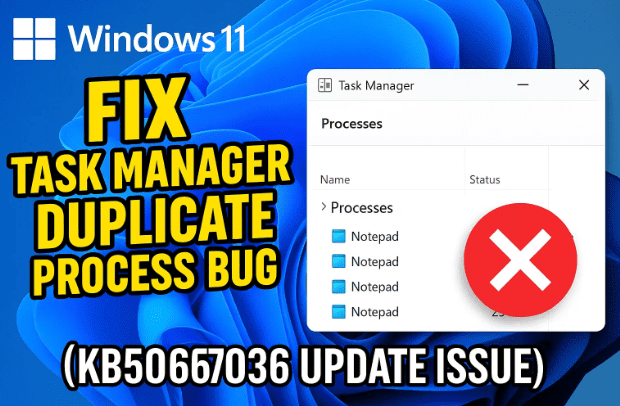
Windows 11 users have recently been facing a strange and frustrating issue after installing the KB5067036 update — every time you open and close Task Manager, it silently creates multiple background processes that consume your CPU and memory resources.
This glitch not only slows down the system but, over time, can lead to screen freezes, unresponsive taskbars, or games lagging for no apparent reason. Until Microsoft officially releases a patch for this bug, you can use a few safe workarounds to restore performance and keep your system stable.
In this article, we’ll go step by step through the problem, why it happens, and how to fix it effectively using a simple batch file and a few quick Windows settings. You’ll also learn how to uninstall the problematic update (if you choose to), along with an alternative “End Task” option.
Let’s start by understanding what exactly is happening behind the scenes.
⚙️ What Causes the Task Manager Duplication Bug?
When you launch Task Manager in Windows 11 and then close it, the program doesn’t fully terminate — instead, it leaves a background process running.
Each time you repeat this (open → close), another instance of Taskmgr.exe spawns and continues consuming system resources like RAM and CPU.
Over time, you might see dozens of “Task Manager” background processes piling up in the list. These are “orphaned” tasks — leftover processes that don’t serve any purpose but continue to drain performance.
Why does this happen?
- The KB5067036 cumulative update introduced a bug in the Task Manager’s process-handling logic, causing it not to cleanly exit when closed.
- Windows keeps these orphaned tasks alive under the Background processes section.
- Each process can consume anywhere from 20MB to 150MB of RAM, which can quickly add up.
Until Microsoft issues an official fix, the only option is to manually or automatically terminate these ghost processes. So, let’s move to the workaround.
🧠 Step 1: Confirm the Bug on Your System
Before we start fixing anything, it’s important to verify that your system is actually affected by this glitch.
- Press Ctrl + Shift + Esc to open Task Manager.
- Now close it normally.
- Reopen it again two or three times.
- Go to the Details tab (if available) or check the Background processes list.
You’ll see multiple entries of Taskmgr.exe — sometimes five, ten, or even more.
Each one is consuming CPU and memory unnecessarily. This confirms that you’re dealing with the same duplicate process bug.






🧾 Step 2: Use the “taskkill” Command to Terminate Extra Processes
Instead of ending each instance manually, we can use a built-in Windows command called taskkill to forcefully stop all Task Manager processes at once.
Let’s understand what it does.
🔍 What is taskkill?
The taskkill command is part of the Windows Command Prompt (CMD) toolkit. It lets you end one or more processes by name or by their process ID (PID).
It’s powerful, safe, and included by default — no external software needed.
🧩 The basic syntax
taskkill.exe /im taskmgr.exe /f
Let’s break that down:
taskkill.exe→ The command itself./im taskmgr.exe→ Targets all processes that match the nametaskmgr.exe./f→ Forcefully terminates them without asking for confirmation.
When you run this command, Windows will instantly terminate all background instances of Task Manager. You’ll see a confirmation message for each process ID that has been ended.
💡 Step 3: Create a Batch File to Automate the Fix
Typing the same command every time isn’t practical. The best solution is to create a batch file that executes it automatically.
Here’s how to do it step by step.
🪜 1. Open Notepad
Press Windows + R, type notepad, and hit Enter.
A blank text window will appear.
🪜 2. Paste the following lines
@echo off
taskkill.exe /im taskmgr.exe /f
exit
🪜 3. Save the file as a batch script
- Click File → Save As.
- Choose All Files in the “Save as type” dropdown.
- Name it something like
ClearTaskManager.bat. - Save it on your Desktop or any easy-to-find location.
🪜 4. Test your batch file
Right-click on the saved file and choose Run as Administrator.
You’ll see a black Command Prompt window flash for a second — that’s your script executing.
Now, if you open Task Manager again and check under Background processes, you’ll see that all duplicate entries are gone.
🔗 Step 4: Create a Shortcut for Quick Access
So far, so good! But to make this process even smoother, you can create a desktop or taskbar shortcut for one-click access.
Here’s how to do it:
- Right-click anywhere on your desktop → select New → Shortcut.
- In the location field, type the following:
cmd /c "C:\path\to\your\ClearTaskManager.bat"(Replace the path with the actual location of your .bat file.) - Click Next, give it a name like “Task Manager Cleaner”, and click Finish.
Now right-click the new shortcut → choose Properties → click Advanced, and tick Run as Administrator.
Finally, right-click the shortcut again and choose Pin to Taskbar.
You now have a single-click solution to clean up background Task Manager instances anytime.
⚠️ Important Notes Before Using It
- Always run the shortcut as Administrator; otherwise, Windows will block it from ending system-level tasks.
- This doesn’t harm your system or delete any files — it only ends the background instances of Task Manager.
- You can open and close Task Manager as usual afterward.
If you’re a gamer or use heavy applications, this shortcut is especially handy before starting your sessions — it frees memory and ensures stable performance.
🧰 Step 5: Enable the “End Task” Option in Windows Settings
There’s another small trick that helps if your Task Manager freezes or becomes unresponsive (a common side effect of this update).
Windows 11 has an “End Task” feature built right into the Settings app, but it’s often disabled by default. Here’s how to enable it.
- Open Settings (Win + I).
- Go to System → For Developers → End Task.
- Turn on the switch for “End Task”.
Now, you can right-click on any unresponsive app or Task Manager instance and choose End Task directly from the taskbar.
This option acts as a safety net — especially useful when the Task Manager itself freezes and can’t be closed normally.
🔁 Step 6: Optional — Uninstall the KB5067036 Update
If you want to completely eliminate the bug, you can roll back the problematic update. But be aware that this may reintroduce older issues or security vulnerabilities that KB5067036 fixed.
Still, if you prefer stability, here’s how to uninstall it safely:
- Open Settings → Windows Update.
- Click Update history.
- Scroll down and select Uninstall updates.
- Find KB5067036 and click Uninstall.
After restarting, your system will revert to the previous build where the Task Manager bug didn’t exist.
⚠️ Warning:
Some users reported that uninstalling this update can cause taskbar or screen freezing issues. So, unless you absolutely need to remove it, it’s usually safer to use the batch file workaround instead.
🧠 Why Does Microsoft Keep Breaking Things?
Many users feel frustrated because every Windows update seems to fix one problem and introduce two new ones.
The reason behind this is that cumulative updates often include hundreds of code merges, and even minor UI or performance improvements can affect system-level functions like Task Manager, File Explorer, or taskbar components.
In this case, the bug most likely originated from a change in how Task Manager handles window closure events or memory cleanup routines.
Until Microsoft confirms a patch, these user-level fixes are the best defense.
🧩 Step 7: Clean Up and Verify
After applying the workaround, you can confirm that it worked:
- Open Task Manager → Processes tab.
- Type “task” in the search bar.
- You should see only one
Task Managerprocess running.
If you see none, that means it’s fully closed — and that’s perfect.
Your system should now feel faster, with CPU and RAM usage noticeably reduced.
If you open and close Task Manager again, you can just click your Task Manager Cleaner shortcut to remove duplicates instantly.
💬 Frequently Asked Questions (FAQ)
Q1: Is the taskkill command safe to use?
Yes, completely. It only ends processes, similar to manually pressing “End Task” in Task Manager. It does not delete or modify any system files.
Q2: Do I need to run the batch file every time I start Windows?
Not necessarily. You only need to run it if you’ve opened and closed Task Manager multiple times and notice duplicates again.
If you wish, you can add it to Startup Folder to automate it, but it’s not mandatory.
Q3: What if the command prompt flashes and disappears too quickly?
That’s normal behavior. The script executes instantly and closes automatically. You can add a line pause at the end of your batch file to keep it open until you press a key.
Q4: Is uninstalling the KB5067036 update recommended?
Only if your system becomes unstable or your Task Manager keeps freezing. Otherwise, Microsoft may release an official fix soon — so the batch file workaround is safer for now.
Q5: Will this affect other programs or Windows components?
No. The command targets only taskmgr.exe. It won’t touch background services, Explorer, or system daemons.
🧱 Step 8: (Optional) Use a Third-Party Task Manager Alternative
If you want an even more reliable interface while Microsoft resolves this bug, you can temporarily switch to third-party tools like:
- Process Explorer – an advanced and official Microsoft Sysinternals utility for monitoring processes.
- Process Hacker – an open-source, feature-rich alternative that shows CPU usage per thread and more.
These tools aren’t affected by the bug, and they provide deeper visibility into what’s happening under the hood.
🔐 Final Thoughts
We’ve walked through everything from identifying the bug to fixing it — and by now, you should have a working one-click batch file that keeps your Windows 11 system clean and fast.
Here’s a quick recap of what we covered:
- Verified the duplicate Task Manager process issue.
- Used the
taskkillcommand to terminate all extra instances. - Created a reusable batch file for quick cleanup.
- Made a shortcut and pinned it to the taskbar.
- Enabled “End Task” for emergencies.
- (Optionally) Uninstalled the KB5067036 update.
It’s a small workaround, but it saves time and frustration while waiting for Microsoft’s official patch.
As always, keep your system backed up and avoid unnecessary registry edits or scripts from unverified sources — the fix here uses only built-in Windows commands.
🧾 Disclaimer
This article is for educational purposes only.
All steps described are safe if followed correctly, but always create a System Restore Point before making any major system changes.
This guide does not promote or endorse any third-party paid activation tools, license sellers, or piracy-related content.
#Windows11 #TaskManagerBug #KB5067036 #FixWindows #taskkill #Troubleshooting #dtptips







