Have you ever opened your computer only to see an annoying message saying “Proxifier driver is not running”? This issue is common among users who have installed Proxifier, a networking utility that helps route applications through proxy servers.
While the error itself looks technical, the fix is actually quite simple. In this article, we’ll walk you through step-by-step instructions to resolve it — including how to restart the Proxifier driver manually using Command Prompt, or uninstall it completely if you no longer use the app.
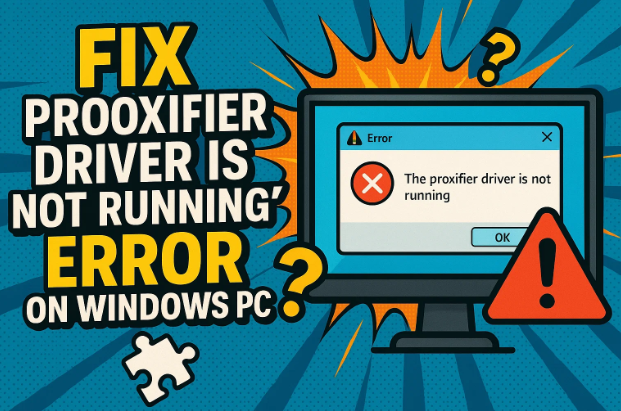
🧠 What Causes the “Proxifier Driver Is Not Running” Error?
Before fixing it, let’s quickly understand why this happens.
Proxifier works by installing a virtual driver that allows your computer to reroute internet traffic through configured proxy servers. If that driver stops working, becomes corrupted, or fails to start with Windows, you’ll see this message. Common causes include:
- Interrupted Proxifier installation or system update
- Driver service not configured to start automatically
- System permission issues preventing the driver from running
- Outdated or corrupted Proxifier version
- The app still being installed but unused
Now that we know what’s happening behind the scenes, let’s move on to fixing it.
🧰 Step 1: Restart the Proxifier Driver via Command Prompt
The most reliable way to fix this error is by manually restarting the Proxifier driver service.
⚠️ Important: You must run Command Prompt as an administrator for these commands to work.
Follow these steps:
- Press Windows + S on your keyboard and type
cmd. - In the search results, right-click on Command Prompt and choose Run as administrator.
- When prompted by User Account Control (UAC), click Yes to allow.
- Now, execute the following commands one by one.
(The commands are case-insensitive, but order matters.)
Command 1 – Check the driver status:
sc query ProxifierDrv
If the “STATE” shows STOPPED, that means the driver is not currently running.
Command 2 – Change driver configuration to auto-start:
sc config ProxifierDrv start= auto
You should see the message:
“[SC] ChangeServiceConfig SUCCESS”
This means the service configuration has been updated.





Command 3 – Start the Proxifier driver:
sc start ProxifierDrv
Once executed, the “STATE” should change to RUNNING.
That means your Proxifier driver is now active and functioning properly.
Final step:
After running all commands successfully, restart your computer.
When Windows loads again, you should no longer see the “driver is not running” message.
🧹 Step 2: Uninstall Proxifier (If You No Longer Use It)
If you don’t use Proxifier anymore or simply want to remove the cause of the error, uninstalling the program entirely will stop Windows from trying to load its driver.
Here’s how:
- Press Windows + R to open the Run dialog box.
- Type appwiz.cpl and hit Enter — this opens Programs and Features.
- In the list of installed apps, find Proxifier.
- Right-click it and select Uninstall.
- Follow the on-screen instructions to complete the removal.
- After uninstalling, restart your computer once again.
When your system reboots, Windows will no longer attempt to start the Proxifier driver, and the error should disappear completely.
⚙️ Alternative: Disable the Driver Without Uninstalling the App
If you want to keep Proxifier installed but don’t use it frequently, you can disable the driver manually using Command Prompt:
sc config ProxifierDrv start= disabled
This will stop the driver from loading at startup.
To re-enable it later, use:
sc config ProxifierDrv start= auto
sc start ProxifierDrv
🔄 Step 3: Check for Proxifier Updates (Optional)
Sometimes, older versions of Proxifier have bugs or driver incompatibility issues.
You can visit the official website and download the latest version:
🔗 Official Proxifier website: https://www.proxifier.com
After downloading the latest installer:
- Run the setup file and choose Repair (if available).
- Follow the on-screen instructions.
- Reboot the PC after installation.
This ensures you’re using the most stable version of the software.
💡 Quick Recap
Let’s summarize what we’ve done so far:
| Step | Action | Result |
|---|---|---|
| 1 | Ran Command Prompt as Administrator | Gained full control over services |
| 2 | Checked and started Proxifier driver manually | Restored driver function |
| 3 | Restarted PC | Verified no more “driver not running” error |
| 4 | (Optional) Uninstalled or updated Proxifier | Permanently removed issue source |
By now, your system should either have the Proxifier driver running smoothly or be completely free from related startup errors.
💬 Frequently Asked Questions (FAQ)
Q1. What is Proxifier used for?
Proxifier allows you to force applications that don’t support proxy connections to use a proxy server. It’s commonly used in network testing, security research, or environments where access must be tunneled through specific IPs.
Q2. Why does Proxifier need a driver?
The Proxifier driver works as a background network filter that intercepts and redirects application traffic through proxies. Without it, the software can’t function properly.
Q3. Is it safe to remove Proxifier?
Yes. If you don’t use it or didn’t install it intentionally, you can safely uninstall it without affecting system stability.
Q4. The driver keeps stopping even after restarting—why?
This can happen if another network security software conflicts with it, or if Proxifier wasn’t granted full system permissions. Reinstalling the latest version from the official site usually resolves this.
Q5. Can I reinstall Proxifier after uninstalling it?
Absolutely. Just download the installer again from proxifier.com, install it normally, and restart your PC.
✅ Final Thoughts
Errors like “Proxifier driver is not running” can look intimidating, but they’re easy to fix once you know what’s behind them. Whether you want to restart the driver, disable it, or uninstall the entire app, the solutions above will get your system back to normal in minutes.
If you use Proxifier regularly for routing or testing network connections, make sure to keep it updated and properly configured to avoid driver-related errors in the future.
⚠️ Disclaimer
This guide is for informational and troubleshooting purposes only. Always use administrative commands carefully. If your PC is managed by an organization or network administrator, check with them before modifying or uninstalling network-related software.
#proxifier #windows11 #networkfix #drivererror #commandprompt #windowsupdate #proxysettings #troubleshooting







