Artificial Intelligence is transforming software development, but until now, coding agents like ChatGPT or Gemini have had a major limitation: they were essentially blind. They could generate code, yes, but they had no way of truly seeing or interacting with the live browser environment where that code runs.
This is where Google’s brand-new Chrome DevTools MCP Server comes in—and it’s about to change the game.
For the first time, AI agents can:
- Inspect and debug live web pages
- Reproduce user flows step by step
- Analyze and fix styling or layout issues
- Track and audit network requests
- Run full performance audits in real time
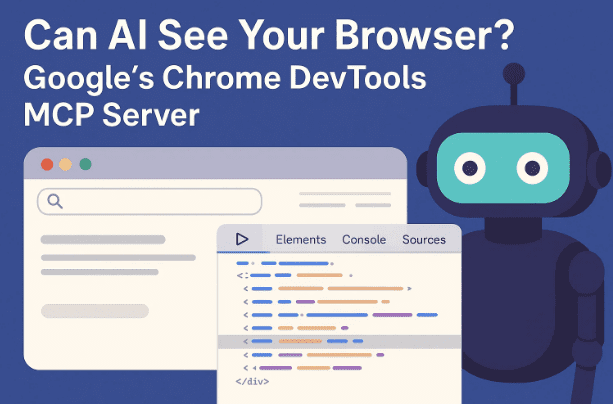
In short, developers can now give their coding agents a working browser environment, making them more like full-fledged co-developers rather than just code generators.
In this article, we’ll break down everything you need to know about the Chrome DevTools MCP server, how it works, and how to set it up. We’ll also explore its real-world use cases, benefits, limitations, and future potential. By the end, you’ll have a clear roadmap for trying it out yourself.
1. Why Chrome DevTools MCP Matters
Let’s pause for a second and understand why this update is so significant.
Until now, coding assistants could only generate static outputs: code snippets, explanations, or suggestions. If something didn’t work, you had to test it manually in your browser and then describe the problem back to the AI. This back-and-forth slowed productivity and sometimes caused frustration.
With Chrome DevTools MCP:
- AI agents can directly inspect the DOM (Document Object Model).
- They can open and navigate websites just like a user.
- They can measure real performance metrics like LCP (Largest Contentful Paint) or CLS (Cumulative Layout Shift).
- They can even recommend changes instantly after detecting layout or speed issues.
In essence, the AI is no longer a blindfolded assistant—it now works with live, contextual awareness of your web projects.
2. What is MCP (Model Context Protocol)?
Before diving into the technical setup, it helps to know what MCP is.
MCP stands for Model Context Protocol. It’s a framework that allows AI agents (like ChatGPT or Gemini) to connect with external tools and services. Instead of working in isolation, the agent can call APIs, inspect environments, or fetch structured data.








The Chrome DevTools MCP server is essentially a bridge:
- On one side: Your AI agent (e.g., ChatGPT running with MCP).
- On the other: A browser environment with full DevTools support.
This connection lets your AI interact with real webpages, almost like a developer using Chrome manually—but automated.
3. How Chrome DevTools MCP Works
Here’s a simplified breakdown of the workflow:
- You configure your AI coding tool (like Cursor IDE or an MCP-compatible client) to connect with the Chrome DevTools MCP server.
- The MCP server spins up a controlled browser instance.
- Your AI agent can now send commands:
- “Check the LCP of web.dev”
- “Inspect the network requests to example.com”
- “Find CSS issues causing layout shifts”
- The server runs these requests and sends live results back to the agent.
This means you no longer need to describe vague bugs to your AI. Instead, the AI can see the issue itself and provide targeted solutions.
4. Tools and Requirements
Before setting this up, let’s make sure you have the essentials:
- An MCP-enabled client (e.g., Cursor IDE or another environment that supports MCP servers).
- Node.js & npm installed on your machine (since the MCP server runs via
npx). - Chrome browser installed (the server interacts with Chrome DevTools).
- Internet connection for package installation and updates.
👉 Official Documentation: Chrome DevTools MCP Blog
5. Step-by-Step Setup Guide
Now comes the part every developer is waiting for: how to set up Chrome DevTools MCP server.
So far, we’ve covered the why and the what. Let’s move on to the how.
Step 1: Add the Server Configuration
Inside your MCP client, add the following configuration:
{
  "mcpServers": {
    "chrome-devtools": {
      "command": "npx",
      "args": ["chrome-devtools-mcp@latest"]
    }
  }
}
This tells your client to run the Chrome DevTools MCP server whenever it needs browser access.
Step 2: Enable MCP in Your Client
Depending on your IDE or MCP client, you’ll need to:
- Open Settings
- Go to Tools & Integrations
- Find MCP Servers
- Add the new server entry above
Once added, reload your client so the new integration becomes active.
Step 3: Test the Setup
To confirm everything is working, try running the following command inside your coding agent:
Please check the LCP of web.dev.
If everything is configured correctly, the agent will:
- Spin up a browser session.
- Navigate to
web.dev. - Run a performance analysis.
- Report back the Largest Contentful Paint and other useful metrics.
If you see real numbers instead of an error, congratulations—you’ve successfully given your AI agent a live browser environment!
6. Real-World Use Cases
Now that your AI agent has browser access, let’s explore what it can actually do.
- Debugging Live Web Pages
No more guessing why a page isn’t rendering correctly. The agent can open the page, inspect the DOM, and even suggest CSS fixes. - Reproducing User Flows
You can ask your agent to log into a test account, click through forms, and simulate end-user journeys—perfect for QA automation. - Inspecting Network Requests
If your app depends on APIs, the agent can check network traffic for failed calls, latency issues, or CORS errors. - Performance Audits
Running Lighthouse audits manually can be time-consuming. Now your AI can run audits and recommend optimizations instantly. - Design and Layout Validation
AI can compare styling rules, catch misplaced elements, or highlight responsive design failures.
7. Troubleshooting and Tips
Of course, no setup is perfect. Here are some common issues and how to fix them:
- Error: Cannot find chrome-devtools-mcp
→ Ensure Node.js and npm are installed. Runnpm install -g chrome-devtools-mcpif needed. - Browser doesn’t open
→ Check if Chrome is installed and accessible in your PATH. - Agent doesn’t respond
→ Verify your MCP config is added correctly and restart your IDE. - Performance numbers look off
→ Run multiple tests to rule out temporary network slowdowns.
8. Frequently Asked Questions (FAQ)
Q1. Do I need to be a professional developer to use this?
Not at all. Even beginners experimenting with AI coding tools can benefit from this.
Q2. Does it only work with Chrome?
Yes, at the moment it’s tied to Chrome DevTools. But future expansions may include other browsers.
Q3. Is this stable or experimental?
It’s currently in public preview. Google is seeking feedback from developers to improve it.
Q4. Can this replace manual debugging completely?
Not yet. It’s best seen as an assistant—automating repetitive checks while you focus on complex logic.
Q5. Where can I report bugs or suggest features?
On the official GitHub repo (linked in the Chrome DevTools MCP blog).
9. Future Potential
The Chrome DevTools MCP server is just the beginning. Imagine what’s next:
- AI agents automatically fixing detected issues in real time.
- Seamless integration with CI/CD pipelines for automated testing.
- Expanded support for other browsers (Firefox, Safari).
- Deeper collaboration with frameworks like React or Angular to debug component hierarchies.
As AI agents get smarter and MCP evolves, this could redefine what we mean by “pair programming.”
10. Final Thoughts
The release of Google’s Chrome DevTools MCP server marks a turning point for AI-assisted development. For the first time, coding agents can move beyond static text outputs and interact with the real, dynamic web.
Whether you’re a full-stack developer, a QA tester, or simply experimenting with AI, this tool can save hours of time while unlocking entirely new workflows.
It’s not perfect yet—it’s still a preview release—but the potential is massive. And as more developers adopt it, the ecosystem around AI-driven coding will only get stronger.
So the next time you ask, “Can AI really see my browser?”—the answer is now yes.
Tags
chrome devtools mcp, ai coding agents, google developer tools, chrome debugging ai, live browser environment ai, web.dev performance audit, ai developer tools
Hashtags
#ChromeDevTools #MCP #GoogleDevelopers #AIagents #WebDevelopment #Debugging #PerformanceAudit