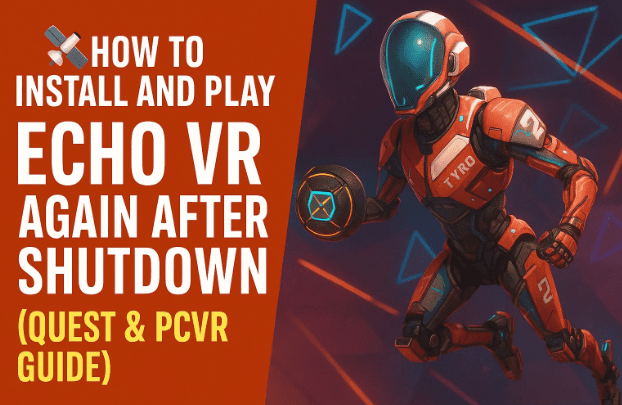
When Meta shut down Echo VR — one of the most beloved multiplayer VR experiences ever — the community was heartbroken. The zero-gravity combat, immersive movement, and teamwork made it a standout title in the VR world.
But thanks to a small group of dedicated modders, Echo VR is now back — fully playable again through custom servers. Even better, it can run both on Meta Quest headsets (standalone) and PCVR setups.
This guide will show you step-by-step how to bring Echo VR back to life on your headset — without violating your system, and completely free.
Let’s get started.
🕹️ 1. Understanding the Revival of Echo VR
After Meta officially shut down Echo VR in 2023, it seemed the game would disappear forever. However, within a month, a passionate modder managed to reverse-engineer the client and host it on community-run custom servers.
Since then, the process of bringing the game back has been refined, stabilized, and simplified. As of 2025, Echo VR is once again fully playable — with two main versions:
- Quest Standalone Version: Runs directly on your headset (no PC required).
- PCVR Version: Runs through SteamVR or Oculus Link for high-fidelity visuals.
Both versions connect to the same community servers, allowing players to enjoy multiplayer matches once again.
Official Help Site: https://echo.avagoosa.com
⚙️ 2. Before You Begin – What You Need to Know
Before diving into the installation process, keep these points in mind:
- This method is community-developed, not officially supported by Meta.
- You’ll need to create or access a Discord account for server authentication.
- Installation differs depending on whether you’re using a Quest headset or PCVR setup.
- The revived version includes all cosmetics unlocked, but gameplay servers may occasionally disconnect or reset — since they’re maintained voluntarily.
- Always download files from trusted links (provided below).
🧠 3. Part 1 – Installing Echo VR on Quest (Standalone Method)
Let’s begin with the Quest method — perfect for users who don’t have access to a PC or simply want to keep things lightweight.
The process involves downloading a custom installer APK, preparing your Quest environment, and linking it to the server through Discord.





🧩 Step 1: Uninstall the Original Echo VR (if you still have it)
If Echo VR is already installed on your headset, remove it first to avoid conflicts:
- On your headset, open the App Library.
- Find Echo VR, click the three-dot icon, and select Uninstall.
📥 Step 2: Download the Echo VR Installer APK
- Open your Quest browser and go to:
👉 https://echo.avagoosa.com - Scroll down to find Echo VR Installer APK.
- Tap Install and confirm the download.
- Once complete, don’t open it yet — we’ll use a VR file manager next.
📦 Step 3: Install “Mobile VR Station”
To properly install APK files on Quest, we’ll need a free app from the Meta store:
- Open the Meta Horizon Store.
- Search for Mobile VR Station.
- Download and install it.
- Once installed, open the app and click the red Continue button.
🗂️ Step 4: Configure File Access
Inside Mobile VR Station:
- Go to Configuration Wizard → Show All Options.
- Tap Configure Manage All Files → Open Files All.
- Locate the EchoVRInstaller.apk file.
- Tap it and go to Settings → enable Allow from this source.
- Hit Install, and once done, select Open.
The installer will now begin setting up Echo VR from the custom build.
⚡ Step 5: Choose Your Player Type
You’ll be asked to choose between two options:
- Had Echo Installed → for returning players who owned Echo VR before shutdown.
- New Player → for first-time installers.
If you never had Echo VR on your account, select New Player.
🌐 Step 6: Access the Echo VR Patcher Discord
This step is crucial for linking your Quest to the community servers.
- In the installer, click Open in Browser when prompted.
- This opens the Echo VR Patcher Discord invite link.
- Join the Discord server using your account (or create one if needed).
Why Discord?
The modding team uses it to securely verify players and manage server access, ensuring fair play and preventing malicious activity.
🔑 Step 7: Create Your Player Patch (DLL)
Once inside Discord:
- Navigate to the channel named Create-Your-Patch-DLL.
- React to the message with the provided emoji to trigger the signup bot.
- You’ll receive a direct message (DM) from Echo Signup Bot Test.
- Scroll to the bottom of that message — you’ll find a unique APK link.
- Copy only the link (avoid extra text).
🧬 Step 8: Apply Your Unique Patch
- Go back to the EchoVR Installer on your headset.
- Paste your unique APK link where it says Paste APK Text.
- Allow necessary permissions if prompted.
- Click Update.
- Wait for installation to finish — it may take several minutes depending on Wi-Fi speed.
🔁 Step 9: Restart Your Headset
Do not launch Echo VR yet.
Instead:
- Hold the power button → Restart.
- Once rebooted, find Echo VR in your App Library.
🔗 Step 10: Link Your Account in Discord
When you first launch Echo VR, a four-letter code (for example, “IKDL”) will appear.
- Open Discord again.
- In the Command Central channel, type
/link EchoVRCEfollowed by your four-letter code. - Submit the command.
- Once confirmed, you’re officially linked to the Echo community servers.
🕹️ Step 11: Launch and Play
Now that you’re linked:
- Quit the installer if still open.
- Relaunch Echo VR from your library.
- Accept the license agreements and permissions.
- Click Play — you’ll load into the new server lobby.
You can now move, chat, and customize your character.
All cosmetics are unlocked automatically in this build.
⚠️ Note on Instability
Because this is a community revival project, you may face some hiccups:
- Occasional disconnections from servers
- Cosmetics not saving immediately
- Login requiring re-link after updates
To save cosmetics, customize your avatar, exit the game, and reopen it — your changes should persist afterward.
🖥️ 4. Part 2 – Installing Echo VR via PCVR or SteamVR
If you have access to a computer, this version is far easier to install and update. It also offers higher graphics quality and SteamVR compatibility.
🧩 Step 1: Download the PC Installer
Go to the official GitHub page:
👉 https://github.com/BL00DY-C0D3/Echo-VR-Installer
- Under the Releases section, download the Windows ZIP version.
- Extract the ZIP file to a folder on your PC (e.g., Desktop or Downloads).
⚙️ Step 2: Run the Echo VR Installer
- Open the extracted folder.
- Double-click EchoVRInstaller.exe.
- The installer will open with several options.
You’ll see four main buttons:
- Install Echo PC → for players who previously installed and played Echo on PC.
- Update Echo PC → if you already installed this mod before and want to refresh files.
- No License Package → for completely new users who never played Echo on PC.
- Revive → optional SteamVR compatibility layer to launch Echo VR through Steam.
💡 Step 3: Choose Installation Path and Start Download
- Pick either the default path or browse to a custom folder.
- Click Start Download.
- The installer will automatically fetch and configure the required files.
If you’re installing for the first time, it might take 10–15 minutes depending on internet speed.
🔌 Step 4: (Optional) Install on Quest via Sideloading
If you have your Quest connected to your PC via USB or Oculus Link cable, the installer also lets you sideload Echo VR directly:
- Quest Install Echo → if you owned the game previously.
- Quest No License Patch → if you never installed it before.
Once complete, disconnect your headset, reboot it, and the game will appear in your library.
🕹️ Step 5: Run via PCVR or SteamVR
If you chose PCVR:
- Launch Echo VR through the installer or from your VR platform (SteamVR/Oculus).
- Sign in to your Discord-linked account just as with the standalone version.
- Enjoy full PCVR visuals and smoother performance.
🔐 5. Linking Echo VR to Custom Servers (Discord Setup Recap)
If you skipped earlier sections and need to link again:
- Join the Echo VR Lounge Discord (linked through installer).
- Look for your DM from Echo Signup Bot — it includes your personal patch code or link.
- In the server, go to Command Central and type your code.
- After linking, restart your game once.
You should now connect automatically to the live multiplayer lobby.
🧩 6. Troubleshooting Connection & Cosmetic Sync Issues
It’s worth noting that the modded Echo VR revival is still under community maintenance, so occasional issues are normal. Here are some common fixes:
| Problem | Possible Cause | Solution |
|---|---|---|
| Game crashes on launch | Corrupted patch or mismatched version | Uninstall Echo VR and reinstall via latest installer |
| Can’t connect to servers | Server downtime or network block | Restart router and headset; check Discord announcements |
| Cosmetics not saving | Data not syncing with custom API | Save, exit game, reopen; re-link if still not persistent |
| Black screen on boot | Old cache files | Clear cache in Mobile VR Station or reinstall APK |
🟢 Tip: Always restart your Quest after major updates or patch installations. It clears cached session data that can block new connections.
💬 7. Frequently Asked Questions (FAQ)
Q1. Is this legal to use?
Yes — the modders host their own servers and recompiled client. However, it is not an official Meta service. You’re playing on independent, community-run servers.
Q2. Will I get banned from Meta or Quest for using this?
No. Since this version doesn’t modify Meta’s current platform and doesn’t connect to Meta’s servers, it’s safe. Still, avoid using unofficial APKs from unknown sources.
Q3. Do I need Discord to play?
Yes, Discord is used for account authentication and server management. It’s free, and setup takes only a few minutes.
Q4. Can I still use voice chat in the game?
Yes. Voice chat works via in-game proximity chat, similar to the original version.
Q5. Does cross-play between Quest and PCVR still work?
Absolutely. Both versions share the same custom server environment.
Q6. My game keeps disconnecting randomly — what should I do?
It may be temporary server maintenance or connection drops. Just restart Echo VR. If the problem persists, check the EchoVR Discord’s announcements for downtime updates.
Q7. Can I host my own server?
At the moment, no public instructions for self-hosting are available — the servers are maintained centrally by the revival team to ensure stability.
🧾 8. Final Thoughts & Disclaimer
And there you have it — Echo VR is alive again!
Through the effort of dedicated fans, this incredible multiplayer VR experience has returned despite being discontinued.
Whether you’re playing on your Quest 2, Quest 3, or via PCVR, you can once again glide through zero gravity, pass the disc, and relive one of VR’s most thrilling games.
⚠️ Disclaimer
- Echo VR Revival is an independent, community-driven project.
- This guide is for educational purposes only and does not host or distribute the game itself.
- All server infrastructure is managed voluntarily by fans.
- Always download from official links:
As the revival grows, future updates might simplify this process even further — perhaps one day it’ll be a one-click install again. Until then, this guide ensures you can still experience the joy of Echo VR exactly as it once was.
Hashtags: #EchoVR #VirtualReality #Quest3 #Quest2 #PCVR #EchoVRRevival #VRGaming #MetaQuest








