Microsoft releases Windows updates regularly to patch vulnerabilities, improve performance, and add features. Normally, these updates are essential for keeping your system secure. But sometimes, an update can bring unexpected problems. The latest example? Reports are emerging that Windows 11 update KB5063878 may be causing SSD failures and data corruption.
If you’ve noticed strange issues with your drive—like it suddenly disappearing from Disk Manager, not booting, or even permanent data loss—this update could be the culprit. In this article, we’ll carefully go through the problem, explain why it’s happening, and provide step-by-step instructions on how to uninstall the update safely if you’re affected.
I’ll also share a fix for a tricky uninstall error (0x800F0825) that many people have reported, which I was able to solve myself. By the end of this guide, you’ll know whether rolling back the update is the right choice for you and how to do it without risking your important files.
⚠️ 1. What’s Going Wrong With KB5063878?
Let’s start by breaking down the issue. The update in question—KB5063878—was released as part of Windows 11’s regular security rollouts. But shortly after installation, users began reporting serious problems with their SSDs.
Here’s what’s happening:
- When writing large amounts of data sequentially (typically 50 GB or more), some SSDs simply disappear from the system.
- In some cases, a reboot brings the drive back—but users have reported data corruption or missing files.
- In the worst cases, the drive does not return at all, leaving users with a completely failed SSD.
This isn’t just a performance hiccup—it’s a critical data reliability issue.
💾 2. Which SSDs Are Affected?
At first glance, it wasn’t clear which SSD brands or models were impacted. Reports were scattered across forums and social media. But testing has pointed to a pattern:
- Samsung SSDs – some models exhibit failure when writing large sequential data.
- Western Digital (WD) SSDs – also affected in several user reports.
- Other drives with certain controller manufacturers seem to be at risk.
One user test involved copying a 92 GB Cyberpunk 2077 game folder to the drive, then compressing and extracting the same folder. During these operations, some drives:
- Failed temporarily but recovered after restart.
- Corrupted data in the process.
- Failed permanently, never returning after disappearing.
The randomness of the failures makes this particularly worrying—your SSD might seem fine until suddenly it isn’t.
📉 3. The Risk of Data Loss and Corruption
Even if your SSD returns after a reboot, there’s no guarantee your files are safe. Data corruption may linger, making it unsafe to trust the drive with critical information.
This is why, for now, backing up your data is absolutely essential if you have KB5063878 installed.









👉 If you use your PC for work, content creation, or gaming, the risk of losing files outweighs the benefits of this update.
🏢 4. What Has Microsoft Said So Far?
Currently, Microsoft has acknowledged that they are investigating the issue. However, no official patch or workaround has been released.
The good news: the vulnerabilities patched in KB5063878 were not zero-day exploits. This means none of the patched issues were actively exploited by hackers at the time of release.
In other words:
- Uninstalling the update won’t put you at significant risk, since the bugs it patched weren’t already being used in the wild.
- The risk of data loss is greater than the risk of malware exploiting the unpatched system.
🔐 5. Should You Uninstall This Update?
Normally, security experts strongly recommend against uninstalling updates. But this case is different. Since the vulnerabilities were not publicly disclosed or exploited, uninstalling the update is considered relatively safe.
So the trade-off looks like this:
| Option | Pros | Cons |
|---|---|---|
| Keep KB5063878 Installed | Security fixes applied | Risk of SSD corruption, potential permanent data loss |
| Uninstall KB5063878 | Protects your SSD and data, no random failures | Slightly delayed security patching (but not urgent, since no active exploits) |
👉 In my view, uninstalling is the safer choice for now, especially if you rely on your SSD for important work.
🛠️ 6. How to Safely Uninstall Update KB5063878
If you decide to uninstall, here’s the full step-by-step guide.
- Open Windows Settings
- Press Win + I to launch Settings.
- Go to Windows Update
- Click on Windows Update in the left-hand menu.
- Access Update History
- Scroll down and click on Update history.
- Find Uninstall Updates
- At the very bottom, click Uninstall updates.
- Locate KB5063878
- Look through the list for KB5063878.
- Click Uninstall
- Select it and press Uninstall.
- Restart When Prompted
- Windows will ask you to restart to complete removal.
⚠️ Important Tip: Before uninstalling, go back to the main Windows Update settings and click Pause updates. This prevents Windows from automatically reinstalling KB5063878 the next time you reboot. But what if you get Windows update error then in that case you can try How to Fix Windows Update Error 0x8024001E in Windows 10 (Complete Step-by-Step Guide).
🧩 7. Fixing Error 0x800F0825 During Uninstallation
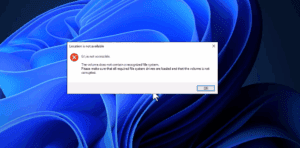
Here’s where things get tricky. Some users (myself included) ran into an error code 0x800F0825 when trying to uninstall KB5063878.
The fix turned out to be surprisingly simple:
- Turn Off Windows Sandbox
- Open the “Turn Windows Features On or Off” menu.
- Find Windows Sandbox and uncheck it.
- Click OK to uninstall the feature.
- Restart Your PC
- A restart is required to fully remove Sandbox.
- Retry Uninstallation
- Now go back to Windows Update > Update History > Uninstall Updates.
- Select KB5063878 again and uninstall.
In my case, this resolved the issue completely.
🔄 8. Re-Enabling Windows Sandbox After the Fix
Once the update is successfully removed, you can re-enable Sandbox if you use it.
- Go back to “Turn Windows Features On or Off.”
- Recheck Windows Sandbox.
- Click OK and restart.
This ensures your development or testing tools return to normal without keeping the broken update.
🛡️ 9. Tips to Prevent Future Update Issues
Windows updates occasionally cause unexpected problems, but you can protect yourself with a few proactive steps:
- Enable System Restore – Always keep restore points so you can roll back easily.
- Backup Important Files – Use cloud storage or external drives.
- Pause Updates for a Week or Two – Let early adopters report bugs before you install major patches.
- Stay Informed – Follow Microsoft’s official update blog and community forums.
By adopting these habits, you reduce the risk of being caught by surprise when an update goes wrong.
❓ 10. Frequently Asked Questions (Q&A)
Q1: Does this issue affect Windows 10?
No, reports so far suggest the issue is exclusive to Windows 11.
Q2: What if my SSD already disappeared?
First, restart your PC. If the drive doesn’t reappear, it may have failed permanently. In such cases, contact the manufacturer’s support and avoid further writes.
Q3: Can Microsoft force the update back after I uninstall it?
Yes, but only if you don’t pause updates. That’s why it’s important to pause or defer updates after uninstalling KB5063878.
Q4: Is uninstalling updates safe in the long run?
Yes, as long as the vulnerabilities patched were not critical or actively exploited. But make sure to reinstall updates once Microsoft provides a fixed version.
Q5: Does uninstalling affect my system performance?
No, rolling back KB5063878 should not cause performance loss. In fact, it may improve stability if your SSD was affected.
✅ 11. Final Thoughts and Recommendations
The KB5063878 update for Windows 11 has shown itself to be more harmful than helpful, at least for users with certain SSDs. While Microsoft investigates, the safest move for most people is to uninstall the update, pause updates temporarily, and back up critical data.
If you’ve been struggling with uninstall errors, disabling Windows Sandbox before uninstalling is the key trick that finally makes it work. Once done, you can continue using your PC without worrying about sudden SSD corruption.
This situation is a reminder that while updates are crucial, staying cautious and prepared can save you from data disasters. Always keep backups, and never assume that every update will be flawless.
⚠️ Disclaimer
The steps in this article are provided for educational purposes. While uninstalling updates may resolve the SSD issue, it may delay security patches. Proceed at your own risk, and always back up important files before making system changes.
Tags
Windows 11 update issue, KB5063878 SSD failure, Windows update rollback, SSD disappearing fix, uninstall Windows update, Windows Sandbox error, Microsoft patch problem, data loss prevention
Hashtags
#Windows11 #SSD #MicrosoftUpdate #KB5063878 #DataLoss #WindowsFix #TechGuide







