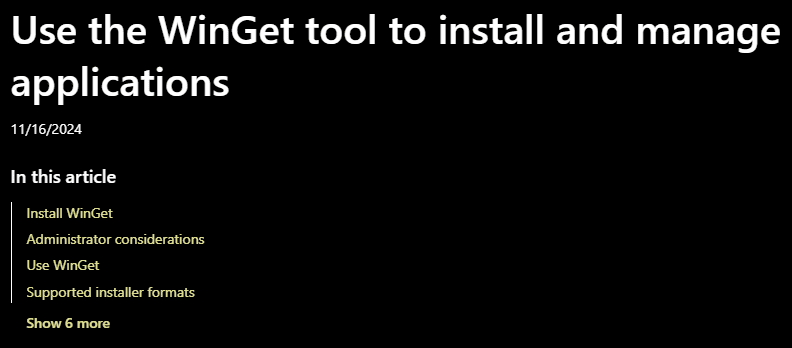
Managing apps manually can be time-consuming — searching websites, downloading installers, and clicking through setup wizards. But did you know that Windows has a built-in package manager that can automate all of this?
Welcome to Winget — the Windows Package Manager. With this tool, you can install, uninstall, and update all your applications directly from the command line in just a few seconds. Whether you’re a casual user or a power user, Winget can save you a lot of time.
This article provides a step-by-step guide on how to use Winget effectively on both Windows 10 and Windows 11.
⚠️ Disclaimer
This guide is for educational purposes only. Always ensure you trust the software you’re installing using Winget. The package manager fetches apps from official repositories and Microsoft’s own sources, but due diligence is always advised.
🧩 What is Winget?
Winget (short for Windows Package Manager) is a command-line tool from Microsoft that allows users to search, install, update, and uninstall applications quickly and efficiently.
- Windows 11: Winget comes pre-installed.
- Windows 10: You’ll need to manually install it. Download it from the Microsoft GitHub repository:
👉 https://github.com/microsoft/winget-cli
🛠️ How to Open Winget
- Press
Win + Sand type Command Prompt or Windows Terminal. - Right-click and choose Run as Administrator.
- Type the following command to verify Winget is installed:
winget
You should see a list of available commands if it’s installed properly.
🔍 Step 1: Searching for Software with Winget
To find software in the Winget repository, use:
winget search [software-name]
🔧 Example:
winget search revo
This will list all matching packages. Ignore entries labeled “MS Store source” if you’re looking for standalone installers.
📥 Step 2: Installing Software Using Winget
Once you find the desired package, install it using its unique ID.
winget install --id [Package.ID]
Note: IDs are case-sensitive. Be sure to copy them exactly.
✅ Example:
winget install --id RevoUninstaller.RevoUninstaller
Winget will now download and install the software silently — no need to visit websites or click “Next” repeatedly!





🔁 Step 3: Updating All Apps at Once
One of Winget’s most powerful features is bulk updates.
To update all installed apps that have available updates, simply run:
winget upgrade --all
This will go through each outdated app and automatically update them in one go — very useful for system maintenance.
🗑️ Step 4: Uninstalling Software Using Winget
To remove an application, use the uninstall command along with the app’s ID:
winget uninstall --id [Package.ID]
✅ Example:
winget uninstall --id Mozilla.Firefox
This removes the software cleanly and efficiently without needing to dig through Control Panel or Settings.
🧠 Bonus Tip: List Installed Apps
To view all apps installed via Winget (and others too), you can use:
winget list
This helps you identify package IDs for uninstalling or updating.
🔄 Summary
| Task | Winget Command |
|---|---|
| Search for app | winget search [name] |
| Install app | winget install --id [Package.ID] |
| Uninstall app | winget uninstall --id [Package.ID] |
| Update all apps | winget upgrade --all |
| View installed apps | winget list |
With Winget, you can say goodbye to downloading EXE files manually and hello to efficient, automated app management.
🌐 Official Winget Resources
- Winget GitHub (Windows Package Manager):
https://github.com/microsoft/winget-cli
🔖 Tags
winget tutorial, windows package manager, install apps using winget, update all windows apps, windows 11 tips, command line app installation, winget install uninstall, windows automation tools, software management windows, winget upgrade all
📢 Hashtags
#Winget #WindowsPackageManager #WindowsTips #UpdateAllApps #CommandLineTools #WindowsAutomation #TechGuide2025 #InstallWithWinget #Windows10Tips #Windows11Tools
By using Winget, you can significantly streamline how you manage your software. Whether you’re updating dozens of apps or installing tools on a fresh system, this command-line tool can save hours of work. Try it once, and you’ll never want to go back!








