If you’ve ever noticed people having Google Drive show up in File Explorer as its own drive letter (like G:), you might have wondered how they did it. It looks clean, professional, and—most importantly—makes cloud storage feel like a built-in part of your computer.
The good news is that this setup isn’t complicated at all. In fact, Google provides an official application that automatically maps your Drive as a virtual disk on your system. All you need to do is install it and choose the right syncing mode.
Let’s walk through the full process step by step, with clear explanations along the way.
💾 1. Download Google Drive for Desktop
Before we begin, let’s understand why you need an app for this. Windows cannot natively mount Google Drive as a drive letter, so Google uses a small desktop application that creates a virtual file system. This is what allows Drive to appear as G:, H:, J: or whichever drive letter you choose.
Let’s get started
Head to the official Google download page:
🔗 https://www.google.com/drive/download/
Under “For Individuals“, click Drive for desktop and download the installer.
This is the safest and only official method to mount Google Drive as a real disk.
🖥️ 2. Install Google Drive for Desktop
Once the installer finishes downloading, it’s time to bring Google Drive onto your PC.
What to expect during installation
The installer:
- Adds the Google Drive system tray icon
- Installs the virtual drive plugin
- Prepares the folder structure for syncing
- Automatically sets up the virtual drive once you log in
Install steps
- Double-click the downloaded file
- Click Install
- Allow permissions if prompted
- When it opens, click Sign in
- Log in using your Google account
Once you’re in, Google Drive will quietly prepare everything in the background.



📁 3. Google Drive Appears as a Drive Letter Automatically
After signing in, something satisfying happens:
Windows assigns a drive letter to Google Drive just like the screenshot you shared.
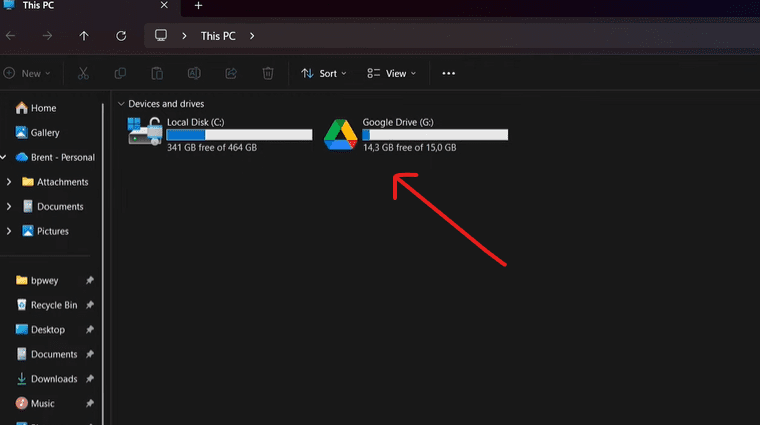
It usually becomes G:, but depending on your system, it might choose another letter like:
- D:
- H:
- J:
The drive will display:
- Total space (15 GB or more depending on your plan)
- Available space
- A Google Drive icon
- A clean look exactly like a normal disk
This is not a folder. It behaves like a proper mounted drive — fast, responsive, and perfectly integrated.
🔄 4. Change the Drive Letter (Optional but Recommended)
Sometimes Windows assigns a random letter. If you want it specifically to appear as G: (which is the default Google Drive mapping and visually neat), you can easily change it.
How to change the drive letter
- Open the Google Drive icon in the system tray
- Click the Settings ⚙️ icon
- Choose Preferences
- Click the Google Drive tab
- Look for “Drive letter”
- Select Change letter
- Choose G:
- Click Save
Your Drive will now remount instantly using the new letter.
🔀 5. Choose the Right Sync Mode (Streaming vs. Mirroring)
Before you start using the drive, it’s important to understand how Google wants to sync your files.
Google Drive for Desktop gives you two modes:
1️⃣ Stream files (Recommended)
This option does not download all your Drive data.
Instead:
- Files open on demand
- They appear instantly
- They don’t take up space unless accessed
- Perfect for small SSDs and laptops
It’s the fastest and most efficient choice.
2️⃣ Mirror files
This mode downloads everything offline.
Use it only if:
- You want full offline access
- You have a large SSD
- You frequently work with huge files
You can change this anytime in:
Preferences → My Drive syncing options
📂 6. Using Google Drive Like a Real Disk
Once everything is set, your Google Drive behaves exactly like a normal drive.
You can:
- Copy files into it
- Move folders
- Rename items
- Delete items
- Drag-and-drop files directly
- Access it through software that supports drive letters
- Save documents directly from apps into Google Drive (G:)
- Use it in backup software, file explorers, or file managers
All changes sync automatically to the cloud.
⚠️ 7. Important Notes and Tips
These small details help avoid confusion later:
➤ Google Drive will not appear in Disk Management
Because it’s a virtual drive, not a physical storage device.
➤ You can pause syncing anytime
Right-click the system tray icon → Pause syncing
➤ You can sign out and re-map later
Drive letter stays consistent after re-login.
➤ Files may show cloud icons
This is normal and indicates streaming mode.
❓ FAQs (Frequently Asked Questions)
1. Why does Google Drive show up as G: and not a folder?
Because Google Drive for Desktop uses a virtual file system that mounts as a real disk for faster access and better software compatibility.
2. Can I choose another letter like Z:?
Yes. You can pick any available drive letter in the Preferences section.
3. Will this consume storage on my PC?
Only if you choose “Mirror files”.
In “Stream files” mode, space used is minimal.
4. Can I use this drive with backup tools?
Yes. Since it shows as a real drive, most backup software can read from it.
5. Does uninstalling the app delete my cloud files?
No. Your cloud files stay safe on Google’s servers.
🎉 Final Thoughts
Mapping Google Drive as a dedicated drive letter gives your Windows system a clean, professional cloud-storage integration. Whether you’re organizing documents, managing creative files, or syncing work folders, having Google Drive (G:) in File Explorer makes everything faster and easier.
It blends cloud and local storage seamlessly — and once you set it up, you’ll wonder why you didn’t do it earlier.
#GoogleDrive #Windows11 #Windows10 #CloudStorage #DriveMapping #TechGuide #DTPtips








