One of the most noticeable changes in Windows 11 is the redesigned right-click (context) menu. While it looks modern, many users find it less practical because common options are hidden behind an extra “Show more options” button. If you’re someone who prefers the classic right-click menu from Windows 10, the good news is—you can bring it back!
In this article, I’ll guide you through the process step by step using the Registry Editor. It’s simple if you follow carefully, and yes, this method works 100%. Let’s dive in.
📌 Important Disclaimer
Editing the Windows Registry can affect system behavior. If done incorrectly, it may cause system instability.
👉 Please follow the instructions carefully.
👉 Always create a System Restore Point before making changes.
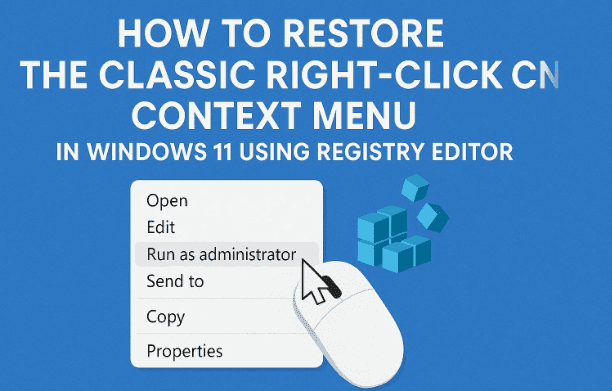
1. Why Bring Back the Old Context Menu?
Before we jump into the steps, let’s quickly understand why so many users want this back:
- The new Windows 11 right-click menu hides advanced options under Show more options.
- Extra clicks slow down workflow for power users.
- File operations like copy, paste, rename, and access to third-party apps are less convenient.
By restoring the old context menu, you’ll get your familiar one-click experience back.
2. Open the Run Dialog
Let’s start with the basics:
- Press Windows + R on your keyboard.
- Type
regeditand hit Enter. - A User Account Control (UAC) prompt may appear—click Yes to allow.
This will open the Registry Editor, the tool we’ll use to apply the tweak.
3. Navigate to the CLSID Path
Inside Registry Editor, you need to go to a specific path.
- Copy and paste this address into the navigation bar at the top:
HKEY_CURRENT_USER\Software\Classes\CLSID
- Hit Enter.
You are now in the section where we’ll create a new entry that forces Windows 11 to use the old context menu.
4. Create a New Key
Now comes the key step:
- Right-click on CLSID in the left panel.
- Select New → Key.
- Name the new key with the following string (copy it carefully):
{86ca1aa0-34aa-4e8b-a509-50c905bae2a2}
5. Create a Subkey
After creating the above key, do the following:








- Right-click on it.
- Select New → Key again.
- Name this subkey:
InprocServer32
6. Modify the Default Value
Now we need to tweak the value:
- Select InprocServer32.
- On the right panel, double-click (Default).
- Leave the Value data empty and click OK.
This step is crucial—it tells Windows to revert to the old context menu logic.
7. Restart Your System
You’re almost done! To apply the changes:
- Close the Registry Editor.
- Restart your PC.
After reboot, right-click anywhere on your desktop or inside File Explorer—you’ll see the old Windows 10 style context menu back in action!
8. How to Revert Back to the New Menu
If at any point you want the modern menu again:
- Go back to the Registry Editor.
- Navigate to:
HKEY_CURRENT_USER\Software\Classes\CLSID
- Delete the
{86ca1aa0-34aa-4e8b-a509-50c905bae2a2}key. - Restart your PC.
Now the default Windows 11 right-click menu will return.
❓ Frequently Asked Questions
Q1. Is this method safe?
Yes, it’s safe as long as you carefully follow the instructions. The change is reversible.
Q2. Do I need third-party software?
No, this works entirely through Registry Editor. No extra software required.
Q3. Will this affect Windows updates?
Generally no, but after major Windows 11 updates, the tweak may reset, and you might need to apply it again.
Q4. Can I use a ready-made registry file instead?
Yes, some sites provide .reg files to automate this. However, creating it manually is safer as you control each step.
✅ Final Thoughts
Microsoft redesigned the context menu for consistency and touch-friendly design, but for many of us, speed matters more. By tweaking a small registry entry, you can get back the classic menu and enjoy faster access to your favorite options.
If you prefer the old way, this registry trick is a lifesaver. And if you ever change your mind, you can revert easily.
Tags
Windows 11 context menu, Windows 10 classic menu, registry editor tweak, restore old right click, Windows customization
Hashtags
#Windows11 #WindowsTips #RegistryEditor #RightClickMenu #TechGuide








