The HP LaserJet M1132 MFP is a compact and reliable multi-function printer that continues to serve users well, even years after its release. But if you’ve recently upgraded or reinstalled Windows 10 on your PC or laptop, you may face a common hurdle: your system can’t recognize the printer until you install the correct driver.
Without the right driver, Windows won’t be able to communicate with the printer, meaning you can’t print, scan, or copy properly. Thankfully, installing the HP LaserJet M1132 driver isn’t complicated once you know the correct steps.
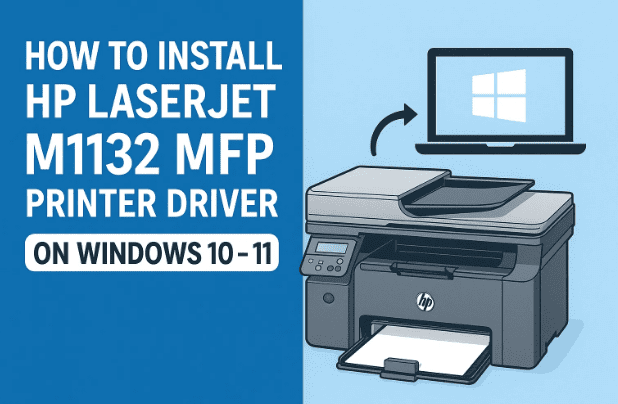
In this guide, we’ll walk through two different ways to install the driver:
- Using the official HP driver setup.
- Installing manually via Printers & Scanners using the “Have Disk” method.
Along the way, I’ll also share troubleshooting tips, FAQs, and alternative methods (like Windows Update and Universal Print Driver) in case the standard setup doesn’t work on your machine.
So, grab a coffee and let’s go step by step.
🧐 Step 1: Check if Your Windows is 32-bit or 64-bit
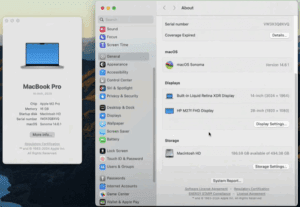
Before downloading the driver, you need to confirm whether your PC is running 32-bit or 64-bit Windows 10. The driver you download will depend on this.
Here’s how to check:
- Right-click on This PC (or My Computer).
- Select Properties.
- Under Device Specifications, look for System type.
- If it says 64-bit Operating System, download the 64-bit driver.
- If it says 32-bit Operating System, download the 32-bit driver.
👉 In my case, the machine is 64-bit.
So far, so good. Let’s move on to downloading the driver.
🔽 Step 2: Download the Official HP LaserJet M1132 Driver
- Open your preferred browser (e.g., Chrome).
- In the search bar, type: HP LaserJet M1132 MFP driver and hit Enter.
- Click the first result from support.hp.com — this is HP’s official website.
Once on the HP support page:
- Confirm your operating system and bit version (Windows 10 32-bit or 64-bit).
- If the auto-detection is wrong, click Choose a different OS and manually select Windows 10 → 32-bit or 64-bit.
- Click Update to refresh the available drivers.
📂 Step 3: Extract Driver Files
- After downloading, you’ll find the driver file in your Downloads folder.
- Move the file to your Desktop for convenience.
- The file is compressed (often a
.zipor.exe). - Right-click on it and select Extract Files.
- Click OK to complete extraction.
You’ll now have a new folder on your Desktop containing all necessary driver files.




At this point, you have two options to install. Let’s start with the simpler one.
✅ Method 1: Install Using HP Setup File
Inside the extracted folder, you’ll see a setup.exe file. Double-clicking it will launch HP’s guided installation wizard.
- Double-click the Setup file.
- Follow the on-screen instructions.
- Connect your HP LaserJet M1132 printer when prompted.
- Wait until Windows completes the installation.
- Print a test page to confirm.
This method is quick and easy, but sometimes it fails — especially on newer builds of Windows 10. That’s why HP recommends a manual installation in some cases. Let’s walk through that next.
✅ Method 2: Manual Installation (Have Disk Method)
This method gives you more control. Here’s how:
Step 1: Open Printers & Scanners
- Press Win + S and type Printers & Scanners.
- Open it.
- Click Add a Printer or Scanner.
- Wait a few seconds. If your printer doesn’t appear, click “The printer that I want isn’t listed.”
Step 2: Add a Local Printer
- Select Add a local printer or network printer with manual settings.
- Click Next.
Step 3: Select the Port
- If you see an HP-specific port (like DOT4_001 HP Device), select that.
- If not, select USB001 (Virtual Printer Port for USB) or any available USB port.
- Click Next.
Step 4: Locate Driver Files
- Click Have Disk → Browse.
- Navigate to the folder you extracted earlier.
- Look for
.inffiles inside the folder. - Select the file and click Open, then OK.
Step 5: Choose Printer Model
- A list of printers will appear.
- Select HP LaserJet M1132 MFP (sometimes shown as LaserJet Professional).
- Click Next.
Step 6: Finalize Installation
- Enter a printer name (default is fine).
- Wait for Windows to install the driver.
- If prompted about sharing, choose whether you want to share the printer over the network.
- Optionally, click Print Test Page.
Congratulations! Your HP LaserJet M1132 should now be installed and ready to use.
🔄 Alternative Options if Driver Fails
If neither method works, don’t worry — there are other options:
- HP Universal Print Driver (UPD):
- Download from HP’s website.
- Works with many LaserJet models including the M1132.
- Choose the PCL 6 version for best results.
- Windows Update Catalog:
- Visit Microsoft Update Catalog.
- Search for HP LaserJet M1132.
- Download and install using the Have Disk method.
These alternatives ensure you can still use your printer even if the official driver fails.
⚠️ Troubleshooting Common Problems
Let’s quickly cover the most frequent issues users face:
- Printer not detected:
Try a different USB port or cable. Use USB 2.0 instead of USB 3.0 if available. - Driver installs but printer won’t print:
Check if you selected the correct port (USB001/DOT4). - Printer shows but prints blank pages:
Reinstall the driver. Ensure cartridge isn’t empty. - Windows 10 says “driver unavailable”:
Manually reinstall via Have Disk. Sometimes Windows overwrites drivers incorrectly.
❓ Frequently Asked Questions (FAQ)
Q1. Does the HP LaserJet M1132 work with Windows 11?
Yes. Use the Windows 10 64-bit driver — it works fine on Windows 11 too.
Q2. Can I install without internet?
Yes, as long as you already have the driver file downloaded.
Q3. What if my PC is 32-bit?
Download the 32-bit driver from HP’s site.
Q4. What if my printer doesn’t appear in the driver list?
Use the Universal Print Driver or Windows Update Catalog method.
✅ Final Thoughts
The HP LaserJet M1132 MFP may be an older printer, but with the right driver, it still works great on modern PCs. Whether you use the official setup file or the manual Have Disk method, you’ll be able to get it running smoothly.
And even if the official driver fails, options like the Universal Print Driver or Windows Update Catalog ensure you don’t have to retire your printer anytime soon.
So far we’ve covered every method in detail — now it’s your turn to try. Follow the steps carefully, and your M1132 will be printing in no time.
⚠️ Disclaimer
This guide is for educational purposes. Always download drivers from official sources (HP or Microsoft). Avoid third-party websites, as they may contain malware.
📌 Tags & Hashtags
Tags: hp laserjet m1132 mfp driver windows 10, hp m1132 install guide, hp printer driver manual installation, universal print driver hp, windows update printer driver, hp m1132 not detected usb
Hashtags: #HPLaserJetM1132 #Windows10 #PrinterDriver #HPDrivers #Windows11 #TechGuide #Troubleshooting








