If your HP Ink Tank 310 series printer (often shown as HP Ink Tank 310/311/315/319 or HP Ink Tank 3xx Series) isn’t recognized by Windows out of the box, don’t worry—you’re in exactly the right place. In this guide, we’ll walk through every practical way to download and install the correct driver on Windows 10 (and it also applies to Windows 11 in most cases). We’ll go slow, explain each click, and give you context so you always know why you’re doing a step, not just what to click.
We’ll start by checking whether your Windows is 32-bit or 64-bit, then we’ll download the driver from HP’s official website and install it manually (the method that tends to work even when the “easy” setup fails). We’ll also cover alternatives if your exact OS version isn’t listed, and we’ll finish with troubleshooting and FAQs to save you time if anything goes sideways.
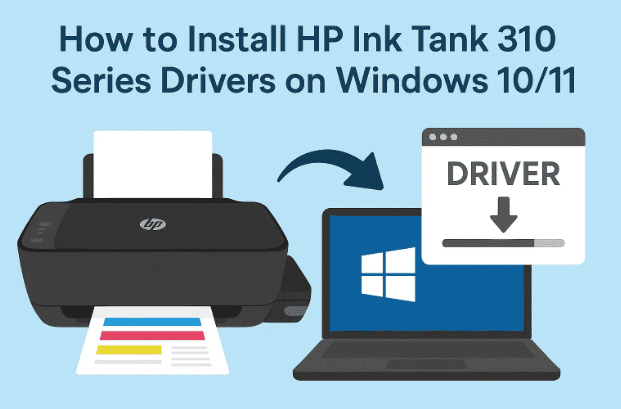
Take a breath—we’ll do this carefully and completely. So far so good; let’s move to the next part.
What You’ll Learn (and Why It Matters)
Before we dive into steps, here’s a quick map so you know what’s coming and why it helps:
- How to check 32-bit vs 64-bit Windows — The driver you download depends on this.
- How to grab the official driver from HP — safest source, fewer headaches.
- Manual “Have Disk…” installation — your best friend when the setup wizard refuses to cooperate.
- What to do if Windows 10/11 isn’t listed on HP’s page for your printer — Choose a Different OS and pick a compatible one (commonly Windows 7/8/10 64-bit), then install manually.
- How to pick the right port (USB001/DOT4) — the small detail that makes or breaks printing.
- Fixes for “Driver unavailable,” “Printer offline,” and “Test page won’t print.”
- FAQs for common situations (scanning, Wi-Fi vs USB, using Windows Update Catalog, etc.).
Alright—foundation set. Let’s begin.
Step 1 — Confirm Your Windows Architecture (32-bit or 64-bit)
This part is quick but important. Drivers are built for either 32-bit or 64-bit systems. Installing the wrong one will fail or behave strangely.
- Open File Explorer.
- Right-click This PC → Properties.
- Under Device specifications, check System type:
- 64-bit Operating System → you’ll need the 64-bit driver.
- 32-bit Operating System → you’ll need the 32-bit driver.
Tip: Most modern PCs are 64-bit. Still, it pays to check once and get it right.
So far we’ve done a good job setting the stage. Next up: downloading the driver safely.
Step 2 — Download the Driver from HP’s Official Website
We’ll always prefer the official source for two reasons: safety (no junkware) and compatibility (correct INF files, HP utilities, scan support, etc.).
- Open your browser and go to HP Support: https://support.hp.com/
- In the search box, type: HP Ink Tank 310 driver
- Open the result that matches your exact series (e.g., HP Ink Tank 310 series).
“Windows 10/11 not listed?” Here’s what to do.
Some HP pages don’t explicitly show Windows 11 (or sometimes not the exact Windows 10 build). That’s okay. Click Choose a different OS on the page and:
- Pick Windows 10 (64-bit) if your PC is 64-bit.
- If that’s not available, pick Windows 7 (64-bit) for 64-bit systems, or the matching 32-bit variant if your Windows is 32-bit.
Why this works: HP’s packages typically include the same core driver model for multiple Windows generations. We’ll install it manually, which avoids OS-checker limitations in setup programs.





Which package should you download?
On the HP driver page you’ll typically see:
- Full feature software and drivers (includes HP scanning app, maintenance tools)
- Basic drivers (core print/scan without extras)
If you want the simplest route, download the Full Feature Software. If you prefer a light install (or plan to use Windows’ built-in scanning), the Basic driver is fine.
Download the file and let it finish. We’ll use it in a moment.
Step 3 — Extract the Downloaded Package
HP often ships drivers as self-extracting .exe archives or .zip files. Either way, we want the INF files inside so we can do a clean manual install.
- Move the downloaded file to your Desktop (for easy access).
- Right-click it → Extract All (or use 7-Zip/WinRAR) → extract to a folder on the Desktop.
- Open the new folder and keep it handy—you’ll point Windows to this location soon.
Let’s keep our momentum. With files ready, we’re just a few clicks away from installation.
Step 4 — Manual Installation via Printers & Scanners (the Reliable Way)
Why manual? Two reasons:
- It avoids “unsupported OS” popups in some setup programs.
- It gives you full control over ports and INF selection.
- Press Windows + S → type Printers & scanners → open it.
- Click Add a device. Wait ~10 seconds.
- Click The printer that I want isn’t listed (it appears as a link under the spinner).
- Choose Add a local printer or network printer with manual settings → Next.
We’re doing great—now the tiny (but crucial) port decision.
Step 5 — Select the Correct Port (USB001 or DOT4)
On Use an existing port, open the dropdown:
- If you see DOT4_001 or anything that references HP Device, select it.
- If not, choose USB001 (Virtual Printer Port for USB).
(Other USB ports like USB002, USB003 are okay if USB001 is busy—just pick the one that makes sense for your current plug.)
Click Next.
Why this matters: Printers communicate through a port path. Picking the wrong one is a common reason test pages don’t print.
Time to point Windows to the real driver.
Step 6 — Use “Have Disk…” and Point to the INF
- On the manufacturer/model screen, click Have Disk….
- Click Browse…, navigate to the extracted driver folder on your Desktop.
- Find a file ending in .INF (you may see several—any that resides in the print driver folder is fine).
- Select it → Open → OK.
Windows will now list compatible models from that INF. You should see entries similar to:
- HP Ink Tank 310 series
- HP Ink Tank 310 PCL-3 (or similar naming)
- HP Ink Tank 3xx Series
Choose the entry that matches your printer naming closest (the series driver works across the 310 family).
Click Next.
Step 7 — Name the Printer & Finish the Install
- Give it a name (e.g., HP Ink Tank 310). Keeping the default is fine.
- Click Next and let Windows install.
- When prompted to share:
- Pick Do not share this printer (unless you want it on your local network).
- Click Next.
Optionally click Print a test page. If the page comes out—victory! If not, don’t panic; we’ll troubleshoot later.
Click Finish to close the wizard.
So far, so good—we’ve installed cleanly. Let’s confirm things and cover extras you might want.
Step 8 — Verify in Printers & Scanners (and Do a Quick Sanity Check)
- Open Printers & Scanners again.
- You should see HP Ink Tank 310 listed.
- Click it → Manage → Printer properties → Print Test Page (if you didn’t already).
- If the test page prints, your core driver path is working.
If scanning is part of your workflow, you can either install HP’s full feature suite (which includes HP Scan) or use Windows’ Scan app if your model exposes a WIA driver. The full HP package usually gives better control.
Let’s also go over an “easier” method you might try first, and what to do if it fails.
Optional — Using the HP Setup (When It Works)
Inside the extracted folder you may see Setup.exe. Double-clicking it runs HP’s wizard, which usually does:
- Driver install (print + sometimes scan)
- Utility installs
- Some connectivity checks
If you prefer the guided way, try it. If it refuses to proceed because it doesn’t “recognize” your Windows version, fall back to the manual method we completed above (it’s more reliable across OS variants).
We’ve finished the main path. Now let’s make this article truly useful by anticipating problems and giving you fixes right away.
Troubleshooting — Quick Fixes for Common Gotchas
It’s totally normal to hit a speed bump or two. Here’s what to try, in the order that usually solves things fastest.
1) “Driver unavailable” in Windows
- Remove the printer from Printers & Scanners.
- Re-install using the manual Have Disk method (Steps 4–7).
- Reboot after install.
2) Test page won’t print
- Go to Printer properties → Ports and confirm the selected port:
- Try switching between DOT4_001 and USB001 (or the USB port your cable is actually using).
- Try a different USB port on your PC (rear panel USB 2.0 is often more stable).
- Swap the USB cable if it’s old or suspiciously thin.
3) Printer shows as “Offline”
- In Devices and Printers, right-click the printer → ensure Use Printer Offline is unchecked.
- Power-cycle the printer (fully off, wait 10 seconds, on).
- Reboot Windows if needed.
4) Setup says “OS not supported”
- Don’t use the setup; install via Have Disk using a Windows 10 or Windows 7 64-bit package (matching your architecture). This bypasses the OS gatekeeping.
5) You can print, but scanning isn’t available
- Install HP’s Full Feature Software for your series from HP Support (same page as the basic driver).
- Alternatively, install HP Scan and Capture from the Microsoft Store (works with many HP devices if drivers are in place).
- Make sure the HP services are running (open Services and check HP-related services if the full suite is installed).
6) “Add Printer” wizard doesn’t show “The printer that I want isn’t listed”
- Wait a little longer on Add device—Windows sometimes takes 20–30 seconds to reveal the link.
- If it still doesn’t show, click Add manually (some builds phrase it differently), or open classic Control Panel → Devices and Printers → Add a printer.
7) Jobs stuck in queue
- Open Services → restart Print Spooler.
- Delete jobs in C:\Windows\System32\spool\PRINTERS (admin rights needed), then restart the Spooler again.
If none of the above helps and your driver page seems sparse, there’s another technique you can use.
Alternative Sources When the HP Page Is Minimal
While the HP Support page is the primary source, two additional approaches can help in edge cases:
A) Windows Update Catalog
- Go to the Microsoft Update Catalog (search online).
- Type “HP Ink Tank 310” or “HP Ink Tank 3xx”.
- Download the CAB driver and extract it.
- Install via Have Disk… pointing to the extracted INF.
This can rescue installs when OEM pages are in flux.
B) Use the Full Feature Installer for a Close Variant
Sometimes HP groups models under a series umbrella. If your exact model string isn’t listed, the series package (for example, “HP Ink Tank 310 series”) usually includes your specific unit. Install manually from the INF to avoid model-string checks in GUIs.
We’ve covered the tricky parts. Let’s add some nice-to-know tips that improve everyday use.
Practical Tips for a Smooth Experience
- Always prefer good USB ports. Front-panel hubs can be finicky; motherboard rear ports are more reliable.
- Label your printer clearly (e.g., “HP Ink Tank 310 — USB Right-Rear”). Future you will thank you.
- Keep the extracted driver folder somewhere safe. If Windows updates or you move PCs, re-installing will be faster.
- Use HP’s ink tools (if included) to track levels accurately—Windows’ generic UI often can’t report ink status on inkjets.
- Scanning: If you don’t want the full HP suite, Windows’ built-in Fax and Scan or Scan app can often talk to WIA drivers after the basic package is installed.
We’re almost done. To make this complete, here’s a short Q&A for questions that come up repeatedly.
Frequently Asked Questions (FAQ)
Q1. The HP site doesn’t show Windows 11. Can I still use this on Windows 11?
Yes. Download the Windows 10 (64-bit) package (or a compatible Windows 7/8 one), extract it, and install via Have Disk. The driver model is compatible, and the manual method bypasses the version check.
Q2. I only see “Basic Drivers,” not a full suite. Will printing still work?
Yes. The Basic driver supports printing. For scanning tools and maintenance utilities, install the Full Feature package for your series.
Q3. Do I need to be online for installation?
Only to download the driver. After that, the manual install can be done offline.
Q4. Which port should I choose—USB001 or DOT4_001?
Pick DOT4_001 if present for HP USB devices. If not, use USB001 (Virtual Printer Port for USB) or the USB port your cable is actually on (USB002, USB003, etc.). If a test page fails, switch ports and try again.
Q5. My model is HP Ink Tank 319/315. Does this guide apply?
Yes—the 310 series driver typically covers those variants. Use the series entry when selecting from the INF list.
Q6. The setup installed, but the printer still shows Offline.
Uncheck Use Printer Offline, ensure the correct port is selected, and power-cycle the printer. If needed, reinstall via Have Disk with the correct INF.
Q7. Can I share this printer over my home network?
Yes, during installation choose to share it—or later via Printer properties → Sharing. For best performance, keep the host PC powered on when others need to print.
Q8. Does this method work over Wi-Fi?
This guide focuses on USB installation because it’s the simplest and most robust. If your Ink Tank model supports network printing, install the driver first via USB, then use HP’s tools to switch to Wi-Fi.
Q9. My scan button on the printer doesn’t do anything.
Many HP models require the Full Feature software for panel buttons to trigger scans to PC. Install the full suite from HP’s page for your series.
Q10. The test page prints, but documents print with odd margins or faded text.
Open Printer Preferences and verify paper size/type, or run printhead/nozzle cleaning if your model supports it. Also confirm you aren’t accidentally printing in draft/grayscale modes.
A Short Recap (So You Don’t Lose the Plot)
- Check 32-bit vs 64-bit Windows.
- Download the driver from HP Support (use Choose a different OS if Windows 11 isn’t listed).
- Extract the package to get the INF files.
- Printers & Scanners → Add device → The printer that I want isn’t listed → Add a local printer with manual settings.
- Pick DOT4_001 or USB001 as the port.
- Have Disk → Browse to INF → select HP Ink Tank 310 series.
- Name it, install, print a test page.
- Troubleshoot ports, offline mode, and drivers if needed.
We’ve covered everything from A to Z—gently, thoroughly, and with clear reasons behind each click. If you follow the sequence above, your HP Ink Tank 310 should be up and printing happily on Windows 10/11.
Disclaimer
This article is for educational guidance. Always obtain printer software from official sources such as HP Support (https://support.hp.com/) to avoid tampered packages. If you choose to use the Microsoft Update Catalog, verify you’re downloading drivers that match your exact architecture (32-/64-bit). Changing system drivers can affect stability—proceed carefully and back up important work before making major changes.
Tags & Hashtags
Tags: hp ink tank 310 driver windows 10, hp ink tank 310 manual install, install hp printer have disk, hp ink tank series driver, printer driver windows 11, hp ink tank 315 319 driver, hp drivers download support, usb001 dot4 port fix, printer offline windows fix, windows update catalog printer driver
Hashtags: #HPInkTank #PrinterDriver #Windows10 #Windows11 #HPSupport #Troubleshooting #HowTo #TechGuide #DIYPrinting #INFInstall








