Setting up a printer might sound simple — but for many people, it turns into a confusing process when Windows fails to automatically install the driver. If you’ve recently purchased a Canon LBP 2900B printer or are trying to reinstall it after a Windows update, you might see errors like “Driver not available” or “Printer not detected.”
Don’t worry — this article will guide you through every single step to download, install, and configure the Canon LBP 2900B printer driver on your computer or laptop running Windows 10 or Windows 11. You’ll also learn how to test the printer after installation and fix any connection issues.
Let’s start with understanding what this printer is and why driver installation matters.
📖 About the Canon LBP 2900B Printer
The Canon Laser Shot LBP 2900B is one of the most popular entry-level laser printers in India. Known for its compact design, low maintenance, and clear print quality, it’s widely used in offices, schools, and homes.
Here’s what makes it stand out:
- Fast printing speed — up to 12 pages per minute
- High-resolution prints at 2400×600 dpi
- USB 2.0 connectivity for quick data transfer
- Cartridge 303 support, which is easily available
- Works efficiently on Windows 7, 8, 10, and 11 with proper driver setup
Although Canon officially released drivers for Windows 10, these also work perfectly fine on Windows 11 — you just need to install them manually.
🧰 What You’ll Need Before You Begin
Before starting the installation, make sure you have:
- A Canon LBP 2900B printer
- A USB cable to connect it to your PC or laptop
- An active internet connection (to download the driver)
- A Windows 10 or 11 system (32-bit or 64-bit)
It’s also a good idea to temporarily disable antivirus software if it blocks driver installation, though in most cases that won’t be necessary.
Now, let’s move to the first step.
🌐 Step 1 — Download the Canon LBP 2900B Driver from the Official Website
The safest and most reliable way to get your printer driver is directly from Canon’s official support page.
- Open Google Chrome or your preferred web browser.
- In the search box, type:
Canon LBP 2900B printer driver download - Click on the official Canon India link, which looks like this:
🔗 https://in.canon/en/support/0100278201
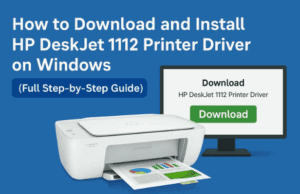
Once the page opens, you’ll see the printer name — Canon LASER SHOT LBP2900B — along with the driver download section.






- Scroll down to find Drivers & Downloads.
- Make sure the Operating System section shows your Windows version (like Windows 10 64-bit or Windows 11 64-bit).
- If it shows the wrong one, click the dropdown and manually select the correct version.
- Click on the Download button next to the latest driver version (for example, CAPT Printer Driver v3.40).
The driver will start downloading — the file name typically looks like this:
LBP2900_R150_V340_W64_uk_EN_2.exe
Once downloaded, move to the next step.
📦 Step 2 — Locate and Extract the Driver File
After the download completes, you’ll find the file in your Downloads folder.
Here’s what to do next:
- Open File Explorer (Win + E) and go to Downloads.
- Right-click the downloaded
.exefile and choose Run as administrator. - Click Yes when Windows asks for permission.
The setup will extract the driver files automatically, often to a folder named:
C:\Users\<YourName>\AppData\Local\Temp\CAPT
Alternatively, you can choose a custom location (for example, Desktop) for easier access.
After extraction, a setup wizard may appear — but if it doesn’t, don’t worry. We’ll install the driver manually.
⚙️ Step 3 — Start the Manual Installation
This part ensures the driver properly connects to your printer even if Windows doesn’t auto-detect it.
- Click on Start → Settings → Bluetooth & Devices → Printers & Scanners.
- Click Add Device and wait a few seconds.
- If Windows doesn’t detect your printer, click: “The printer that I want isn’t listed.”
- Select Add a local printer or network printer with manual settings, then click Next.
This allows you to manually install using the extracted Canon driver.
🔌 Step 4 — Choose the Correct USB Port
The next screen asks you to choose the printer port. This is crucial because it defines how Windows communicates with your printer.
- In the dropdown list, choose USB001 (Virtual Printer Port for USB).
- If you have multiple ports, try USB002 or USB003 — depending on which one your printer is using.
- Click Next.
Now Windows knows which USB connection to use. Let’s load the driver file next.
📂 Step 5 — Browse and Select the Canon INF Driver File
- Click Have Disk… on the driver selection screen.
- Click Browse, then go to the folder where your Canon driver files were extracted earlier.
- Open the folder and select the INF file (usually named CNLBP.inf or similar).
- Click Open → OK.
You’ll now see a list of Canon printers.
Select Canon LBP2900/2900B CAPT Printer and click Next.
The driver will now start installing.
⏳ Step 6 — Complete the Installation Process
Once the setup begins, Windows will take a few moments to install the necessary components.
You might see progress bars and system notifications saying “Installing device driver software.”
- Wait patiently for the process to finish.
- When prompted, click Finish to close the installation wizard.
- You can now disconnect and reconnect your USB cable once to ensure detection.
If the printer is correctly installed, Windows will automatically display a confirmation message — “Your device is ready.”
🧾 Step 7 — Verify the Printer Installation
Let’s confirm everything is working properly.
- Open Control Panel → Devices and Printers (you can search it in the Start menu).
- You should now see Canon LBP2900B listed among your printers.
- Right-click on it → Printer Properties → Print Test Page.
If you hear the printer respond and a test page prints successfully, congratulations — your installation is complete!
🔍 Step 8 — Troubleshooting Common Issues
Sometimes, even after installation, the printer may not respond. Here’s how to fix common problems:
🧩 Problem 1: Printer Not Detected
- Ensure the printer is powered on.
- Try a different USB cable or port.
- Restart your computer and reconnect the printer.
⚠️ Problem 2: Driver Not Installed Correctly
- Uninstall the printer from Printers & Scanners.
- Reinstall using the Run as Administrator method.
🖨️ Problem 3: Print Job Stuck in Queue
- Open Services (Windows + R → type services.msc).
- Find Print Spooler, right-click → Restart.
🌐 Problem 4: Not Working After Windows Update
- Reinstall the driver manually again using the same steps above.
- Disable automatic driver updates temporarily to avoid overwriting Canon’s driver.
🧠 Additional Tips for Best Performance
Let’s take a short pause and review some helpful tips before wrapping up:
- Always keep your Canon driver files backed up in case of future reinstalls.
- Avoid using third-party “driver updater” tools — they can corrupt official files.
- Use Canon’s CAPT Printer Monitor (included with the driver) to check print status and errors.
- For offices, connect via a dedicated USB hub to avoid disconnection issues.
So far, we’ve covered every key step from download to successful test printing. Let’s now look at some common user questions.
💬 Frequently Asked Questions (FAQs)
Q1. Does the Canon LBP 2900B driver for Windows 10 work on Windows 11?
✅ Yes. The same driver is compatible with both Windows 10 and Windows 11 because both use similar print driver frameworks.
Q2. My printer isn’t detected during installation. What should I do?
Ensure your USB cable is plugged directly into the PC (not through a hub). Also, keep the printer powered on during driver setup. If still undetected, restart and try again.
Q3. Where can I download the latest Canon driver?
From Canon’s official website:
🔗 https://in.canon/en/support/0100278201
Q4. Can I use this printer wirelessly?
No. The Canon LBP 2900B is a USB-only printer. It doesn’t have Wi-Fi or network printing capability.
Q5. Do I need to restart my PC after installation?
Yes — restarting helps Windows recognize the new printer driver correctly.
Q6. What if I get an error like “Driver not available”?
Uninstall the printer completely from Devices and Printers and reinstall using the steps in this article. Also, make sure you’re installing with Administrator rights.
Q7. How do I check if my driver version is up to date?
Go to Control Panel → Device Manager → Printers → Canon LBP2900B.
Right-click → Properties → Driver tab → check the version number (latest is v3.40).
🎯 Final Thoughts
The Canon LBP 2900B may be an old model, but it’s still one of the most reliable and long-lasting laser printers available. Installing it on Windows 10 or 11 is simple once you know the correct method — and as we’ve seen, all it takes is downloading the official driver, running the setup, and manually linking the driver to the right USB port.
By following the above steps carefully, you can easily get your printer working again within 10 minutes — no technician needed.
If your test page prints successfully, it means the printer is fully functional and ready for daily use.
⚠️ Disclaimer
This guide is created for educational and troubleshooting purposes only. The driver link provided is from Canon’s official support page, ensuring authenticity and safety. Do not download printer drivers from unofficial or third-party sites, as they may contain malware or outdated versions.
#CanonLBP2900B #PrinterDriver #CanonPrinter #Windows11 #Windows10 #CAPTDriver #PrinterInstallation #TechGuide #Troubleshooting







