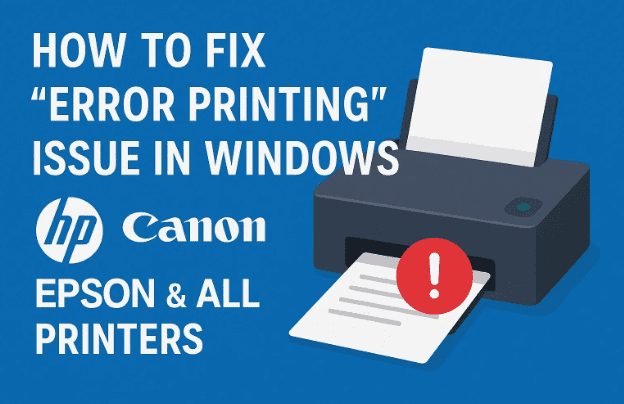
If you’ve ever tried to print a document and suddenly saw a message like “Error Printing” or your printer queue got stuck — you’re not alone. This is one of the most common printer errors faced by Windows users, regardless of the brand — HP, Canon, Epson, Brother, or any other.
The good news is that you don’t need to panic or rush to a service center. This article explains how to fix the “Error Printing” message step by step, covering all possible causes and solutions. Whether you’re on Windows 10 or Windows 11, these steps will help you get your printer running again.
🧠 Understanding the “Error Printing” Problem
Before jumping into fixes, let’s understand what causes this error. When you hit Ctrl + P and send a document to print, your system passes the job to a Windows service called Print Spooler. This service manages the communication between your computer and the printer.
However, the process can fail if:
- The print spooler service crashes or stops working.
- Pending print jobs are stuck or corrupted.
- The printer driver is outdated, corrupted, or incompatible.
- There’s a communication failure between printer and PC (USB or network).
- System permissions prevent printing services from running.
In most cases, fixing the Print Spooler service and resetting the printer queue solves the issue quickly.
🧹 Step 1: Clear All Pending Print Jobs
The first step is simple but often the most effective. Let’s clean up your printer queue.
When you give multiple print commands, they get lined up in a print queue. If any one of them gets corrupted, the rest may stop too.
Steps:
- Open Control Panel → Devices and Printers.
(You can also type “control printers” in the Run dialog usingWin + R.) - Right-click on your connected printer and select “See what’s printing.”
- A new window will open showing all queued print jobs.
- From the menu, click Printer → Cancel All Documents.
- Confirm by clicking Yes.
- Close the window once everything is cleared.
💡 Tip: If a particular document refuses to cancel, restart your PC and printer, then try again.
Once the print queue is empty, let’s move on to the next step to ensure your printing services are functioning properly.
⚙️ Step 2: Restart the Print Spooler Service
The Print Spooler service is the backbone of all printing operations on Windows. If it’s stopped, paused, or misconfigured, no print job will go through.
Let’s fix it manually.




Step-by-Step Guide:
- Right-click on the taskbar and select Task Manager.
- Click File → Run new task.
- In the box, type:
services.mscThen check the box “Create this task with administrative privileges” and click OK.
This opens the Windows Services Manager, which controls all background services.
- Scroll through the list and find the following services:
- Print Spooler
- Printer Extensions and Notifications
Let’s configure both.
For “Print Spooler”:
- Double-click on Print Spooler.
- Set Startup type to Automatic.
- If the Service status is “Stopped,” click Start.
- Click Apply → OK.
For “Printer Extensions and Notifications”:
- Double-click to open it.
- Set the Startup type to Automatic.
- Click Start, then Apply → OK.
You can also restart both services by right-clicking on them and choosing Restart.
After this, close the Services window.
👉 Why this works: Restarting these services clears temporary issues in the printer communication pipeline, allowing Windows to reinitialize printing processes from scratch.
🧰 Step 3: Use Device Manager to Refresh Printer Drivers
If restarting services didn’t fix the issue, your printer driver may need attention.
Why Check Drivers?
Drivers act as translators between Windows and the printer. If they’re outdated or corrupted, printing commands won’t reach properly, resulting in the “Error Printing” message.
Let’s fix that.
Step-by-Step Instructions:
- Right-click “This PC” on your desktop or File Explorer.
- Select Manage.
- From the left panel, choose Device Manager.
- Expand the following sections:
- Printers
- Print queues
You’ll see your printer listed here (for example: HP LaserJet 1020 or Canon Pixma MG2570).
Now, right-click your printer and choose one of the following:
- Disable device
- Then immediately Enable device
This forces Windows to reload the driver without uninstalling it.
If that doesn’t help, continue with an update.
Updating the Printer Driver:
- Right-click your printer again and select Update driver.
- Choose Browse my computer for drivers.
- Then click Let me pick from a list of available drivers on my computer.
- Select the most appropriate driver from the list (usually the one with your printer name).
- Click Next to install it.
Once done, close the window.
You’ve now refreshed the connection between Windows and your printer driver. But before testing, it’s essential to restart everything.
🔁 Step 4: Restart Both Your PC and Printer
This step might sound too simple to matter, but it’s crucial. Restarting clears background locks and reloads all related services and driver components.
What to Do:
- Turn off your printer.
- Wait 10–15 seconds, then turn it back on.
- Restart your computer normally.
Once both are up, try printing a test page again from Control Panel → Devices and Printers → Right-click printer → Printer properties → Print Test Page.
If the error message no longer appears, congratulations — your problem is solved! 🎉
But if not, don’t worry. Let’s try a few more diagnostic steps to ensure nothing’s left behind.
🧾 Step 5: Verify That the Print Spooler Starts Automatically on Boot
Sometimes, even after fixing the spooler manually, it might not start automatically after reboot — leading to recurring errors.
Here’s how to make sure it does.
- Open Run (
Win + R) → type:services.mscand press Enter. - Find Print Spooler in the list.
- Right-click → Properties.
- Set Startup type: Automatic.
- Click Apply → OK.
That ensures the service always runs in the background whenever you start your PC.
🧠 Additional Fix: Delete Temporary Spooler Files
If your spooler service restarts fine but errors persist, the queue files stored in Windows might be corrupt.
Clean Them Manually:
- Stop the Print Spooler service:
- Open services.msc
- Right-click Print Spooler → Stop
- Now, navigate to this folder:
C:\Windows\System32\spool\PRINTERS - Delete all files inside this folder.
- Start the Print Spooler service again.
This wipes out any broken print jobs that were clogging the queue.
💽 Step 6: Reinstall the Printer Driver (If Issue Persists)
If nothing has worked so far, you may have a corrupted or outdated driver. Let’s remove it completely and reinstall the correct one.
a) Uninstall the Old Driver:
- Go to Control Panel → Devices and Printers.
- Right-click your printer → Remove device.
- Confirm the removal.
- Open Print Server Properties (on the top bar or from the sidebar).
- Go to the Drivers tab.
- Select your printer model → click Remove → Remove driver and driver package.
- Confirm and close.
b) Download and Install a Fresh Driver:
Now, go to your printer manufacturer’s website:
Enter your printer model and select the appropriate Windows version (Windows 10/11 64-bit). Download the latest driver package and install it by running the downloaded file.
Make sure to connect your printer when prompted during installation.
Once installed, restart your system again.
🧩 Step 7: Check for Windows Updates
Windows updates often include printer driver fixes and patches for communication issues.
To ensure you’re running the latest system version:
- Go to Settings → Update & Security → Windows Update.
- Click Check for updates.
- If any pending updates appear, click Download and install.
After updates are complete, restart your PC again.
Note: Occasionally, an update might cause driver conflicts instead of fixing them. If your printer started showing “Error Printing” after a Windows update, you can roll back that update temporarily under Update history → Uninstall updates.
💬 Frequently Asked Questions (FAQ)
Q1: Why does my printer say “Error Printing” but nothing prints?
This means the print spooler service failed to send data to the printer — often due to corrupted print jobs, driver issues, or communication failure.
Q2: My printer is connected but shows “Offline.” What should I do?
In “Devices and Printers,” right-click your printer → choose See what’s printing → Printer → Uncheck “Use Printer Offline.” Then restart the printer.
Q3: I keep getting the same error even after reinstalling the driver.
Check your USB or network cable, try another port, or connect directly to your router if using Wi-Fi. Also, ensure Print Spooler is running and set to Automatic.
Q4: Does resetting the printer help?
Yes. Most modern printers have a reset option in the Settings → Maintenance / Tools section. It clears network and internal memory errors.
Q5: Can antivirus software interfere with printing?
Occasionally, yes — especially if the antivirus blocks the spooler or driver communication. Temporarily disable it while testing, but re-enable immediately afterward.
🪄 Bonus Tips to Prevent Future Printer Errors
Now that your printer is working again, here are a few preventive measures to keep things running smoothly:
- Regularly clean your printer’s queue using “Cancel All Documents” if multiple jobs get stuck.
- Keep your printer firmware updated (check manufacturer’s site once every few months).
- Use genuine USB cables and avoid using long extension cords.
- Do not unplug your printer while printing; it may corrupt driver cache files.
- Avoid using multiple printer drivers for the same model on one PC.
⚠️ Disclaimer
Perform these steps carefully, especially when modifying services or deleting system files. If your computer is part of an office domain or managed by IT, always confirm with your administrator before applying these fixes.
Also, never download printer drivers from unknown third-party sites — always use the official manufacturer website links provided above.
✅ Final Thoughts
The “Error Printing” message may look intimidating, but in most cases, it’s caused by something as simple as a stuck print job or a stopped spooler service. By carefully following the above steps, you can fix it yourself within minutes without any technical background.
Start from clearing the queue → restarting spooler → updating drivers → reinstalling if necessary.
Once done, restart both devices and print a test page — and your printer should be back in action.
So far, we’ve done a good job understanding and fixing the issue step by step. You now not only know how to fix the error but also how to prevent it in the future.
#PrinterError #ErrorPrinting #WindowsFix #PrinterNotWorking #TechHelp







