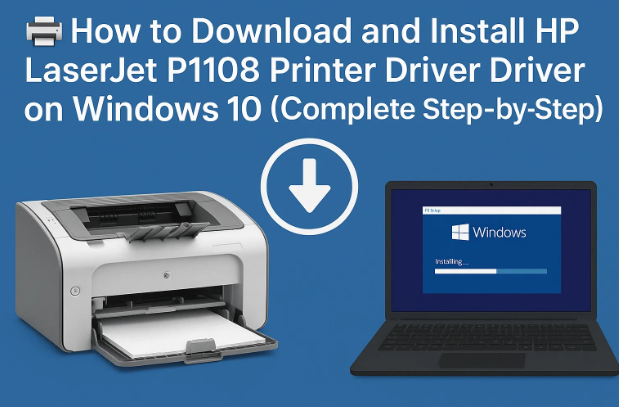
If you have an HP LaserJet P1108 printer and recently installed or upgraded to Windows 10, you might find that your printer isn’t automatically recognized by the system. This is common for many HP LaserJet models, especially the older ones, where the driver isn’t preloaded in Windows.
But don’t worry — you can easily download and install the official HP LaserJet P1108 driver on your Windows 10 computer manually. The process is straightforward once you know the right steps.
In this detailed guide, we’ll go through everything — from downloading the correct driver from the official HP website, extracting it properly, and installing it using Control Panel. We’ll also cover a few troubleshooting tips and answer some common questions at the end.
So, let’s get started!
🌐 Step 1: Visit the Official HP Driver Download Page
The first and most important step is to download the driver only from HP’s official website. Avoid using third-party or unknown driver websites, as they can contain outdated or unsafe files.
Here’s how to do it:
- Open your preferred web browser — it could be Google Chrome, Microsoft Edge, Firefox, or Opera.
- In the address bar, type:
HP LaserJet P1108 driver downloadand press Enter. - From the search results, look for the link that begins with:
https://support.hp.com
This is HP’s official website. - You can also directly visit the page here:
👉 HP LaserJet P1108 Printer Driver Download
Once you’re on the HP support page, it will automatically detect your operating system version (in this case, Windows 10) and show you the correct compatible drivers.
💾 Step 2: Download the Correct Driver for Windows 10
After you’ve landed on the HP LaserJet P1108 driver page, you’ll see a section called “Driver – Product Installation Software.” This is where HP provides the official driver packages.
Follow these steps carefully:
- Under the Driver section, find the latest version of the HP LaserJet P1100/P1560/P1600 Series Full Feature Software and Driver or the Basic Print Driver.
- Click the Download button next to it.
- Your browser will begin downloading the driver file immediately. Depending on your internet speed, it may take anywhere between 30 seconds to a few minutes.
The downloaded file will usually look something like this:
ljP1100_P1560_P1600_Full_Solution.exe
or
ljP1100_P1560_P1600_Basicx64.zip
Once the download is complete, let’s move on to the next step.




🗂️ Step 3: Locate and Extract the Driver File
The downloaded driver file will be located in your Downloads folder by default.
Let’s organize it properly before installation:
- Open File Explorer and go to Downloads.
- Find the HP driver file you just downloaded.
- Right-click on it and select:
“Show more options → Extract files…” (if it’s a ZIP file). - Choose a destination folder, preferably Desktop, and click OK.
This will create a new folder containing all the necessary installation files.
If your downloaded file is a .exe setup, you can double-click it directly to begin automatic installation — but we’ll focus on the manual installation method, which is more reliable and flexible.
⚙️ Step 4: Open Control Panel and Access Devices & Printers
Now that your driver files are ready, we’ll manually install them via the Control Panel. This ensures Windows correctly associates your printer with the driver.
Here’s what you need to do:
- Press the Windows key on your keyboard and type:
Control Panelthen press Enter. - Once Control Panel opens, click on Devices and Printers.
- At the top of the window, click Add a Printer.
Windows will now start searching for connected printers.
If your HP LaserJet P1108 doesn’t appear automatically — don’t worry, that’s normal for older models. We’ll add it manually in the next step.
🖨️ Step 5: Choose “The Printer That I Want Isn’t Listed”
After a few seconds of scanning, a message will appear:
“The printer that I want isn’t listed.”
Click on this option. It allows you to manually specify the printer connection and driver location.
🔧 Step 6: Select “Add a Local Printer or Network Printer with Manual Settings”
A setup wizard will appear asking how you’d like to add your printer.
- Choose the option that says:
“Add a local printer or network printer with manual settings.” - Click Next.
This tells Windows that you want to manually control how the printer is installed.
🔌 Step 7: Select the Correct USB Port
This step is crucial because if you choose the wrong port, your printer won’t communicate properly with your PC.
You’ll now see a list of available printer ports, like:
LPT1: (Printer Port)
USB001: Virtual printer port for USB
USB002: Virtual printer port for USB
If your printer is connected via USB, select:
USB001 (Virtual Printer Port for USB)
If you have multiple USB ports, you can try USB002 or USB003 if needed.
Once selected, click Next.
📁 Step 8: Install the Driver Manually Using “Have Disk…”
Now we’ll tell Windows exactly where to find the HP printer driver files.
- Click on the Have Disk… button.
- A small window will pop up — click Browse.
- Navigate to the folder where you extracted the driver earlier (e.g., Desktop → HP_P1108_Driver).
- Inside this folder, you’ll find files with
.infextensions, such as:hpc1108.inf - Select this file and click Open → OK.
Windows will now show a list of printer models compatible with the driver package.
Choose HP LaserJet Professional P1108 and click Next.
🧰 Step 9: Complete the Driver Installation
Windows will now begin installing the printer driver.
During this step, it may ask whether you want to replace an existing driver — choose:
Replace the current driver (to ensure you have the latest version).
You’ll then see the installation progress bar. It usually completes within 1–2 minutes.
Once finished, you’ll get the message:
“The printer has been successfully installed.”
You can rename your printer if you’d like (for example, “HP LaserJet P1108 Office”), or simply click Next.
🧾 Step 10: Print a Test Page
Before finalizing everything, let’s confirm that the printer works properly.
- You’ll see an option to Print a Test Page — click it.
- Your printer should immediately start printing a sample page.
If the page prints successfully, that means your printer driver is working correctly.
Click Finish to close the setup.
🧭 Step 11: Verify Installation in Control Panel
To double-check that the printer is properly installed:
- Open Control Panel → Devices and Printers again.
- Look for HP LaserJet Professional P1108 under the Printers section.
- Right-click it and select Printer Properties → Print Test Page (if you skipped it earlier).
If the printer responds, congratulations — you’ve completed the setup successfully!
🔍 Step 12: Troubleshooting Common Installation Issues
If your printer doesn’t respond after installation, don’t worry. Most issues are minor and can be fixed easily. Let’s go through the common ones.
1. Printer Not Detected During Installation
- Ensure the USB cable is securely connected.
- Try using a different USB port.
- Avoid USB hubs — plug the cable directly into your PC.
- Restart both your PC and printer.
2. Installation Stuck or Driver Not Installing
- Run the setup as Administrator (Right-click → Run as Administrator).
- Disable antivirus temporarily if it blocks the driver.
- Reboot your system and retry the manual installation.
3. Printer Shows in Devices but Doesn’t Print
- Make sure it’s set as Default Printer.
- Check the Print Spooler Service (press Windows + R → type
services.msc→ locate Print Spooler → Restart it). - Verify that your toner cartridge and paper tray are correctly placed.
4. Wrong Driver Installed
If you accidentally installed a wrong driver version, go to:
Control Panel → Programs and Features → HP Drivers → Uninstall.
Then reinstall using the correct driver from HP’s official website.
🧠 How HP LaserJet P1108 Works on Modern Windows Versions
The HP LaserJet P1108 belongs to the P1100/P1560/P1600 printer series.
These models use Host-Based Printing Technology (HBP), meaning they rely on the computer’s processing power instead of the printer’s built-in memory.
Because of that, Windows 10 and 11 sometimes need manual driver installation since newer systems don’t automatically detect these host-based printers. However, once installed correctly, they perform flawlessly — producing sharp black-and-white prints ideal for office and home use.
💡 Advanced Tip: Update Your Driver Automatically (Optional)
HP also offers HP Smart Install and the HP Universal Print Driver (UPD), which can automatically detect and install the best driver for your printer model.
You can explore that option on HP’s official page:
👉 HP Universal Print Driver
However, for HP LaserJet P1108, the manual method we followed above remains the most stable and widely used.
💬 Frequently Asked Questions (FAQ)
Q1: Is the HP LaserJet P1108 compatible with Windows 11?
Yes. Even though HP primarily lists Windows 10 drivers, they work perfectly fine on Windows 11 too.
Q2: What should I do if the “Have Disk” option doesn’t appear?
Make sure you’ve selected “Add a local printer or network printer with manual settings.” That’s the only path that shows the “Have Disk” option.
Q3: Can I use the same driver for HP LaserJet P1106 or P1102?
Yes. The HP LaserJet P1100 series uses the same driver package for all submodels (P1102, P1106, P1108, etc.).
Q4: My printer prints faded pages — is that a driver issue?
No. That’s usually due to low toner or a dirty drum. Replace or clean the toner cartridge to fix it.
Q5: Is it safe to download HP drivers from third-party websites?
No. Always use HP’s official support site. Third-party links can host outdated or malicious files.
Q6: What if the driver installation fails completely?
Unplug your printer, restart your PC, then plug the printer back in and retry. If it still fails, reinstall using compatibility mode (Right-click → Properties → Compatibility → Run as Windows 10).
✅ Wrapping Up
So far, we’ve gone through everything you need to successfully set up your HP LaserJet P1108 printer on Windows 10.
Let’s quickly recap the main points:
- Go to HP’s official driver page.
- Download the P1108 driver package.
- Extract the files.
- Use Control Panel → Devices and Printers → Add a Printer.
- Choose manual setup and the correct USB port.
- Use “Have Disk” to browse to your driver folder.
- Install and print a test page.
Once done, your HP LaserJet P1108 will be ready to print documents reliably — just like it did on older Windows systems.
This simple manual setup ensures compatibility, stability, and long-term performance without needing any third-party tools.
⚠️ Disclaimer
This guide explains how to manually install HP’s official driver for the HP LaserJet P1108 printer on Windows 10 (and newer versions). Always download files directly from HP’s official website for safety. Avoid using cracked or modified driver tools that may harm your system or void your printer warranty.
#HPLaserJet #PrinterDriver #Windows10 #PrinterSetup #TechGuide #HPDriver








