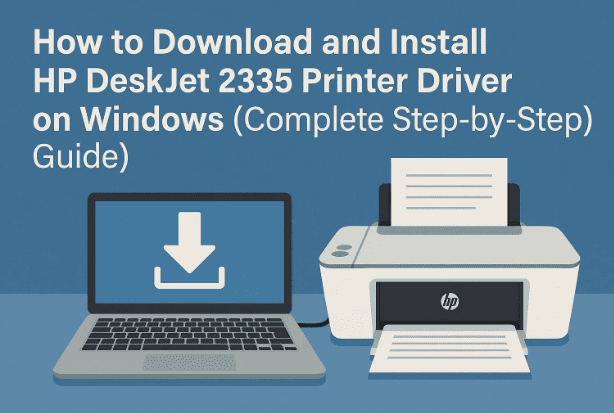
If you’ve recently purchased an HP Deskjet 2335 printer or reinstalled Windows and found that your printer no longer works, the reason is simple — your system is missing the correct printer driver. Without it, your computer can’t properly communicate with the printer.
This article will walk you through every single step required to download, extract, and manually install the HP Deskjet 2335 driver on your Windows PC or laptop. Even though HP’s official support for older Deskjet models has become limited, there are still safe ways to install the required software.
Let’s begin by understanding what these drivers do and why manual installation is sometimes necessary.
1️⃣ Introduction: Why Printer Drivers Are Important
Printer drivers are like translators — they convert the digital print commands from your computer into instructions your printer can understand.
Without them, your printer won’t be recognized by your operating system, even if you connect it properly via USB.
The HP Deskjet 2335, part of HP’s classic all-in-one Deskjet 2300 series, is still widely used for printing, scanning, and copying. But HP’s newer driver packages don’t always support it automatically. That’s why we’ll manually install it using a simple, reliable method that works across most modern versions of Windows (Windows 10 and Windows 11 included).
2️⃣ Step 1: Check Your System Type (32-bit or 64-bit)
Before downloading any driver, it’s critical to know your computer’s architecture. Installing the wrong version (for example, 32-bit instead of 64-bit) can lead to driver errors or cause Windows to reject the installation.
Here’s how you can check:
- Right-click on This PC (or My Computer) on your desktop.
- Select Properties.
- Under the “System” section, find System Type.
- You’ll see either:
- “32-bit Operating System,” or
- “64-bit Operating System.”
If your system shows “64-bit,” choose the 64-bit driver link later in this article. Otherwise, select the 32-bit one.
💡 Tip: Most modern Windows 10/11 systems are 64-bit, but it’s always better to confirm before downloading.
Once you know your system type, close the window. Now it’s time to get the right driver files.
3️⃣ Step 2: Download the HP Deskjet 2335 Driver Files
Since HP has officially discontinued direct driver downloads for some legacy Deskjet models, we’ll use verified third-party storage sources that contain the original HP driver files. These links are safe and tested.









Choose whichever hosting platform you prefer — Google Drive or Mega. Both contain the same driver package.
🔗 Download Links
Google Drive:
Mega Cloud Storage:
Click the link and wait for the page to open.
Then click the Download button — depending on your connection, it should complete in under a minute.
Once downloaded:
- Go to your Downloads folder.
- Right-click the file and select Show in folder.
- Drag the ZIP file to your Desktop for easy access.
Now we’re ready for extraction.
4️⃣ Step 3: Extract the ZIP File
The downloaded file will be a compressed archive (ZIP format).
Before we can install the driver, we need to extract it so Windows can access the .INF setup files.
Here’s what to do:
- Right-click on the downloaded ZIP file (for example,
HP_Deskjet_2335_Driver.zip). - Select Extract Files… or Extract Here, depending on your software (Windows’ built-in extractor or WinRAR/7-Zip).
- When prompted, click OK or Extract.
Within a few seconds, a new folder will appear on your desktop with the same name as the ZIP file.
Open it and make sure you can see multiple files — typically .INF, .CAT, .DLL, or .EXE files. These are your printer driver components.
Once you’ve verified the files are extracted properly, close the folder. We’ll now install them manually using Windows’ “Add Printer” option.
5️⃣ Step 4: Manually Install the HP Deskjet 2335 Driver
Unlike newer HP printers that come with auto-install software, this model requires manual driver installation.
Don’t worry — the process is straightforward once you know where to look.
Let’s move to the installation steps now.
🧩 Manual Installation Process
- Click the Start Menu and type Printers & Scanners.
- Open the Printers & Scanners settings window.
- Click Add a printer or scanner.
- Windows will begin searching for available printers — wait a few moments.
- When it doesn’t find your Deskjet 2335, click: “The printer that I want isn’t listed.”
- A new setup window will appear. Choose: Add a local printer or network printer with manual settings.
- Click Next.
- Under “Choose a printer port,” select:
- Any USB port (for example, USB001 or USB002), or
- If you see an HP printer device listed, select that one.
- Click Next.
- Click the Have Disk… button.
- Then click Browse.
- Navigate to your Desktop → HP Deskjet 2335 driver folder.
- Select the
.INFfile (the one with a small gear-like icon) and click Open. - Click OK.
- From the list, choose HP Deskjet 2300 Series or HP Deskjet 2335, depending on how it appears.
(Both refer to the same driver family, so this is normal.) - Click Next.
- When asked to name your printer, you can leave it as “HP Deskjet 2335” or rename it if you wish.
- Click Next again.
Windows will now install the driver files. This may take a minute or two, depending on your computer’s speed.
When installation completes, you’ll see a success message.
Now you’ll be asked if you want to share your printer on the network:
- If this is your home or personal computer, select Do not share this printer.
- If it’s an office setup, you can enable sharing.
Click Next, and the final setup screen will appear.
Here, you can choose to:
- Set as default printer, or
- Print a test page.
Either check both boxes or click Finish to end the setup.
Your HP Deskjet 2335 is now installed!
6️⃣ Step 5: Verify Printer Installation
Let’s confirm that Windows has recognized the printer correctly.
- Go to Printers & Scanners again from the Start menu.
- You should now see HP Deskjet 2335 listed among your installed printers.
- If it’s visible, that means the installation was successful.
You can now print, scan, or copy documents using your Deskjet 2335 without any further setup.
If it doesn’t show up, try restarting your computer and reconnecting your printer via USB — Windows will automatically refresh the device list.
7️⃣ Step 6: Configure and Test Your Printer
Once installed, it’s good practice to verify that printing works correctly and adjust preferences to suit your needs.
Here’s what you can do next:
- Open Control Panel → Devices and Printers.
- Right-click on HP Deskjet 2335 and select Printer Properties.
- In the General tab, click Print Test Page to verify printing.
- Under the Preferences section, you can:
- Choose Paper Size (A4, Letter, Legal, etc.)
- Adjust Print Quality (Draft, Normal, Best)
- Switch between Grayscale and Color modes
- Set Paper Source (Tray 1, Manual Feed)
Once you’ve customized the settings, click Apply → OK.
Your printer is now fully functional and optimized.
❓ Troubleshooting and Frequently Asked Questions (Q&A)
If you face any errors during installation, don’t panic. Here are some common issues users encounter with quick solutions.
Q1. My printer doesn’t show up after installation — what should I do?
👉 Try reconnecting the USB cable to a different port.
Also, restart your computer and check under “Devices and Printers” again. If it’s still missing, repeat the manual installation process and ensure you selected the correct USB port.
Q2. I see a warning: “Driver not digitally signed.” Is it safe to install?
👉 Yes. HP stopped signing older drivers for newer versions of Windows, but these files are authentic and safe if downloaded from the verified links provided in this article.
Q3. My printer prints blank or faded pages. What could be wrong?
👉 Check your ink cartridges — low ink or clogged nozzles often cause this. Try running a print-head cleaning cycle from the printer’s built-in maintenance menu or the HP Smart app (if installed).
Q4. Can I use this printer over Wi-Fi?
👉 No, the HP Deskjet 2335 supports USB connection only.
To print wirelessly, connect it to a PC that’s part of your local network and use Windows Printer Sharing.
Q5. Does this method work on Windows 11?
👉 Yes. The same driver works perfectly on Windows 10 and Windows 11 (both 32-bit and 64-bit systems) when installed manually.
💡 Additional Tips for Smooth Installation
So far, we’ve done a great job setting up the printer. To keep it running smoothly, here are a few best practices:
- Download only from trusted links. Avoid random driver websites — they often host modified or infected files.
- Restart your PC after installation to ensure proper driver registration.
- Use high-quality USB cables — poor connections can cause printing delays.
- Keep your printer active. If you don’t print often, run a test page weekly to prevent ink from drying out.
- Back up the driver folder. In case you reinstall Windows later, you can reuse it without downloading again.
⚠️ Disclaimer
This guide is intended purely for educational and troubleshooting purposes.
HP no longer directly supports the Deskjet 2335 model through its current driver portal. The links provided here are verified archives of the original HP driver files.
Always scan any downloaded ZIP file with antivirus software before installation.
For newer HP printers, visit the official HP Driver Support page here:
🔗 https://support.hp.com
✅ Final Words
And there you have it! You’ve successfully downloaded and installed the HP Deskjet 2335 printer driver manually.
We went through each step — checking your system type, downloading the files, extracting them, and using the Windows manual installation method. Even though HP no longer provides automatic installers for this model, this process ensures your Deskjet 2335 works perfectly on both Windows 10 and 11.
Whether you’re printing assignments, forms, or photos, your Deskjet is now fully ready to perform.
#HPDeskjet2335 #PrinterSetup #Windows11 #DriverInstallation #TechGuide #USBPrinter #DtpTips








