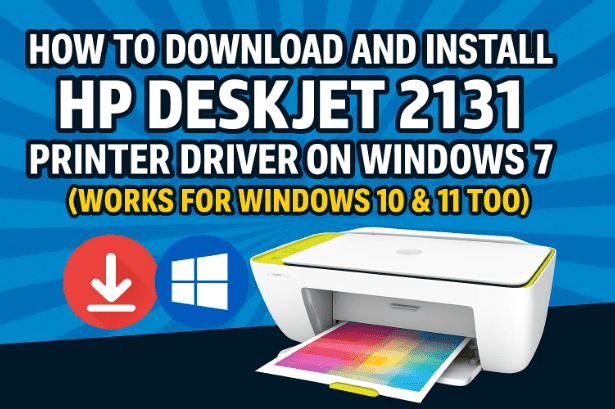
Printers are still one of the most essential tools for both home and office use — whether you’re printing school assignments, ID proofs, or business invoices. The HP DeskJet 2131 All-in-One Printer is a popular and affordable model that supports printing, scanning, and copying.
However, many users who recently reinstalled Windows 7 or upgraded from older systems find that the printer driver is missing or that HP’s newer pages no longer offer a dedicated Windows 10/11 driver. The good news? You can still install the Windows 7 version of the driver, and it works perfectly on later versions of Windows too.
In this step-by-step guide, we’ll explain how to check your PC architecture (32-bit vs 64-bit), find and download the correct driver from HP’s official website, and install it manually through the Control Panel if the automatic setup doesn’t work.
Let’s begin.
🧩 Step 1 — Check Whether Your PC Is 32-bit or 64-bit
Before you download anything, it’s important to know which architecture your operating system uses. HP offers separate driver packages for 32-bit and 64-bit versions of Windows.
Here’s how to check:
- Click Start → Computer.
- Right-click on Computer and choose Properties.
- Under the System section, look for System Type.
You’ll see either:
- 32-bit Operating System → Download the 32-bit driver, or
- 64-bit Operating System → Download the 64-bit driver.
Make a note of it — you’ll need this in the next step.
🌐 Step 2 — Download the Official HP DeskJet 2131 Driver
Now that you know your system type, let’s download the official driver from HP’s website.
Even though HP has marked the 2131 series as deprecated, the Windows 7 driver still works smoothly on Windows 10 and 11.
Steps:
- Open your preferred web browser (Chrome, Edge, or Firefox).
- In the search bar, type
HP DeskJet 2131 printer driver download site:support.hp.com - Open the first result that points to HP’s official site:
🔗 https://support.hp.com/in-en/drivers/hp-deskjet-2131-all-in-one-printer/model/7521801 - Once the page loads, HP will try to auto-detect your operating system.
- If it doesn’t detect correctly, click “Choose a different OS”.
- Under Operating System, choose Windows 7.
- Under Version, select 32-bit or 64-bit (whichever applies).
- Click Update.
After updating, scroll down to find the section titled “Driver – Product Installation Software”.
There you’ll see:
HP DeskJet 2130 series Full Feature Software and Drivers





Click Download next to it.
Your browser will begin downloading a .exe or .zip file — it may take a few minutes depending on speed.
📦 Step 3 — Extract the Driver Files
Once downloaded, the file may appear as a compressed .exe or .zip archive.
- Open your Downloads folder.
- Locate the HP driver file (something like
DJ2130_Full_WebPack.exe). - Right-click → Extract All (if it’s a ZIP) or run the
.exeand let it unpack. - When prompted, choose Desktop as the destination folder for convenience.
Wait a few minutes for extraction to complete. After that, you’ll have a folder containing multiple files — including a Setup application and several driver components.
🧰 Step 4 — Install the Driver Using Setup Wizard (Option 1)
This is the easiest way to install the HP DeskJet 2131 driver.
- Open the extracted folder.
- Double-click on the Setup.exe file.
- Follow the on-screen instructions:
- Accept the license agreement.
- Choose installation type (Full Software and Driver is recommended).
- Connect your printer via USB when prompted.
- Wait for Windows to detect and finalize installation.
Once the wizard completes, you should see a success message.
Print a test page to confirm everything is working.
If the Setup Wizard fails or stops midway, don’t worry — we can install it manually.
⚙️ Step 5 — Manual Installation via Control Panel (Option 2)
Sometimes the automatic installer doesn’t run properly on older or newer Windows builds. In that case, you can manually add the printer through Control Panel.
Let’s do that step by step:
- Press Windows + R, type
control panel, and hit Enter. - Click Devices and Printers.
- Select Add a printer from the top bar.
- Choose Add a local printer when prompted.
This opens the printer setup wizard.
🔌 Step 6 — Select the Correct Printer Port
The port selection is the most critical part of manual installation.
- When asked to choose a port, click the dropdown list.
- If you see something like USB001, USB002, or HP Printer Port, select it.
- If you’re unsure, pick the last available USB port (Windows automatically maps it when you connect your printer).
- Click Next.
Now Windows will ask for the printer driver.
Installing from the extracted folder:
- Click Have Disk…
- Choose Browse → navigate to Desktop → HP Driver Folder.
- Select any
.inffile (for example,autorun.infor the first one listed). - Click Open → OK.
Windows will detect the HP DeskJet 2130 series printer driver.
Select it, click Next, and continue with installation.
You can rename the printer (e.g., “HP DeskJet 2131”) before clicking Next again.
Within a few moments, your printer will install successfully.
When prompted, click Print a test page to confirm.
If it prints correctly — congratulations! You’ve installed the HP DeskJet 2131 driver manually.
🧾 Step 7 — Verify Installation and Test Printing
Now let’s double-check that everything works:
- Go to Control Panel → Devices and Printers again.
- You should now see HP DeskJet 2131 listed under Printers.
- Right-click → Printer Properties → Print Test Page.
If the test page prints successfully, your setup is complete.
You can now use the same driver for scanning and copying as well.
🧩 What to Do if the Setup Fails or Driver Isn’t Detected
Even though this process is usually smooth, sometimes Windows refuses to detect the printer.
If that happens, try the following:
- Check USB Cable: Ensure the printer is connected directly to a USB port (not through a hub).
- Switch Port: Move the USB cable to another port; Windows may remap it.
- Run as Administrator: Right-click the setup file → “Run as administrator.”
- Temporarily Disable Antivirus: Some security software blocks installer scripts.
- Use Compatibility Mode: Right-click Setup.exe → Properties → Compatibility → Run as Windows 7 mode.
- Restart after Driver Install: Always reboot once the driver is installed to allow Windows to register new services.
If none of these help, uninstall the partial installation and reinstall using the manual Control Panel method described earlier.
💡 Frequently Asked Questions (FAQs)
Q 1. Is the HP DeskJet 2131 driver still available for download?
Yes. You can download it from HP’s official support page:
🔗 HP DeskJet 2131 Drivers
Q 2. Can I use the Windows 7 driver on Windows 10 or 11?
Absolutely. The Windows 7 driver works well on both Windows 10 and 11, even though HP officially lists them as unsupported.
Q 3. What if the printer doesn’t appear under Devices and Printers?
Try unplugging and reconnecting the USB cable or clicking Add Printer manually. You can also restart the Print Spooler service from the Services panel.
Q 4. Does the driver include scanner software?
Yes. The Full Feature Driver package includes both print and scan functionality. After installation, you can use the built-in HP Scan utility or Windows Fax and Scan.
Q 5. Is this method safe for newer laptops running Windows 11?
Yes. Although officially unsupported, Windows 11’s driver model remains backward-compatible. The HP DeskJet 2131 driver from Windows 7 works reliably for both printing and scanning.
Q 6. How do I uninstall the driver if something goes wrong?
Go to Control Panel → Programs and Features, find HP DeskJet 2130/2131 Software, select it, and click Uninstall. Then reboot and reinstall cleanly.
✅ Final Thoughts
So far, we’ve done a great job walking through the complete process of installing the HP DeskJet 2131 printer driver on Windows 7, 10, and 11. Whether you used the automatic setup wizard or the manual Control Panel method, both lead to a fully functioning printer and scanner.
Even though HP no longer maintains fresh driver updates for this model, the Windows 7 driver remains perfectly compatible with modern Windows versions — making it a great solution for users who still rely on this compact all-in-one printer.
Once everything is working, don’t forget to print a test page, scan a sample document, and restart your PC to finalize all driver services.
⚠️ Disclaimer
This article is for educational and troubleshooting purposes only. The HP DeskJet 2131 driver is officially released by HP for Windows 7. While it generally works on newer systems, use it at your own discretion. Always download drivers only from HP’s official website to avoid malware or counterfeit packages.
#HPDeskJet2131 #PrinterDriver #Windows7 #Windows10 #Windows11 #HPDrivers #PrinterInstallation #Troubleshooting #HowTo








