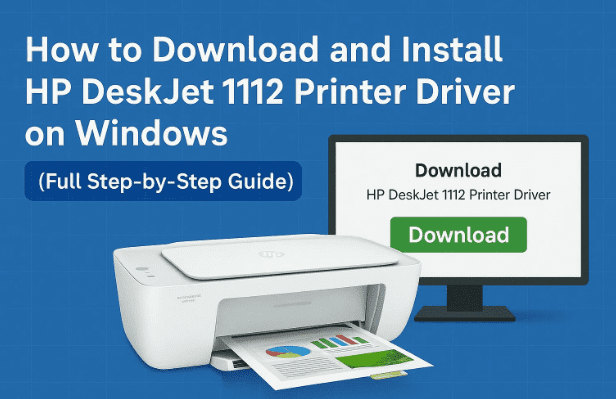
If you’ve just purchased an HP DeskJet 1112 printer or reinstalled Windows and noticed that your printer isn’t being detected automatically, don’t worry — this article will walk you through the entire driver installation process from start to finish.
The HP DeskJet 1112 is a compact, entry-level printer designed for basic home or office printing. But since HP no longer bundles automatic driver support for older models in Windows 10 or 11, you’ll need to manually download and install the driver package.
Let’s start with the basics and move step by step until your printer is fully ready to print.
1️⃣ Introduction: Why Drivers Are Essential
Before we begin, let’s understand why you need the correct printer driver.
A printer driver acts as a communication bridge between your computer and the printer hardware. It translates print commands from software (like Microsoft Word or Chrome) into instructions that your printer understands. Without a proper driver, your printer either won’t respond, or will produce printing errors.
HP DeskJet 1112 printers use the same driver family as the DeskJet 1110/1118 models, which means the installation process works across that entire series. However, since HP’s latest OS versions don’t include these older drivers automatically, you’ll need to install them manually — a process that’s simple once you know how.
2️⃣ Step 1: Check Whether Your System Is 32-bit or 64-bit
Before downloading anything, you need to know your Windows architecture. Installing the wrong driver (for example, a 32-bit driver on a 64-bit PC) will result in installation failure or non-recognition of the printer.
Here’s how to check:
- Right-click on This PC (or My Computer) on your desktop.
- Select Properties.
- In the “System” section, look for System type.
- If it says 32-bit Operating System, your PC uses a 32-bit version.
- If it says 64-bit Operating System, you’ll need the 64-bit driver.
💡 Tip: Almost all modern Windows 10/11 computers are 64-bit, but verifying this prevents driver mismatches later.
Once confirmed, close the Properties window. Let’s move ahead to download the correct driver.
3️⃣ Step 2: Download the Correct HP DeskJet 1112 Driver Files
Now that you know whether your Windows is 32-bit or 64-bit, it’s time to grab the right driver package. Since HP no longer directly lists Windows 10/11 drivers for this model, there are two safe ways to get them:
✅ Option A: Download the driver from HP’s official page (using Windows 7/8 compatibility)
HP provides the DeskJet 1112 drivers under the HP DeskJet 1110 printer series. To access it:


- Visit the official HP driver page:
🔗 https://support.hp.com/us-en/drivers/hp-deskjet-1110-printer-series/model/7529725 - Click Choose a different OS if your operating system is shown as Windows 10 or 11.
- Select Windows 7 or Windows 8 (depending on preference).
- Scroll down to find the Basic Driver or Full Feature Software and Driver option.
- Click Download and wait for the file to finish.
These drivers work perfectly fine on Windows 10 and 11 — HP simply doesn’t label them officially for those versions.
✅ Option B: Alternate Verified Download Links (Google Drive & Mega)
If you prefer direct, faster downloads, use these verified mirror links containing the same genuine HP driver packages:
Google Drive Links
- 64-bit: Download Here
- 32-bit: Download Here
Mega Links
- 64-bit: Download Here
- 32-bit: Download Here
⚠️ Always ensure you download the version that matches your system type. Wrong architecture drivers won’t install properly.
Once downloaded, you’ll likely see the file in your Downloads folder. Let’s move on to extraction.
4️⃣ Step 3: Extract the Driver ZIP File
The driver you downloaded will be a compressed ZIP folder. Extracting it correctly is an essential step before installation.
Follow these steps:
- Locate the downloaded ZIP file.
- Right-click on it and select Extract All (or use WinRAR / 7-Zip → Extract Files).
- Choose a location — ideally Desktop — and click OK or Extract.
- Wait a few seconds until the process finishes.
After extraction, you’ll get a new folder containing multiple driver files, including .INF, .CAT, and .DLL components. These are what Windows needs to install the printer manually.
Close any extra windows. So far, so good — let’s continue to the main installation process.
5️⃣ Step 4: Install the HP DeskJet 1112 Driver Manually
Now we’ll install the printer manually using Windows’ built-in “Add Printer” feature. This method is 100% safe and works on all modern Windows systems.
Let’s proceed carefully step by step.
🧩 Manual Installation Process
- Press the Windows key and type Printers & Scanners.
- Open Printers & Scanners Settings.
- Click on Add a printer or scanner.
- Wait while Windows searches for connected devices (a few seconds).
- When it says “The printer that I want isn’t listed,”
click that link. - A new window will appear. Select Add a local printer or network printer with manual settings.
- Click Next.
- In the “Choose a printer port” section:
- If an HP printer port or HP device appears, select it.
- Otherwise choose a USB port, such as USB001 or USB002.
- Click Next.
- Click the Have Disk button.
- Select Browse and navigate to the folder you extracted on your Desktop.
- Double-click to open it and select the
.INFfile (one of the driver files). - Click Open → OK.
- You’ll now see a list of printer models. Choose HP DeskJet 1110 series or HP DeskJet 1112 — both use the same driver.
- Click Next.
- When prompted for a printer name, you can keep the default (e.g., HP DeskJet 1112) or rename it as you prefer.
- Click Next again.
Windows will now install the driver. The process usually takes less than a minute.
Once done, you’ll be asked if you want to share this printer over your network:
- Choose Do not share this printer for personal use.
- Choose Share this printer if you want others on the same network to access it.
Click Next.
Finally, you can choose to print a test page to verify the installation, or simply click Finish.
Your HP DeskJet 1112 printer is now successfully installed and ready to use! 🎉
6️⃣ Step 5: Verify Installation and Test the Printer
We’re almost done. Let’s confirm that Windows has properly recognized the printer.
- Open Printers & Scanners again from the Start menu.
- Scroll through the list of installed printers.
- You should now see HP DeskJet 1112 listed.
If it’s visible, the setup was successful. To double-check:
- Click on the printer name → Manage → Print a test page.
- Wait a few seconds for your printer to respond.
If the test page prints correctly, everything is working perfectly.
If it doesn’t, check the USB connection and retry printing.
❓ Troubleshooting and Frequently Asked Questions (Q&A)
Let’s cover some common issues users encounter during installation and how to fix them.
Q1. My HP DeskJet 1112 printer isn’t showing up in Windows after installation.
👉 Make sure the printer is powered on and connected directly to a USB port (not through a hub). Try reconnecting it to a different port and restart your PC.
Q2. Windows says “Driver not digitally signed.” Should I continue?
👉 Yes. The driver is legitimate — it’s just not signed for newer versions of Windows 10/11. Click Install anyway when prompted.
Q3. The test page prints blank. What could be wrong?
👉 Check your ink cartridges — they might be low, clogged, or incorrectly installed. Use HP’s maintenance menu to perform a nozzle check or cleaning cycle.
Q4. Can I use this same driver for HP DeskJet 1110 or 1118 models?
👉 Absolutely. All these models belong to the DeskJet 1110 series, which uses the same unified driver package.
Q5. The installer doesn’t detect my printer automatically. What now?
👉 Use the manual installation steps above (Add Printer → Have Disk). Automatic detection often fails on older HP models due to missing Plug-and-Play support in newer OS versions.
Q6. Does this work on Windows 11?
👉 Yes. Even though HP lists drivers only for Windows 7 and 8, the same package works flawlessly on both Windows 10 and 11 when installed manually.
💡 Extra Tips for Smooth Installation
We’ve done a great job so far setting everything up. Let’s finish strong with a few helpful maintenance and performance tips.
- Download only from official or verified links. Avoid third-party driver sites that may bundle unwanted software.
- Restart your PC after installation to ensure proper driver registration.
- Use original HP ink cartridges for the best print quality and to avoid detection issues.
- Print a test page at least once a week if you don’t print often — it keeps the nozzles from drying out.
- Keep a backup of the extracted driver folder in case you reinstall Windows later.
- If you face constant connectivity problems, replace your USB cable with a high-quality one rated for printers.
⚠️ Disclaimer and Official HP Link
This article is meant solely for educational and troubleshooting purposes.
HP has discontinued automatic driver support for older DeskJet models like the 1112 on newer operating systems. However, the drivers still function perfectly when installed manually as explained here.
You can verify the latest available version or download directly from HP’s official site here:
🔗 HP DeskJet 1110 Printer Series Driver Support
Always scan any downloaded ZIP file with antivirus software before extracting, especially if downloaded from external storage platforms.
✅ Final Thoughts
And that’s it! You’ve now learned how to download, extract, and manually install the HP DeskJet 1112 driver on your Windows 10 or 11 system.
Even though HP doesn’t list this printer for newer OS versions, with the correct driver and manual setup steps, it still works beautifully — ready to print invoices, school projects, or daily documents without any issues.
With this article, your trusty DeskJet 1112 can keep running smoothly for years to come.
#HPDeskJet1112 #PrinterSetup #Windows11 #DriverInstallation #TechGuide #HPDrivers #DtpTips








