At first glance, Windows Home and Windows Pro look almost identical. The same desktop, same taskbar, same icons. But beneath that surface similarity lies a huge difference — one that most people don’t discover until it’s too late.
When things go wrong — when your PC forces an update in the middle of your work, when a privacy setting won’t stick, or when you need a real security feature — that’s when you realize “Home” in Windows Home doesn’t mean comfort. It means limitation.
In this guide, we’ll explore why Windows Pro isn’t just for IT professionals or corporate offices. It’s for every power user, content creator, developer, and privacy-conscious person who wants control over their machine — not the other way around.
Grab your coffee and get comfortable. By the end of this article, you’ll understand exactly why Windows Home might be quietly holding you back.
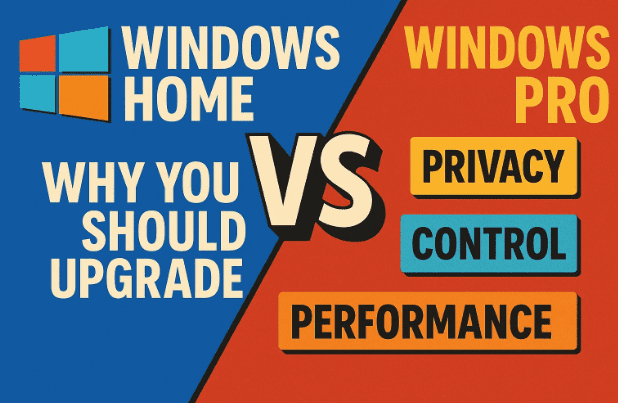
💡 1. What Most People Don’t Realize
Let’s start with something that happens to almost everyone: you buy a new laptop, unbox it, turn it on — and there it is, Windows Home Edition pre-installed.
Manufacturers love bundling it because it’s cheaper. But cheaper for them doesn’t mean better for you. Windows Home does everything you expect it to — it opens programs, plays games, connects to Wi-Fi — but it hides away many of Windows’ most useful tools.
Imagine buying a sports car but being locked out of sport mode until you pay extra. That’s Windows Home in a nutshell.
Windows Pro, on the other hand, gives you access to the full suite of control tools — from advanced security to real privacy settings, local accounts, and virtualization. These are the features that make a computer truly yours.
Let’s go through them one by one.
🔒 2. Privacy and System Control — The Biggest Difference
Let’s move to the most important part — who controls your PC: you or Microsoft?
Windows Home gives you limited control over updates, privacy, and background telemetry. It decides when updates happen and often reboots without asking. If you’ve ever had Windows restart in the middle of an important task, you know exactly how frustrating that can be.


Windows Pro changes that. It unlocks Group Policy Editor (gpedit.msc) and Local Security Policy, two powerful tools built into Windows for administrators — but equally valuable for regular users who want control.
With these tools, you can:
- Delay or schedule updates on your own terms
- Disable data collection and telemetry
- Control which background services run
- Stop automatic restarts after updates
No external apps or registry hacks required — these are native features Microsoft simply hides in the Home edition.
💬 Why This Matters
Privacy isn’t just about hiding from hackers. It’s about controlling when your system updates, what it sends to Microsoft, and how it behaves.
If your computer belongs to you, you should decide when it restarts, not a corporate scheduler.
👤 3. Local Accounts vs Microsoft Accounts
If you’ve set up a new Windows PC recently, you’ve probably noticed how aggressively Microsoft pushes its account login. It feels like you can’t even reach your desktop without giving them your email first.
That’s not paranoia — it’s by design. Windows Home forces online account sign-in for setup. You can’t easily create a local offline account anymore without tricking the system (like disconnecting from the internet during setup).
Windows Pro, however, still gives you the choice. During setup or afterward, you can create a local user account — meaning your username, password, and data stay entirely offline.
Why Local Accounts Are Better:
- No dependency on your Microsoft login to access your PC
- No data syncing to the cloud unless you choose to
- No online verification required when internet is down
- Complete control of privacy and credentials
With a local account, your computer is truly yours. You’re not signing into Microsoft’s ecosystem every time you log in. You’re signing into your own machine.
It’s one of those small freedoms that feel huge once you experience it. Once you’ve used Windows with local accounts and full privacy, going back feels like surrendering control.
🛡️ 4. Real Security Tools: BitLocker and Remote Desktop
Let’s talk security — the part most people think Home and Pro handle the same way. They don’t.
🧱 BitLocker Drive Encryption
BitLocker is one of the most powerful security features in Windows, and it’s exclusive to Windows Pro and Enterprise.
It encrypts your entire drive using AES 128- or 256-bit encryption. If your laptop gets stolen or lost, your files remain completely unreadable to anyone without your password or recovery key.
Windows Home includes only “Device Encryption,” a watered-down version that automatically uploads your recovery key to your Microsoft account. You can’t choose to store it locally or control how it’s used.
In contrast, Windows Pro lets you manage your own encryption keys — saving them offline, printing them, or keeping them in a password manager.
This difference matters because if your Microsoft account is ever locked or deleted, your recovery key goes with it. With Pro, you decide where that key lives — not Microsoft.
🧩 Remote Desktop (RDP Host)
Another key difference: Windows Home can connect to remote systems, but it can’t be connected into.
That means you can’t use the built-in Remote Desktop Host feature to access your own PC from another location.
With Windows Pro, you can securely log into your desktop from anywhere using Remote Desktop Protocol (RDP).
It’s incredibly useful for:
- Remote work setups
- IT troubleshooting
- Traveling professionals who need files from home
- Developers who use multiple systems
Just remember to set up a strong password and firewall rule — RDP is powerful, but it must be configured safely.
🧰 5. The Hidden Power Tools in Windows Pro
Now let’s move to the features that truly separate casual users from power users.
Windows Pro includes several advanced built-in tools that don’t exist in the Home edition.
Here are some of the most valuable:
| Feature | Windows Home | Windows Pro |
|---|---|---|
| Group Policy Editor | ❌ Not Available | ✅ Full Access |
| Hyper-V Virtualization | ❌ | ✅ Create and manage virtual machines |
| Windows Sandbox | ❌ | ✅ Run untrusted apps safely |
| BitLocker Drive Encryption | Limited (Device Encryption) | ✅ Full Disk Encryption |
| Remote Desktop Host | ❌ | ✅ Connect from anywhere |
| Assigned Access & Kiosk Mode | ❌ | ✅ Available |
| Advanced Networking & Domain Join | ❌ | ✅ Supported |
Why These Matter
If you test software, manage multiple devices, or simply value security, these tools are game changers.
For example:
- Windows Sandbox lets you run suspicious files in an isolated environment. When you close it, everything resets — no malware, no leftover junk.
- Hyper-V allows you to run entire virtual operating systems, perfect for testing Linux, older versions of Windows, or development environments.
- Group Policy allows you to disable telemetry, stop unwanted apps, and configure system updates to behave exactly how you want.
Windows Home users simply don’t have access to these — and often rely on third-party apps that achieve half the functionality.
⚙️ 6. Performance and Reliability: Stability Under Pressure
So far, we’ve focused on control and privacy. But there’s also a measurable difference in performance and system reliability.
Windows Pro runs smoother in heavy workloads because you can control what’s running behind the scenes. You can delay background tasks, stop telemetry, and avoid random update reboots during gaming, rendering, or coding sessions.
For example:
- Creators can disable Windows Update during long video renders.
- Gamers can ensure no update restarts mid-match.
- Developers can set precise policies for CPU and network throttling.
It’s not that Pro is “faster” by design — it’s that it’s less interrupted. You control when and how Windows decides to behave.
🧭 7. The Secret Weapon: Group Policy Editor
Now let’s move to the crown jewel of Windows Pro — the Group Policy Editor (gpedit.msc).
If you’ve never opened it before, don’t worry. It looks intimidating at first, but it’s actually the hidden control room of Windows.
Here’s what it lets you do:
- Disable Windows telemetry completely.
- Stop automatic app installations and ads.
- Pause or disable Windows Update indefinitely.
- Prevent Windows from changing your default apps after updates.
- Block tips, recommendations, and “suggested apps” from the Start Menu.
- Control UAC prompts, password policies, and system scripts.
To open it:
- Press
Win + R, typegpedit.msc, and hit Enter. - Explore settings under Computer Configuration → Administrative Templates.
- Modify specific behaviors like update timing, Windows Defender policies, or file indexing.
Once you get used to it, it’s hard to imagine running Windows without it.
In Home Edition, all of these features exist — but you can’t access them. The door is locked.
Windows Pro simply gives you the key.
🧩 8. Advanced Networking and Business Features
If you’re someone who connects multiple PCs, works in a small office, or uses NAS (network-attached storage), you’ll appreciate these extra capabilities in Windows Pro:
- Domain Join: Connect your PC to a business network or domain for centralized management.
- Assigned Access: Set up single-purpose kiosk devices (great for shops, showrooms, or digital displays).
- Windows Update for Business: Control update rollout and defer major feature releases.
- Enterprise Mode for Edge: Maintain compatibility with older web apps.
These might sound corporate, but even home professionals benefit. If you manage a home lab, work from home, or use a server, these features make life much easier.
🧩 9. Who Should Stick With Windows Home?
To be fair, Windows Home isn’t “bad.” It’s just limited.
If you mostly browse the web, stream movies, and occasionally use Office apps, you’ll be fine.
But if you:
- Care about privacy and local control,
- Want to manage your own updates,
- Need BitLocker or Remote Desktop, or
- Run virtual machines or sandboxed apps,
Then Windows Pro is worth every rupee, dollar, or euro you spend upgrading.
It’s the same interface — just unlocked.
💬 10. Frequently Asked Questions (FAQ)
Q1: Can I upgrade from Windows Home to Pro without reinstalling?
Yes. You can buy a Windows 11 Pro license from Microsoft and enter the key in Settings → System → Activation. The upgrade installs instantly without deleting files.
Q2: Will my apps and files remain after upgrading?
Yes, everything stays intact. It’s a license-based upgrade, not a full reinstall.
Q3: Does Windows Pro affect gaming performance?
Slightly — but in a good way. By controlling background updates and telemetry, you get more consistent frame rates and fewer interruptions.
Q4: Is Windows Pro worth it for non-technical users?
If you value stability, data privacy, and customization — absolutely. Even if you never touch Group Policy, the built-in BitLocker and update control are worth the upgrade.
Q5: Can I use my Microsoft account on Windows Pro?
Yes, you can. The difference is — you also have the option not to. That’s the key point.
🧾 11. Summary — Why Windows Pro Is the Real “Home” for Power Users
Let’s recap what makes Windows Pro worth it:
- Privacy and Control – Manage updates, telemetry, and security without third-party tools.
- Local Accounts – Keep your system offline and independent.
- Advanced Security – Use BitLocker, Sandbox, and Remote Desktop.
- Power Tools – Access Group Policy, Hyper-V, and advanced networking.
- Stability and Performance – Fewer interruptions, smoother workflows.
If you’re someone who treats your computer as a workstation — not a toy — Windows Pro is not an upgrade; it’s a necessity.
After using it for a few weeks, going back to Windows Home feels like driving with the handbrake on.
🧾 Disclaimer
This article is for educational and informational purposes only.
Windows, BitLocker, and other Microsoft technologies mentioned are trademarks of Microsoft Corporation.
Always back up important data before performing system upgrades or making Group Policy changes.
Official Microsoft Windows comparison:
👉 https://www.microsoft.com/en-us/windows/compare-windows-11-home-vs-pro
#Windows11 #WindowsPro #WindowsHome #BitLocker #Privacy #HyperV #GroupPolicy #TechTips #dtptips







