Have you ever typed a command into the Windows Start → Run dialog, only to see a black box flash on the screen and disappear before you could even read what happened?
If you’re scratching your head wondering what went wrong, you’re not alone. This is a common experience, especially for users who aren’t familiar with the history of PCs and the difference between graphical programs and command-line programs.
In this article, we’ll walk through why this happens, what’s actually going on behind the scenes, and—most importantly—how you can fix it so you don’t miss anything important.
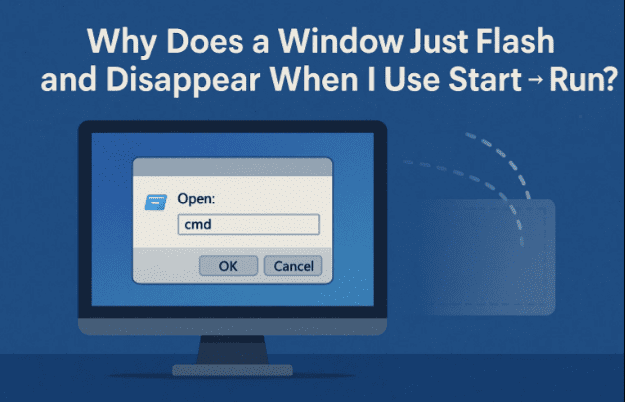
1. Understanding the Basics: GUI vs Character Mode
Let’s start with the fundamentals. Modern computer users are most familiar with GUI (Graphical User Interface) programs. These are the applications you use every day—your browser, email app, music player, or Microsoft Word. They have icons, buttons, menus, colors, and images.
But before GUI became standard, computers used character mode (also called text mode). In character mode:
- The screen only displays text—letters, numbers, and punctuation.
- You type commands instead of clicking icons.
- Programs run in a simple text-based environment with no graphics at all.
👉 Windows today supports both GUI and character mode applications. This distinction is at the heart of why your command prompt window flashes.
2. A Quick Look at DOS and Early Windows
To really understand the flashing window problem, we need a tiny bit of history.
Before Windows came along, Microsoft’s main operating system was MS-DOS (Microsoft Disk Operating System). Everything was text-based. If you wanted to launch a program, you had to type its name. For example:
word
That single command would launch the old character-mode version of Microsoft Word.
When Windows arrived, it added a graphical layer on top of DOS. Over time, DOS faded into the background, but the command-line environment (Command Prompt) has remained an essential part of Windows.
3. Why the Window Flashes and Disappears
Now, let’s connect the dots.





When you type a command into Start → Run and hit Enter, Windows checks:
- If it’s a GUI program, Windows runs it normally.
- If it’s a character-mode program, Windows first opens a Command Prompt window to provide the text-based environment it needs.
Here’s the key issue:
- If the program runs quickly and then exits (either successfully or with an error), the Command Prompt also closes automatically.
- That’s the “flash” you see—the Command Prompt opening and closing in less than a second.
So, what you saw wasn’t a glitch. It was just Windows doing its job very quickly.
4. Practical Example: Running SFC with Start → Run
Let’s take a real-world example:
- Press Windows + R to open the Run dialog.
- Type
sfc(System File Checker) and press Enter.
What happens?
- A black box flashes briefly.
- You don’t see any results, and it seems like nothing happened.
In reality, here’s what occurred:
- Windows opened a Command Prompt.
- It ran
sfc. sfcfailed because it requires extra permissions.- The program exited.
- Windows closed the Command Prompt.
All of this happened in under a second—hence the mysterious “flash.”
5. Two Easy Fixes to Stop the Flash
So, how do we actually fix this and see what’s happening? Fortunately, there are two straightforward methods.
🔹 Method 1: Open Command Prompt First
Instead of running the command directly from Start → Run:
- Open Start Menu.
- Type cmd and press Enter.
- Now, type your command (e.g.,
sfc) inside the Command Prompt window.
👉 This way, even if the command fails or finishes instantly, you’ll see the output instead of the window closing.
🔹 Method 2: Use Windows Terminal
On Windows 10 and 11, you can also:
- Right-click on Start.
- Select Terminal (or Command Prompt, depending on version).
- Run your command there.
This is often faster and more powerful, especially if you regularly use multiple tools.
6. What About Commands That Need Admin Privileges?
Some commands—like SFC or DISM—need to run with administrator rights. If you don’t use elevated privileges, they’ll fail instantly.
Here’s how to do it properly:
- Click Start.
- Search for cmd.
- Right-click it and choose Run as administrator.
- Type your command and press Enter.
You’ll now see the program run with the required permissions.
⚠️ Disclaimer: Running administrative commands can affect system files. Only run commands you understand or that are documented by Microsoft. For official guidance, see Microsoft’s SFC documentation.
7. Best Practices for Running Commands in Windows
Here are some tips to avoid confusion in the future:
- Don’t use Start → Run for command-line programs. Use Command Prompt or Terminal instead.
- Know the difference between GUI and CLI apps. GUI apps stay open with windows, while CLI apps may run and exit instantly.
- Use “Run as administrator” when needed. Many system tools won’t work without it.
- Type
exitto close. When you’re finished with Command Prompt, typeexitand hit Enter to close it cleanly.
8. Frequently Asked Questions (Q&A)
Q1: Why does Start → Run even exist if it can be confusing?
👉 Start → Run is a quick way to launch programs, open folders, or run Windows shortcuts. It’s great for GUI apps, but less ideal for command-line tools.
Q2: Can I make the Command Prompt stay open after running a command?
👉 Yes. You can create a shortcut that launches cmd /k yourcommand. The /k switch tells Command Prompt to stay open after running the command.
Q3: Does this happen on macOS or Linux too?
👉 Yes, in a similar way. On those systems, text-based commands are usually run inside Terminal, which stays open unless you close it.
Q4: What’s the difference between CMD and PowerShell?
👉 CMD is the classic command interpreter, while PowerShell is a more modern, powerful shell with scripting capabilities. Both can run commands, but PowerShell is better for automation.
9. Final Thoughts
That quick “flash and vanish” you see when running commands in Start → Run isn’t a bug—it’s simply Windows handling command-line tools in the background.
The solution is simple: open Command Prompt (or Windows Terminal) manually, run your commands there, and you’ll always see the results.
So next time you encounter that mysterious black box, you’ll know exactly what’s happening and how to take control.
Tags
windows tips, command prompt, start run dialog, windows troubleshooting, system file checker
Hashtags
#Windows #Troubleshooting #CommandPrompt #Windows11 #WindowsTips








