Navigating macOS can sometimes feel confusing, especially if you are coming from Windows or Linux. At first glance, the Finder shows only a handful of folders like Applications, Desktop, Documents, Downloads, and System. But beneath this clean interface lies a powerful UNIX-based file system, filled with important directories, hidden configuration files, and command-line access points.
In this article, we’ll explore the macOS folder structure in detail. We’ll break down what each directory does, how to access it, the equivalent in Windows and Linux, and the terminal commands you can safely use. Along the way, I’ll also add safety warnings, because some folders (like /System or /Library) can break your Mac if modified carelessly.
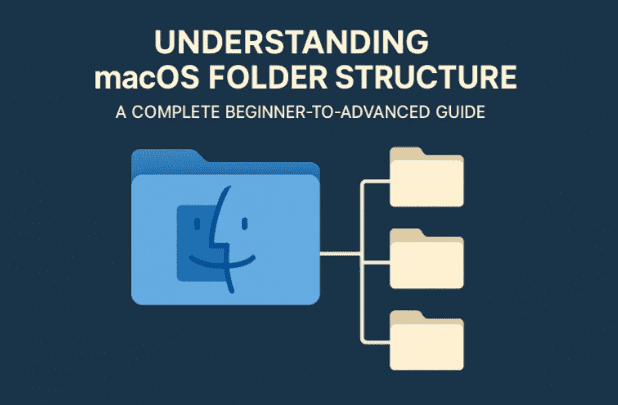
Whether you’re a beginner who just switched to macOS or a power user who wants to peek under the hood, this guide will help you understand the logic behind macOS folders.
📑 Table of Contents
- Introduction to macOS File System
- The Applications Folder (
/Applications) - The System Folder (
/System) - The Library Folder (
/Library&~/Library) - The Users Folder (
/Users) - Desktop Folder
- Documents Folder
- Downloads Folder
- Hidden Folders (
/bin,/sbin,/usr,/etc,/var) - Terminal Commands for Exploring macOS Folders
- Safety Notes & Dangerous Commands to Avoid
- Comparison with Windows and Linux Folder Structures
- Frequently Asked Questions (FAQs)
1. 🗂️ Introduction to macOS File System
macOS is built on Darwin, a UNIX-based foundation. This means its folder structure is closer to Linux/Unix than Windows. Everything starts from a root directory /, unlike Windows where drives like C:\ or D:\ exist.
At the top level of macOS (root /), you’ll usually find:
- Applications – Installed apps.
- System – The core operating system files.
- Library – System and app support files.
- Users – Home folders for each user.
- bin, sbin, usr, etc, var – Hidden UNIX system folders.
👉 Tip: To see all files in Finder, press:
Command + Shift + .
This reveals hidden folders (like .DS_Store, .ssh, etc.) in Finder.
2. 📦 The Applications Folder (/Applications)
This is where all your installed apps live. Each macOS app is not just a file but a bundle (package) containing executable code, resources, and metadata.
Examples:
- Safari →
/Applications/Safari.app - Google Chrome →
/Applications/Google Chrome.app
Terminal Commands:
cd /Applications
ls
open /Applications
The open command will launch Finder inside Applications.
Comparison:
- Windows →
C:\Program Files - Linux →
/usr/bin(binaries) or/opt(optional software)
👉 Safe to modify: You can delete or move apps here.
3. ⚙️ The System Folder (/System)
This folder contains the macOS operating system itself. Apple locks most of it with System Integrity Protection (SIP), meaning you cannot modify it unless SIP is disabled (not recommended).









Inside /System you’ll find:
/System/Applications– Default macOS apps like Safari, Mail, Calendar./System/Library– Core frameworks, drivers (kexts), and system daemons.
Terminal Commands:
cd /System
ls
⚠️ Warning: Do not modify files inside /System. Even administrators can’t without disabling SIP.
Comparison:
- Windows →
C:\Windows - Linux →
/boot,/lib,/etc
4. 📚 The Library Folder (/Library & ~/Library)
There are actually two Library folders in macOS:
/Library– System-wide settings, fonts, app support files.~/Library– User-specific settings (inside your home folder).
Common Subfolders:
Caches→ Temporary app data.Preferences→ App preference.plistfiles.Fonts→ Installed fonts.Application Support→ Data required by apps.
Terminal Commands:
open ~/Library
If Finder doesn’t show Library, you can access it using the command above.
Comparison:
- Windows →
C:\Users\<Name>\AppData - Linux →
~/.configor/etc
👉 Safe to clear caches, but never delete random .plist files unless troubleshooting.
5. 👥 The Users Folder (/Users)
This is where all user accounts reside.
/Users/Shared– Public folder for all users./Users/<YourName>– Your home folder.
Inside your home folder you’ll see Desktop, Documents, Downloads, Pictures, Music, Movies.
Terminal Commands:
cd /Users
ls
whoami
The whoami command shows your current username.
Comparison:
- Windows →
C:\Users\ - Linux →
/home/
6. 🖼️ Desktop Folder
This is simply /Users/<YourName>/Desktop. Any file you put on the desktop lives here.
cd ~/Desktop
ls
👉 Windows Equivalent: C:\Users\<Name>\Desktop
👉 Linux Equivalent: ~/Desktop
7. 📑 Documents Folder
This is where personal files go by default. Apps like Microsoft Office save here.
cd ~/Documents
👉 Windows Equivalent: C:\Users\<Name>\Documents
👉 Linux Equivalent: ~/Documents
8. 📥 Downloads Folder
All files downloaded from Safari, Chrome, or AirDrop go here.
cd ~/Downloads
👉 Windows Equivalent: C:\Users\<Name>\Downloads
👉 Linux Equivalent: ~/Downloads
9. 🔒 Hidden Folders (/bin, /sbin, /usr, /etc, /var)
These are essential UNIX folders, hidden from normal users:
/bin– Basic command binaries (ls,cp,mv)./sbin– System binaries (ifconfig,fsck)./usr– User-related system files (/usr/bin,/usr/local)./etc– System-wide configuration files./var– Log files, temporary files, databases.
Terminal Commands:
cd /bin
ls
⚠️ Do not modify files here unless you know what you’re doing.
Comparison:
- Windows → System32 (
C:\Windows\System32) - Linux → Same names (
/bin,/etc,/var)
10. 💻 Terminal Commands for Exploring macOS Folders
Here are some safe commands:
pwd       # Print current directory
ls        # List files
open .    # Open current folder in Finder
du -sh *  # Show folder sizes
👉 To jump to folders quickly:
open /
open /System
open /Applications
open ~/Library
11. ⚠️ Safety Notes & Dangerous Commands to Avoid
Be careful with these commands:
sudo rm -rf /
sudo rm -rf ~/
⚠️ These will delete everything on your Mac irreversibly.
Always double-check before using rm (remove). Use trash utilities instead when unsure.
12. 🔄 Comparison with Windows and Linux Folder Structures
| macOS | Windows | Linux | Purpose |
|---|---|---|---|
/Applications | C:\Program Files | /usr/bin | Installed apps |
/System | C:\Windows | /boot, /lib | OS files |
/Library | C:\Users\AppData | /etc, ~/.config | Config & support |
/Users | C:\Users | /home | User folders |
/bin /sbin | C:\Windows\System32 | /bin, /sbin | Binaries |
/etc | Registry/System configs | /etc | Configs |
/var | Logs in Event Viewer | /var | Logs, temp data |
13. ❓ Frequently Asked Questions (FAQs)
Q1: Why do I have two Library folders?
👉 Because one is system-wide (/Library) and one is user-specific (~/Library).
Q2: Is it safe to delete files inside Library?
👉 Deleting Caches is fine, but avoid removing Preferences or Application Support unless troubleshooting.
Q3: Where are my macOS system logs stored?
👉 They’re in /var/log/ and viewable via the Console app.
Q4: Can I move Applications to another drive?
👉 You can, but updates and permissions may break. Better to leave them in /Applications.
Q5: Why does Finder hide some folders?
👉 To prevent beginners from accidentally deleting critical files. Use Command + Shift + . to toggle hidden files.
Tags & Hashtags
Tags: macOS folder structure, Mac beginner guide, Mac terminal commands, macOS vs Windows, macOS vs Linux, system files, Mac Library folder explained
Hashtags: #macOS #MacTips #Linux #Windows #FileSystem #Terminal







